Variant Editor Widget
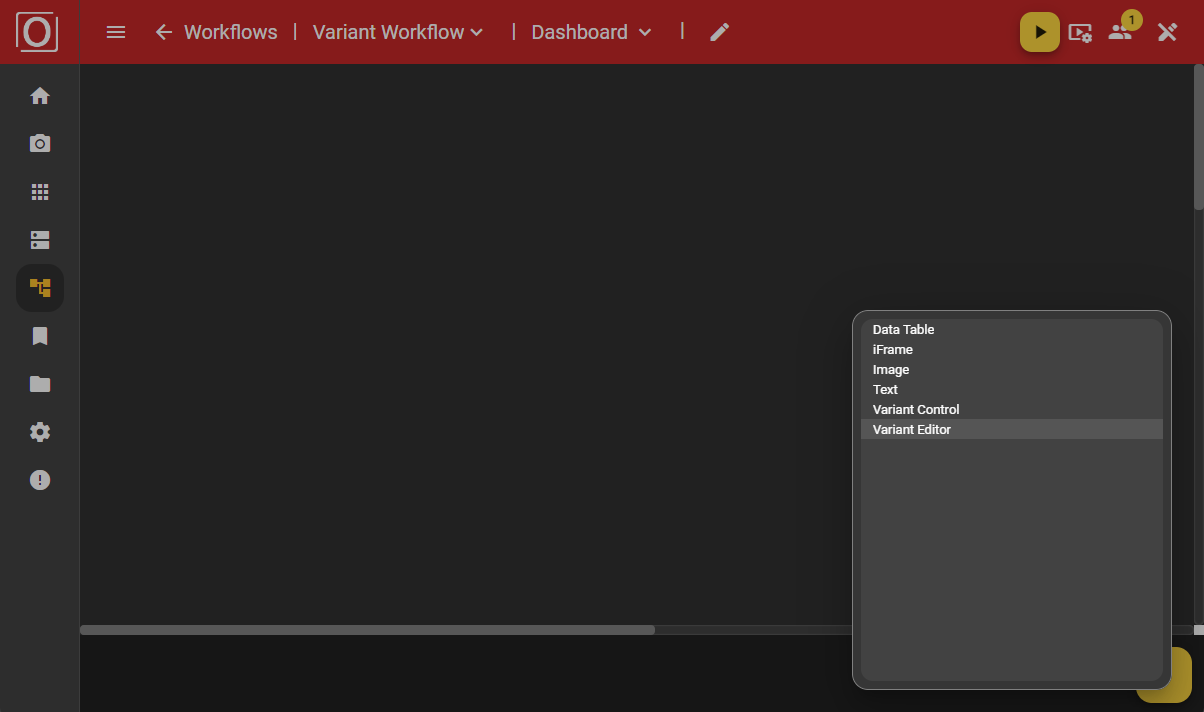
Add the “Variant editor” widget to the dashboard using the “Add” button.
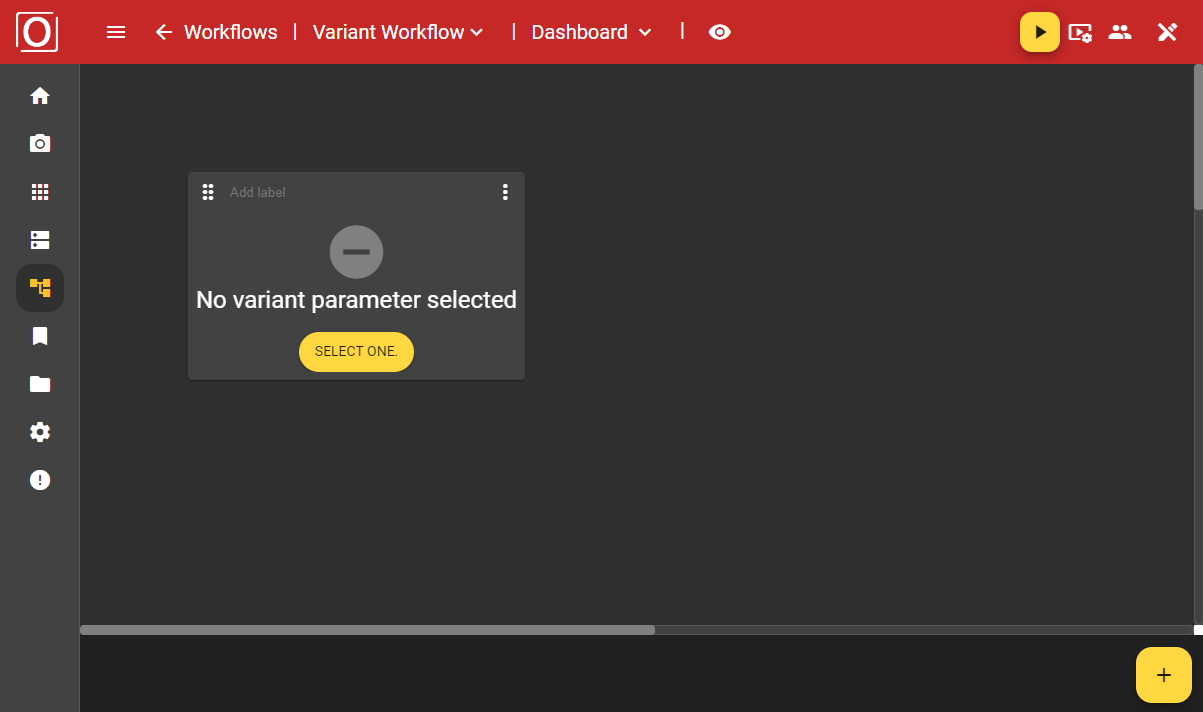
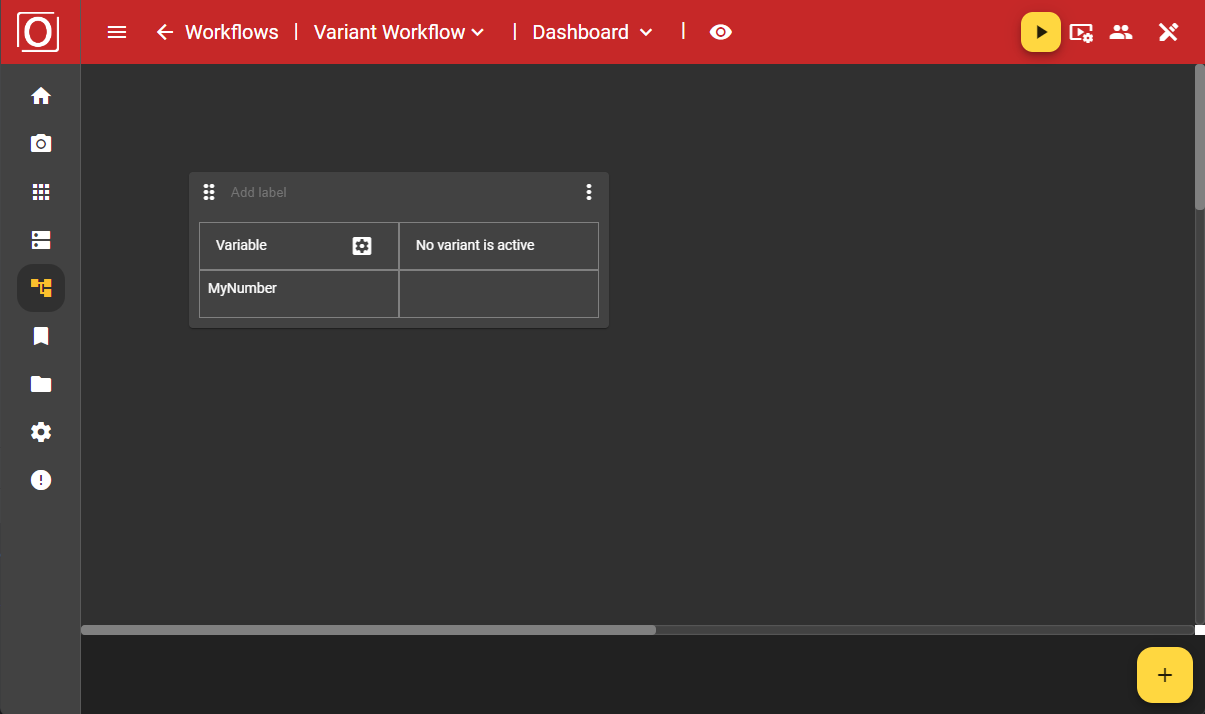
Initially, the widget is displayed in an empty state, but once your workflow is active, you can select the variant you want to use (instead) via a dropdown.
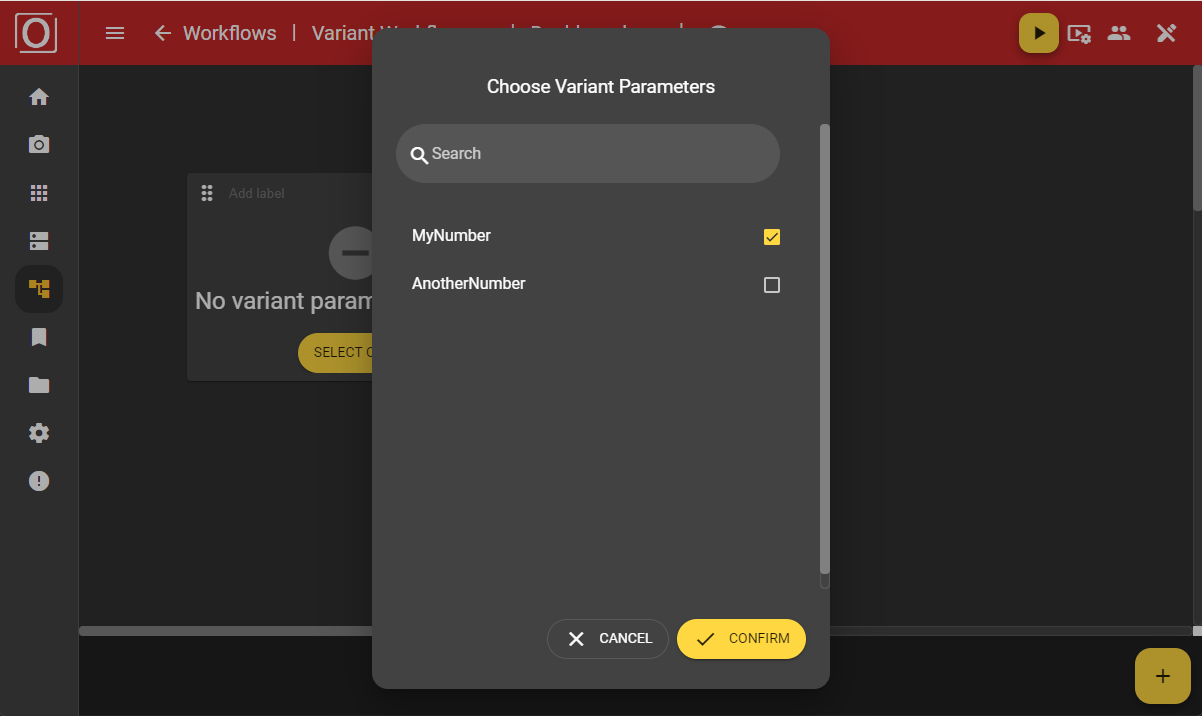
When you configure the “Variant editor” widget, you can select from all the parameters marked for variants in a dialog and have them displayed. If there are many parameters, it might be useful to use the search function.
Even after configuration, your widget continues to display in an empty state. However, once you activate your workflow by selecting the variant you want to use from a dropdown in the dialog, the configured values belonging to the active variant will be displayed.
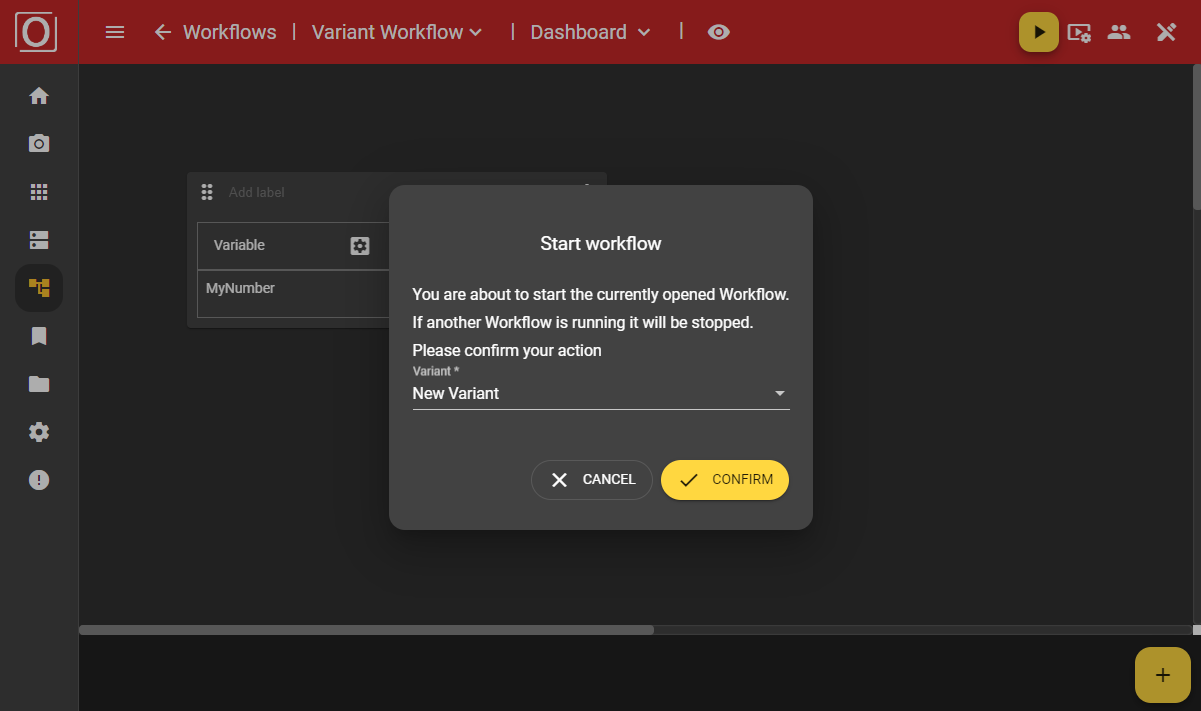
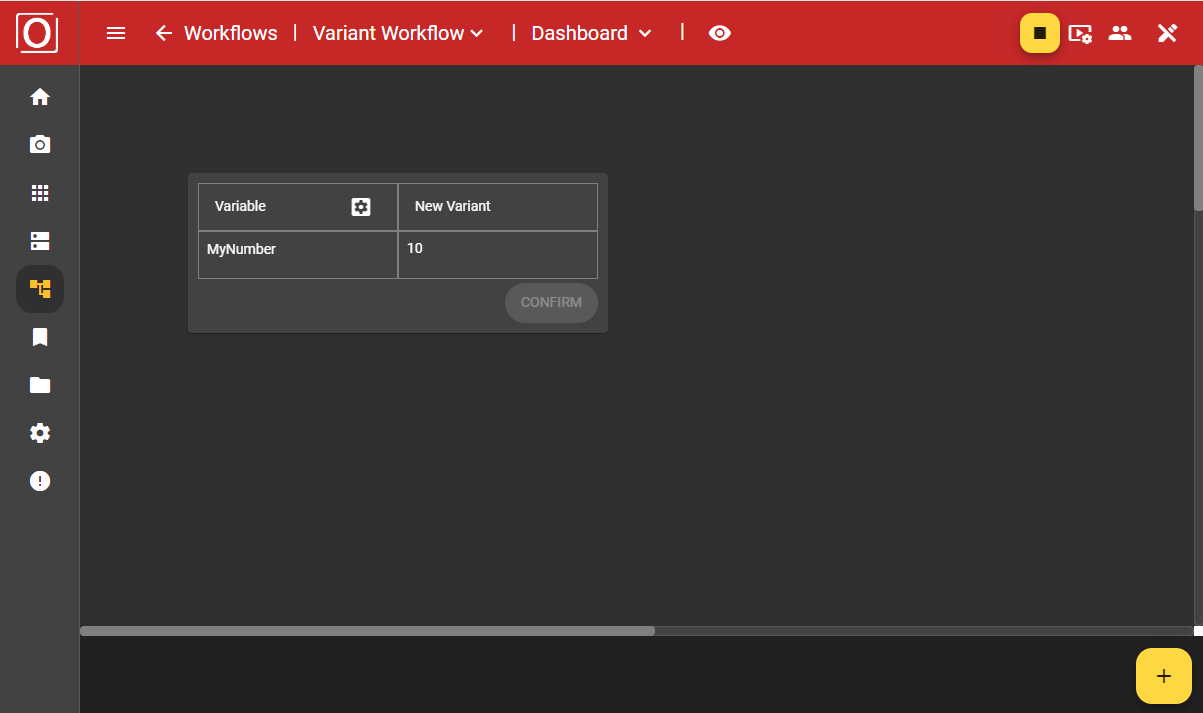
If you have started a workflow using a variant, the widget will be populated with the values of the currently used variant.
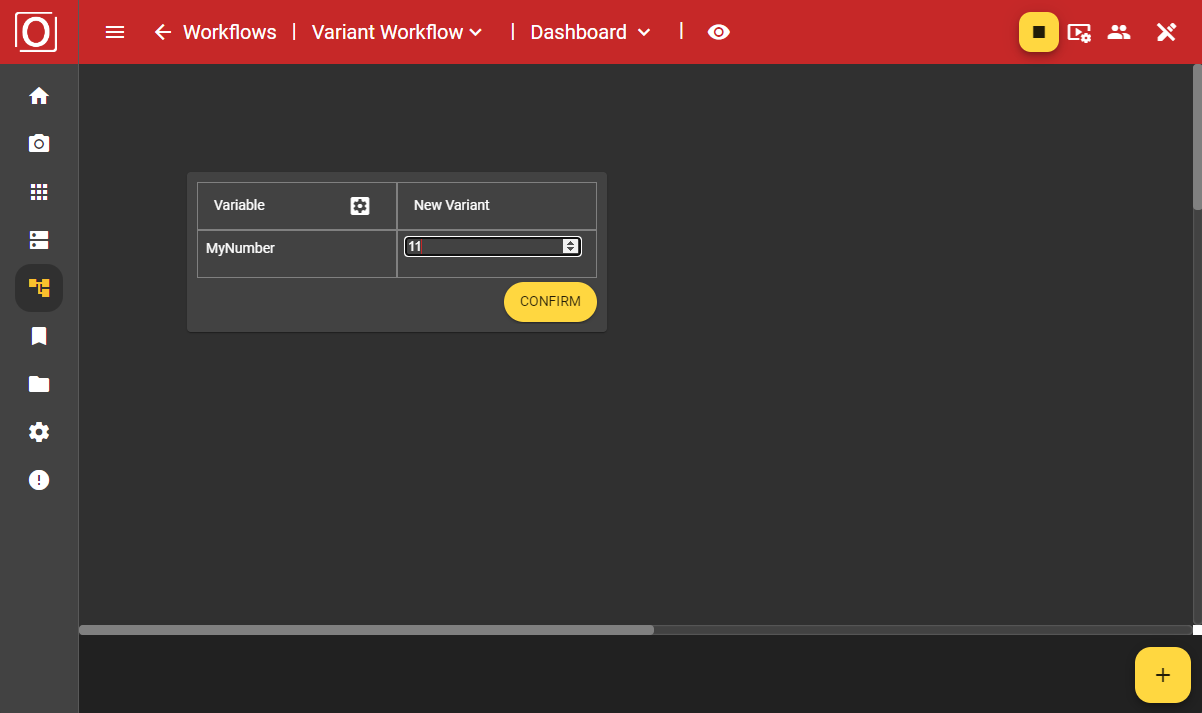
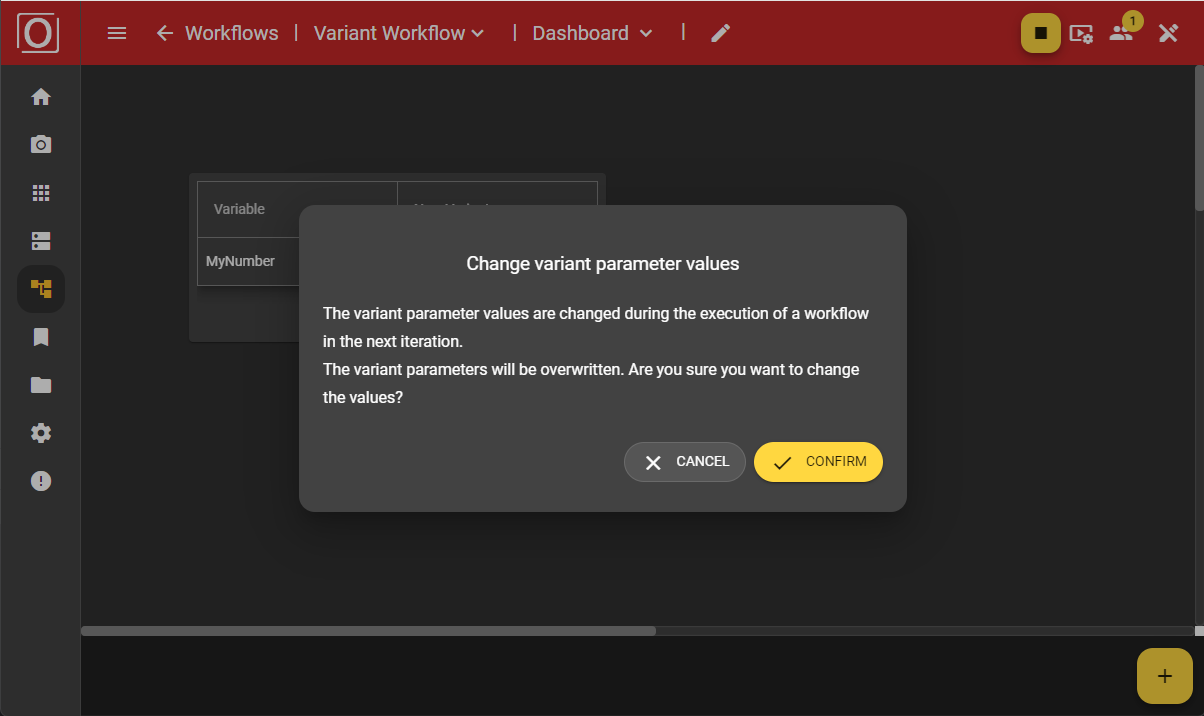
After your selection, you will be asked in a dialog whether you really want to use the new values of your variant parameter, as this will affect your ongoing process. Once you confirm the dialog, your workflow will operate with the new values.