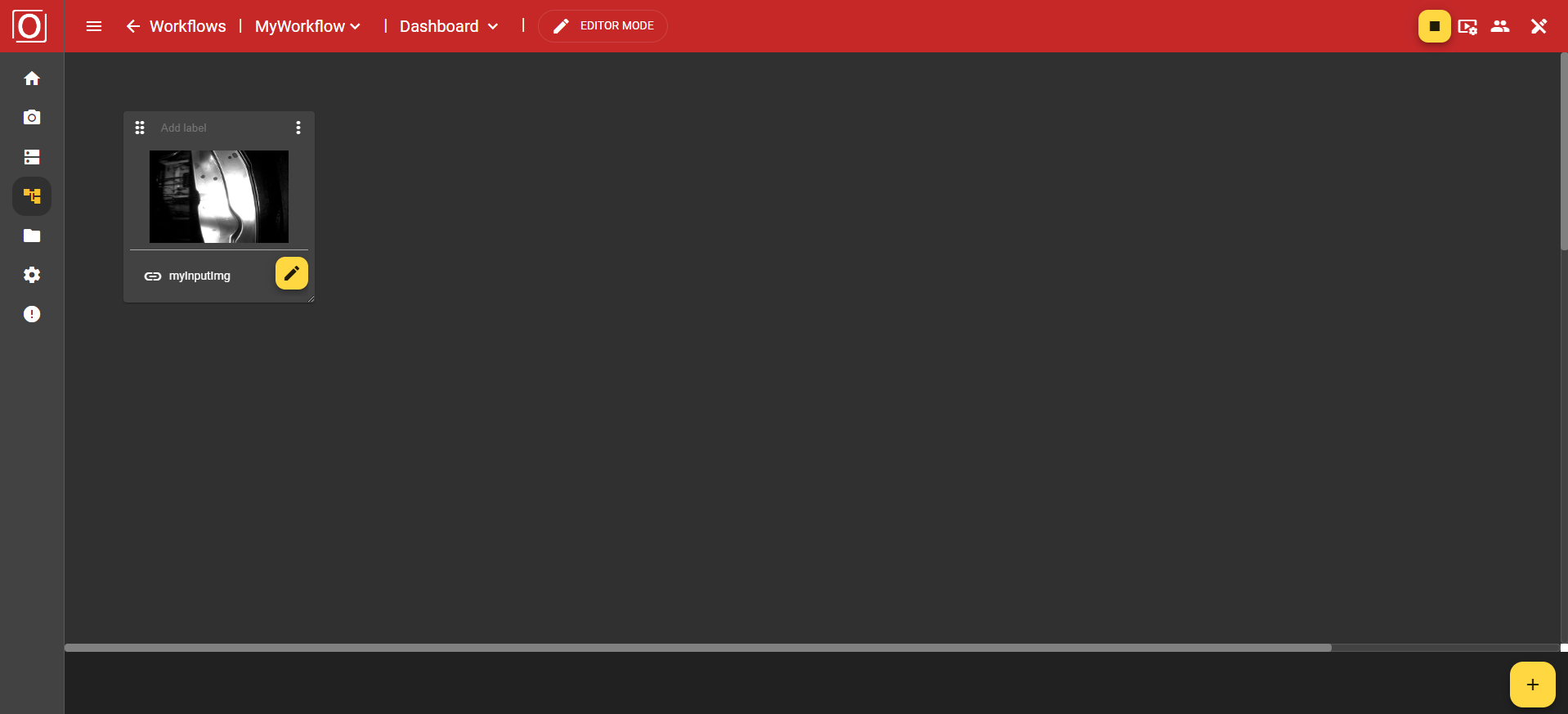
Image Widget
Here you have the option to display statically stored files from the File Manager or dynamically generated images from the currently active workflow. To display images from the workflow at runtime, you must save the captured image in a variable of type Image and enable the "Publish value" of the variable.
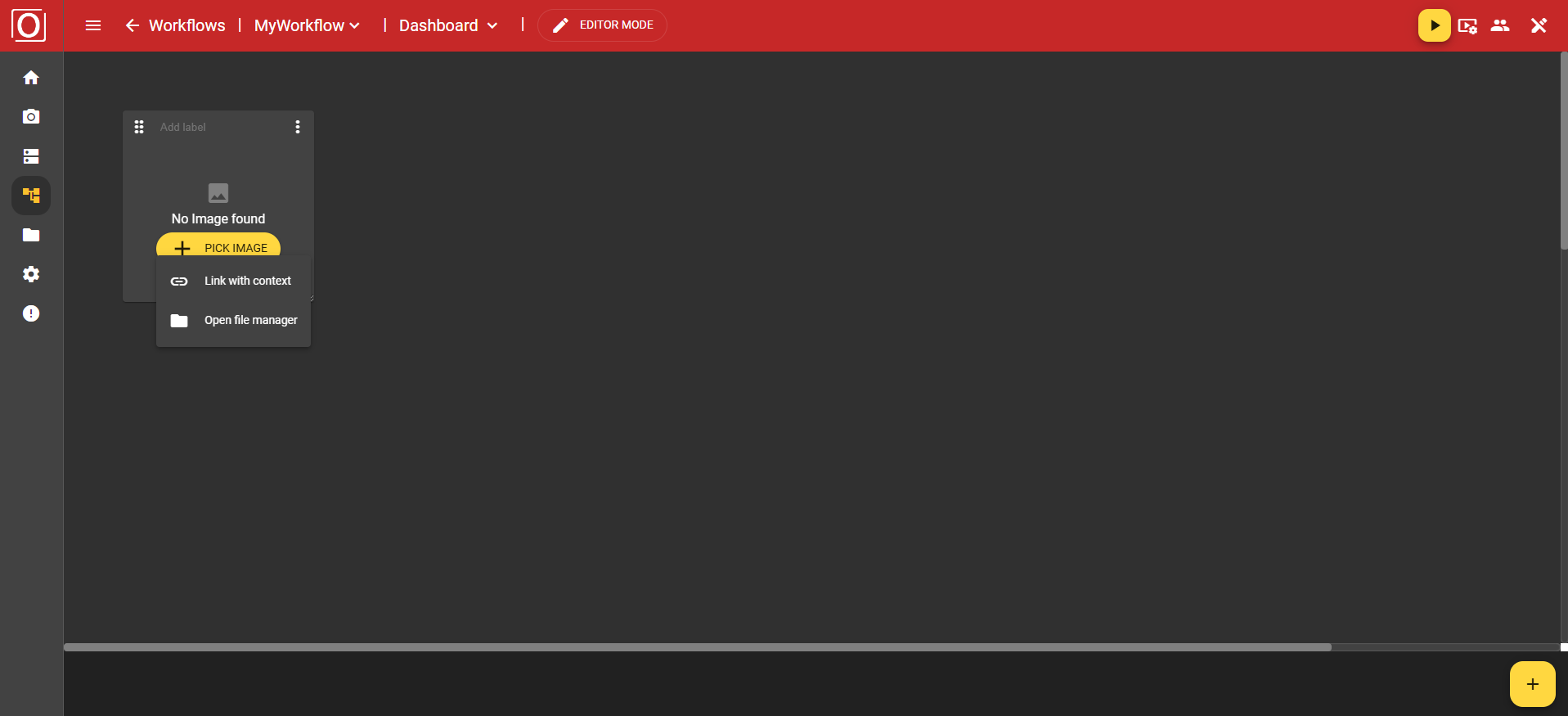
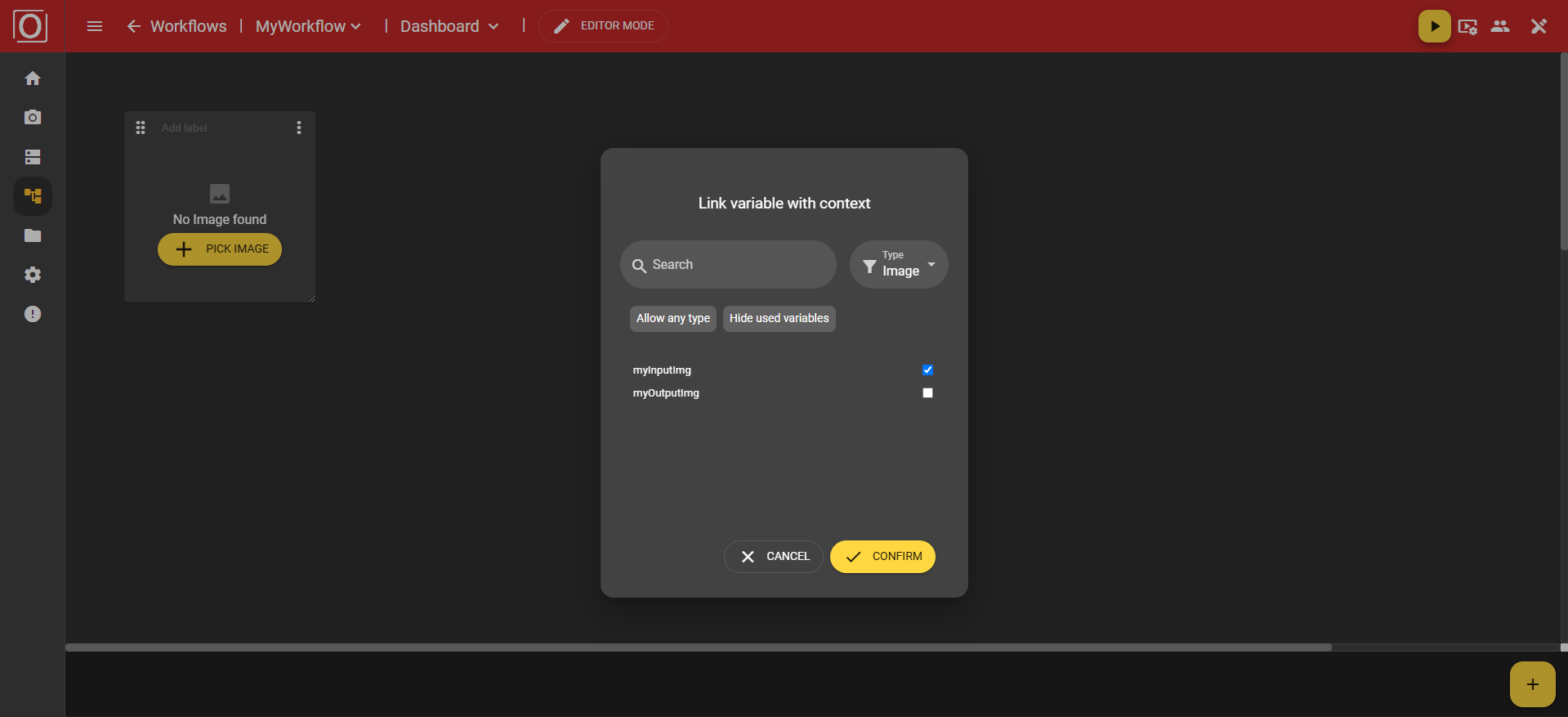
If you now click on the “Link with context” option in the menu, the previously mentioned dialog titled “Link variable with context” will appear. There, all variables of the boolean type are displayed, and you can activate exactly one for the widget using a checkbox. After selecting a variable, close the dialog by clicking the “Confirm” button.
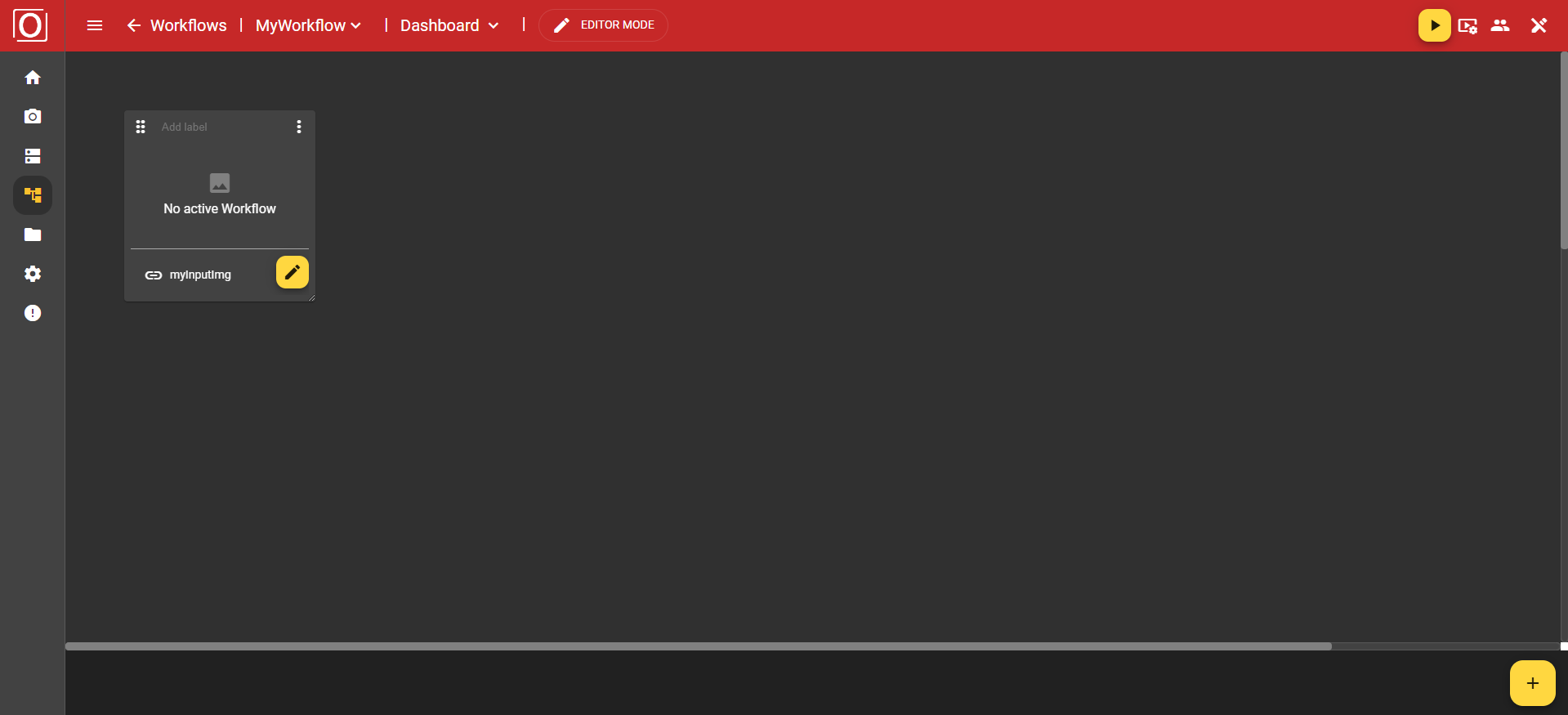
Once you have assigned a context to your widget, the view of your widget changes. You will not only see a changed message but also a new bar, which, next to the label of the selected variable, also contains a yellow button with a pencil icon. Both clicking the button and the label of the selected variable allow you to edit your selection.
Since your Image Widget is now fully configured, you can start the workflow. Once the first run has taken place and all variables have received values, the widget will automatically be populated with the content of the variable, that is, the captured image.