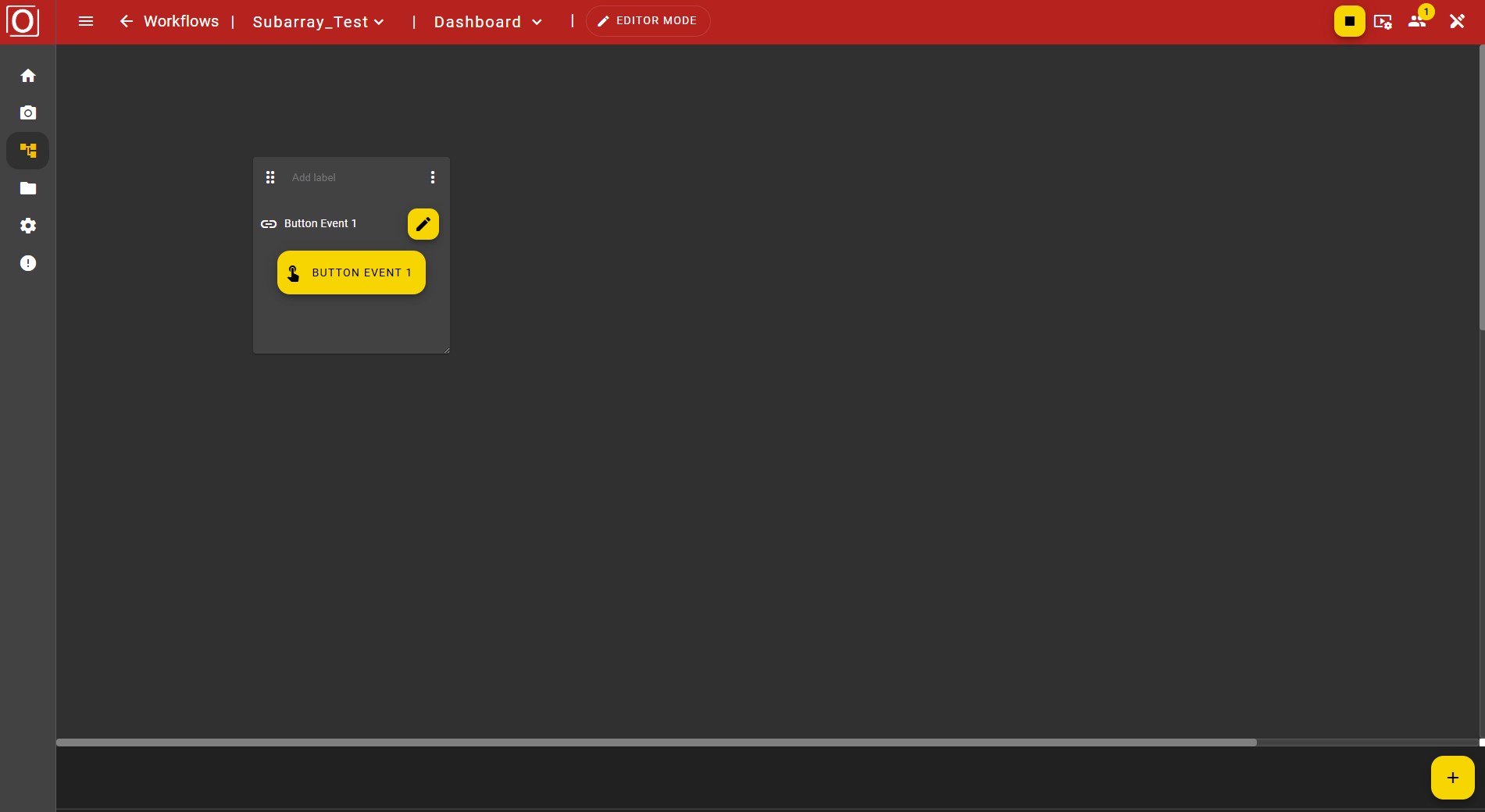
Event Trigger Widget
Add the “Event Trigger” widget to the dashboard using the “Add” button. If necessary, switch to Editor Mode first.
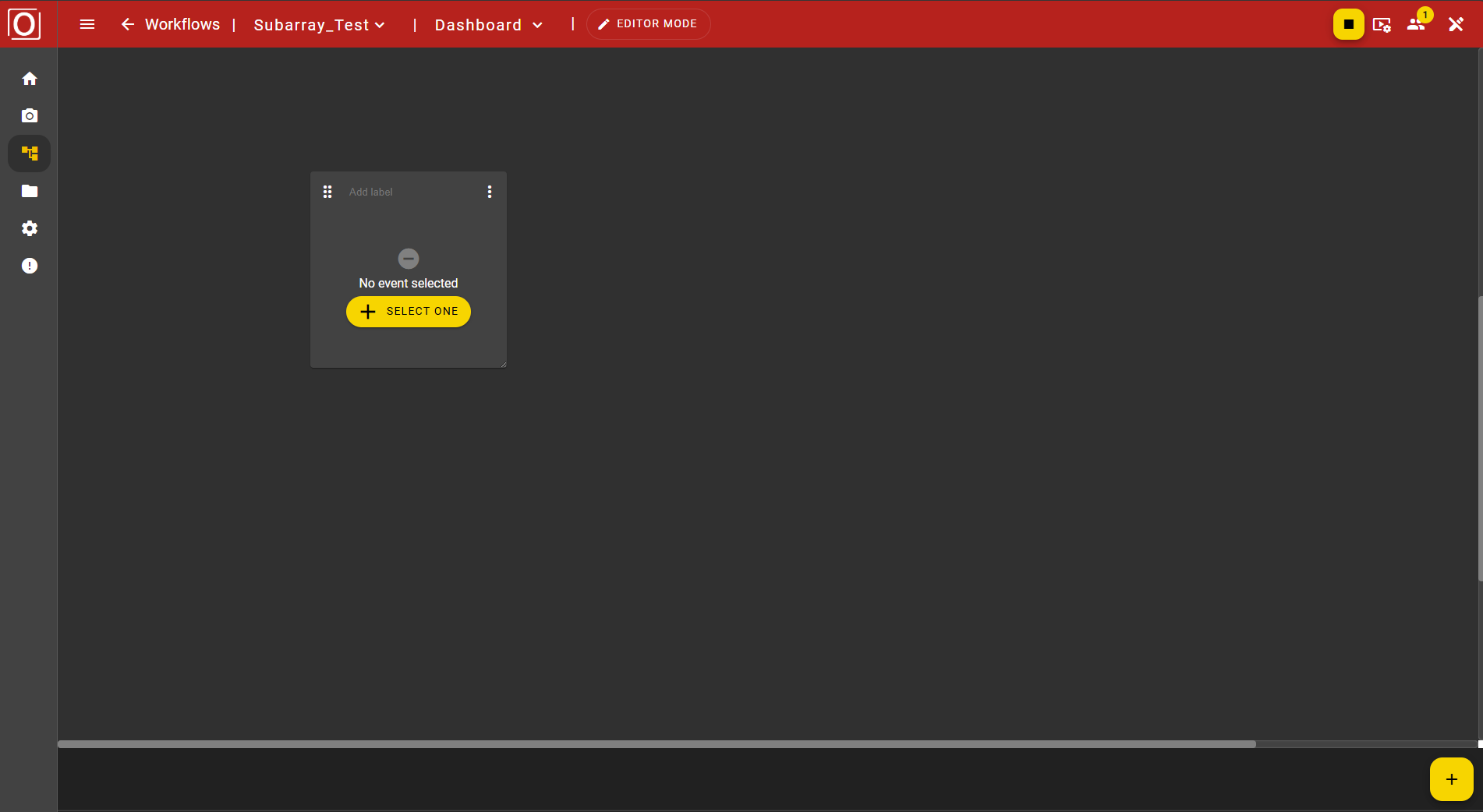
By clicking the button “select one” existing Button Events can be added.
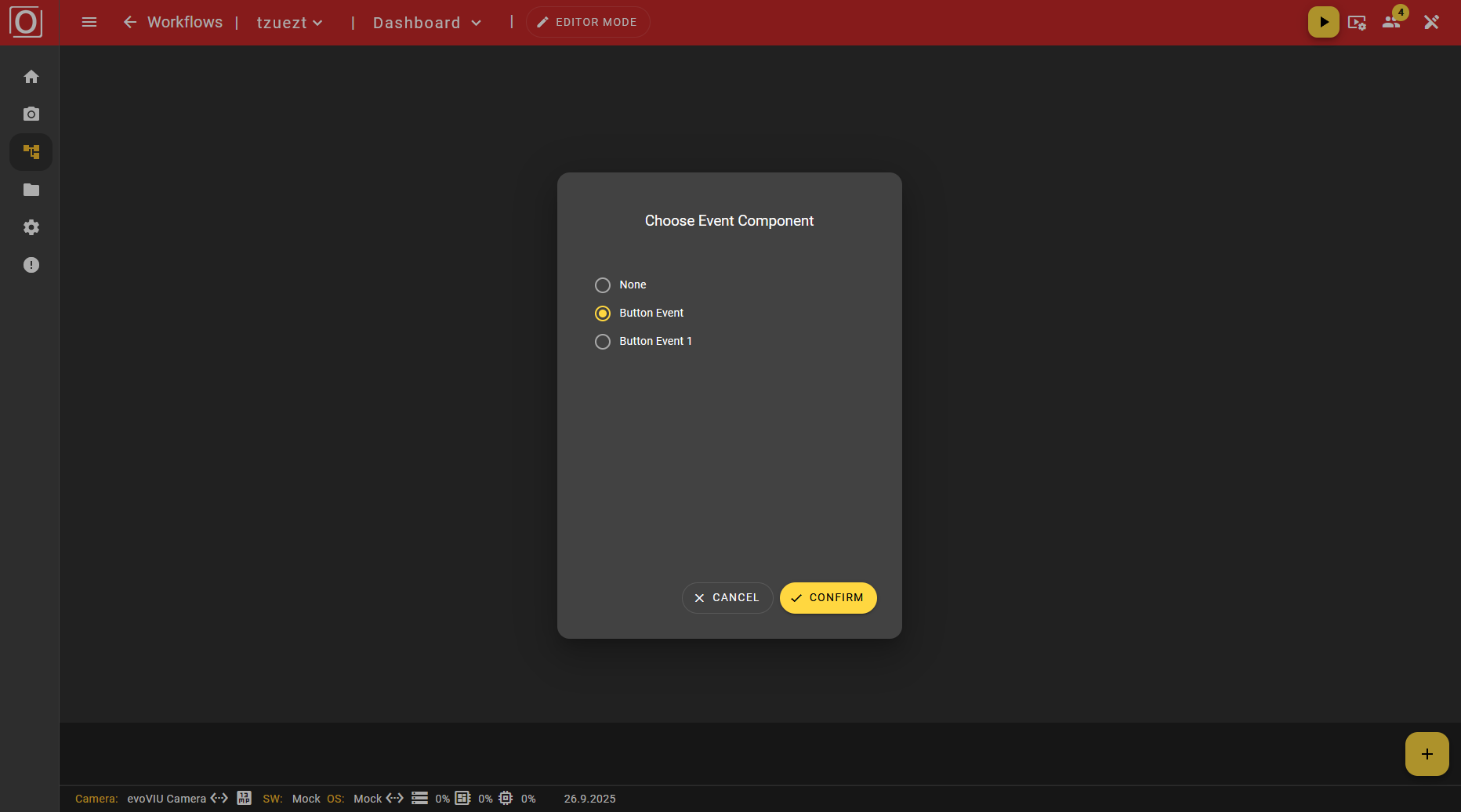
In the "Choose Event Components" dialog, select a Button Event from the list. To do this, check the box to the right of the Button Event name. Only one Button Event can be set. If you want to use another Button Event in the dashboard in parallel, a separate Event Trigger Widget must be created. The selected Button Event is now displayed in the widget with a button and the name of the Button Event. If the workflow is not started, the button is initially grayed out. When the workflow is started, the button is activated and can be clicked to trigger the event in the workflow.