
In addition to light control, the optics also play a crucial role in the quality of image acquisition. VISIONWEB allows the focus and other optical parameters of the evoVIU to be flexibly adjusted as long as a liquid lens is installed. This allows the image sharpness to be precisely adjusted to the respective object and the desired working distance. Different applications – such as the detection of fine structures, the inspection of shiny surfaces, or recording at variable distances – require precise control of the optics.
Dynamic focusing
The liquid lens is controlled by an upstream 8-bit driver, which applies a higher voltage to the lens bit by bit, thereby causing its deformation. This driver can be controlled directly via VISIONWEB. The basic functionality has already been described in the Image Source and can be applied there by selecting the component. However, if the liquid lens is to be controlled dynamically during runtime, this must be done separately via the workflow.
These settings are only available for cameras with liquid lenses. You can identify this by the model name: VIUXXX-XX[0…4]-XX-X
Preparation
-
Go to “+” under Components and look for the component “Eight Bit Lens” in the context menu - then select the entry, you do not need to make any further settings.

-
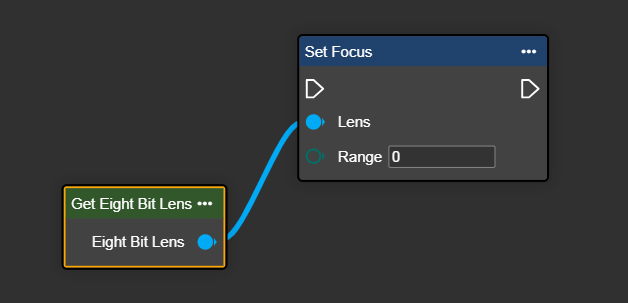
Find the "Set Focus" node and add it to your workflow. Link the "Set Focus" node to the "Eight Bit Lens" component, which is also located in the context menu.
-
Under Range, you can set the focus in a range from 0 to 254. Please note that a value of 0 completely disables the driver. The higher the value, the closer the object is to be focused.
-
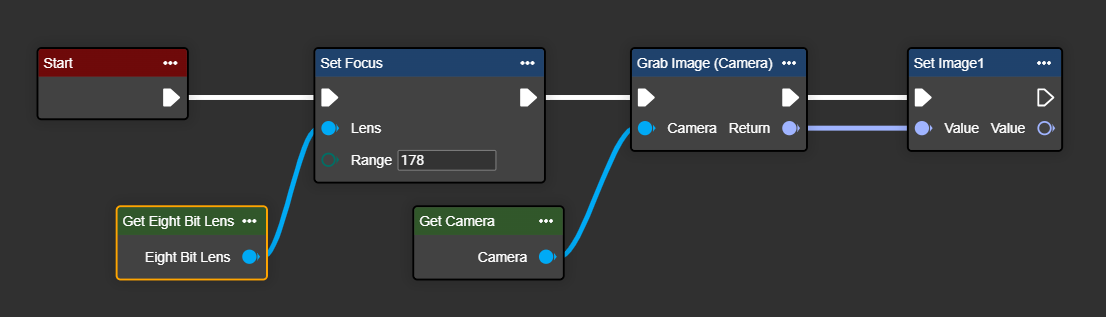
Next, add a Grab Image node to capture an image. The following example first adjusts the lens and then captures an image. A short delay may be required.
-
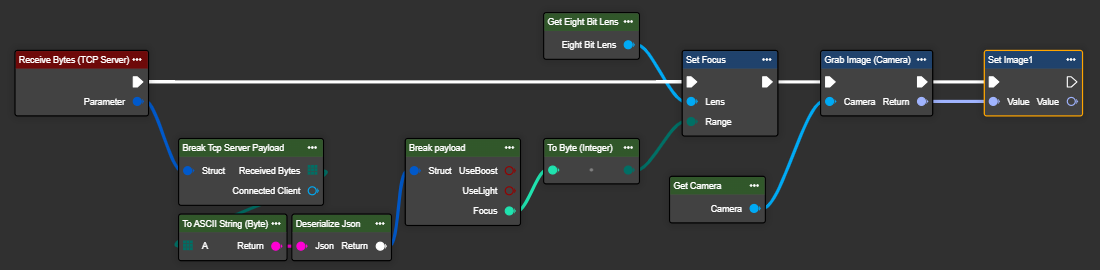
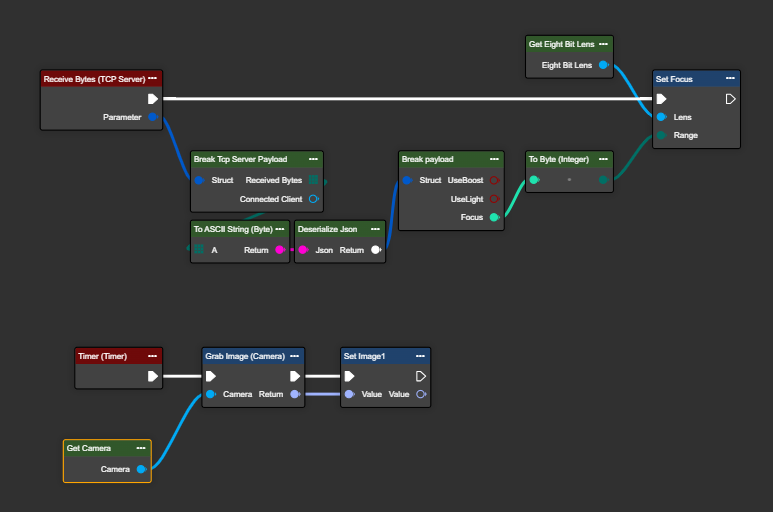
If the lens is to be controlled via an external protocol, this can be seamlessly integrated into the workflow. In the following example, we use a TCP/IP protocol; however, any other protocol can be used. The TCP server receives the following JSON telegram:
JSON{ "UseBoost": false, "UseLight": true, "Focus": 176 }The light is not connected, but the focus can be used. Each time a picture is taken, an image is saved with the transmitted focus value.
Notes and possible applications
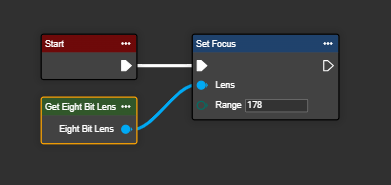
Setting focus in the start event
The example shows the focus setting at system startup. If the corresponding node is not re-set elsewhere, the focus setting remains static in the workflow.
Adjusting the focus during operation from external
The example shows the use of two separate flows: While the first flow captures an image every 300 ms, the second flow enables external control of the lens via the incoming protocol.
Congratulations – you can now successfully focus your camera lens.