Compile function
If a new workflow is created that, for example, also establishes a connection to external servers or services, activating this workflow could cause complications elsewhere. Often, you still want to know whether the developed workflow is complete and can be started. In this case, the Compile function can help.
The Compile function is located in the workflow in the upper right corner of the Event Graph tab. The status is visualized by a colored icon. The green check mark symbolizes a complete, functional workflow; the red exclamation mark, on the other hand, indicates errors. The yellow button with the autorenew icon located to the right of it can be used to trigger the compile process; the results are displayed immediately. An example:
Example
We add the Start and Grab Image (Camera) nodes to the Event Graph tab and connect them together. We then execute the compile function by clicking the yellow button and receive an error. But how do we handle this?
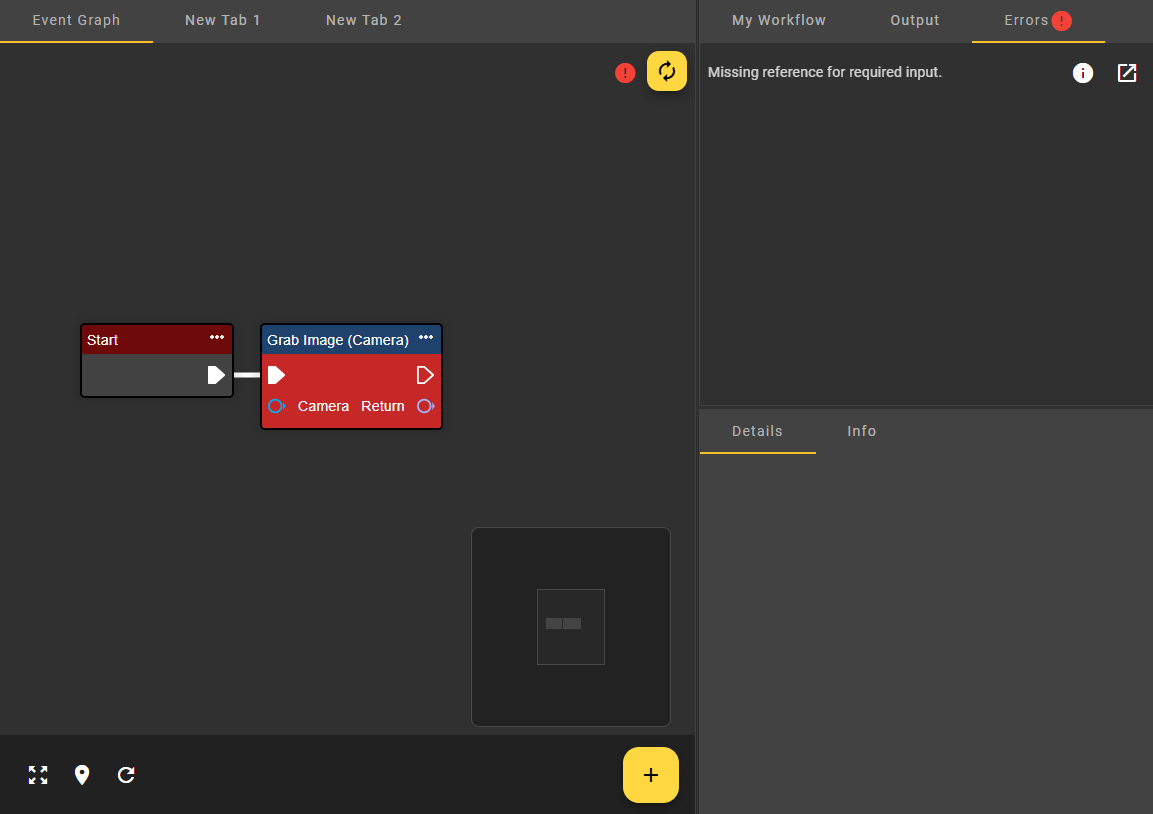
Error case
First, faulty nodes in the Event Graph tab are highlighted with a red background. Additionally, the result—in our case, an error—is displayed to the left of the yellow button for starting the compile function. Clicking this result selects the Errors tab. This tab is also highlighted with a red icon and lists the errors found. For further information and suggested solutions for troubleshooting, click the Info icon. Additional information is then displayed in the dialog.
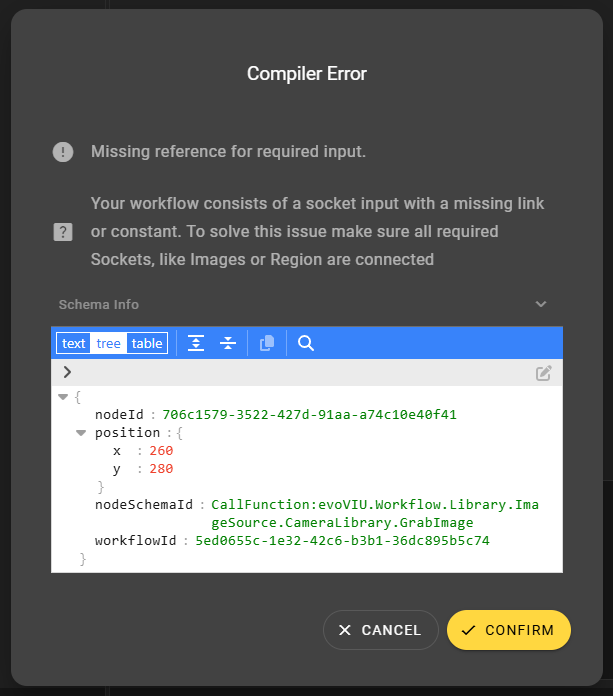
If the current faulty workflow is very large, it's best to use the button to the right of the info icon. This automatically jumps to the faulty node in the workflow, saving you the hassle of searching. This allows you to get to the right place quickly and easily.
Success case
But back to our actual example: We want to fix the error in the workflow. For the Grab Image node to execute, all inputs must be assigned. What's still missing is a camera. In this case, it can also be a file camera or image source. For this, a component must be created and added to the Event Graph tab. Once all nodes are connected, the Compile function can be called again. This time, we get a positive result. The Errors tab is also empty again. The workflow can therefore be started successfully.
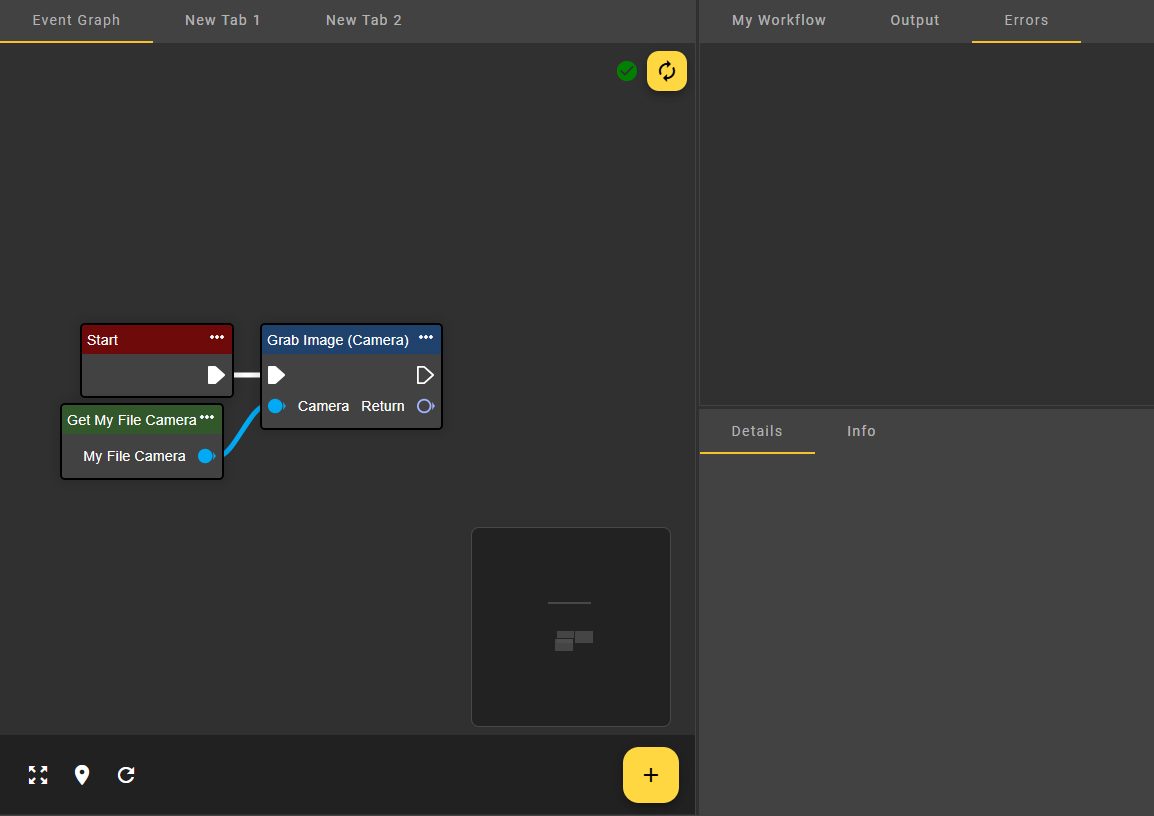
Error types
Depending on the application and configuration, different types of errors can occur. The following table provides an overview of the respective types, their causes, and the associated solutions.
|
Type |
Information |
|---|---|
|
Duplication Identifier Error |
The workflow contains multiple nodes with the same ID. To resolve this issue, the node must be removed and then added again. |
|
Unknown Node |
The workflow contains an unknown node schema for a specific node. To resolve this issue, this node must be removed. |
|
Dynamic Instance Count Not Defined |
The workflow attempted to use a dynamic socket, but it is not defined. |
|
Required Dynamic Instance Count Not Met |
The workflow could not be compiled. The required dynamic connections could not be established or are missing entirely. To resolve this issue, you must reconnect to the node. |
|
Missing Data Dependency |
The workflow contains an input slot that is missing a required parameter or value. To resolve this issue, ensure that all required slots, such as those for image files or regions, are correctly connected. |
|
Link To Unknown Socket |
The workflow contains at least one link to an unknown socket. Occurs after an update if nodes have changed. |
|
Link To Dynamic Socket Without Instance |
The workflow contains at least one reference to a dynamic connector for which no instance exists. To resolve this issue, the faulty reference must be removed. |
|
Link To Unknown Dynamic Socket |
The workflow contains at least one link to an unknown dynamic socket. To resolve this issue, the faulty link must be removed. |
|
Link To Unknown Node |
The workflow contains at least one link to an unknown node. To resolve this issue, the broken link must be removed. |
|
Link On Same Node |
The workflow contains at least one link that points to the same node. To resolve this issue, the broken link must be removed. |
|
Link Between Incompatible Sockets |
The workflow contains at least one connection between incompatible ports. To resolve this issue, this faulty connection must be removed. |
|
Ambiguous Execution Dependency |
The workflow contains an execution starting point that is connected to at least two execution input ports. To resolve this issue, ensure that the execution starting point is connected to only one input port. |
|
Ambiguous Data Dependency |
The workflow contains a data input slot connected to at least two outputs. To resolve this issue, ensure that the data input slot is connected to only one output. |
|
Cyclic Data Dependency |
The workflow contains a node that references its predecessor. To resolve this issue, remove the reference to the predecessor. |
|
Cyclic Execution Dependency |
The workflow contains a link that causes a loop. To resolve this issue, the link to the previous step must be removed. |
|
Undefined Wildcard Type |
The workflow contains a placeholder slot that is not defined. |
|
Ambiguous Wildcard Type |
The workflow contains a placeholder slot whose type cannot be determined because there are multiple choices. |
|
Reference To Loop Variable Outside Of Body |
The workflow contains a variable or link that exits the loop. |
|
Break Loop Outside Of Body |
Your workflow contains an input parameter to end the loop, but it is positioned outside the loop. |
|
Illegal Constant |
The workflow contains a constant with an invalid configuration. This means that the constant points to an output, an unknown port, an execution port, or a port that uses two constants as input data. |
|
Missing Secret |
The workflow contains a variable that requires a secret key, but the secret key is missing. To resolve this issue, a secret key must be added to the variable. |
|
Validation Error |
The workflow contains a constant that does not match all validation rules. |
|
Invalid Constant Type Mismatch |
The workflow contains an input type that does not match the expected type and therefore cannot be converted. |
|
Invalid Constant Missing Member |
The workflow contains an input type that refers to a non-existent element. |
|
Invalid Constant Unknown Member |
The workflow contains an input type that does not reference a known constant member. |
|
Missing Component Settings |
The workflow contains at least one element with missing values. To resolve this issue, the missing values must be specified for the constants of the respective element. |
|
Missing Function Return |
The workflow contains a custom function without a return value. To resolve this issue, a return value must be added to the custom function. |
|
Missing Function Function Entry |
The workflow contains a custom function without a start node. To resolve this issue, a start node must be added to the custom function. |
|
Multiple Function Entires |
The workflow contains a custom function with multiple entry nodes. To resolve this issue, the additional entry nodes must be removed from the custom function. Only a single entry node is allowed. |
|
Recursive Function Calls |
The workflow contains a custom function that results in recursive calls. To resolve this issue, the links must be deleted and re-added. |
|
Illegal Node |
The workflow contains at least one node that is used in the wrong place. To resolve this issue, the faulty node must be removed. |
|
Variant Parameter Not Provided |
The workflow contains at least one variant parameter for which no value has been specified. To resolve this issue, a value must be specified for this variant parameter. |
Schema validations
Changed component settings
Due to software updates and the continuous development of the system, components can change over time. For example, previously functional components may suddenly no longer function due to missing settings. In this case, changed component settings can be identified by the component's warning icon and the component's Details tab.
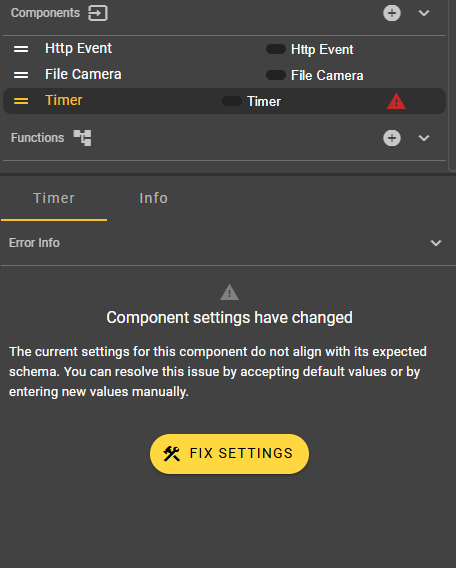
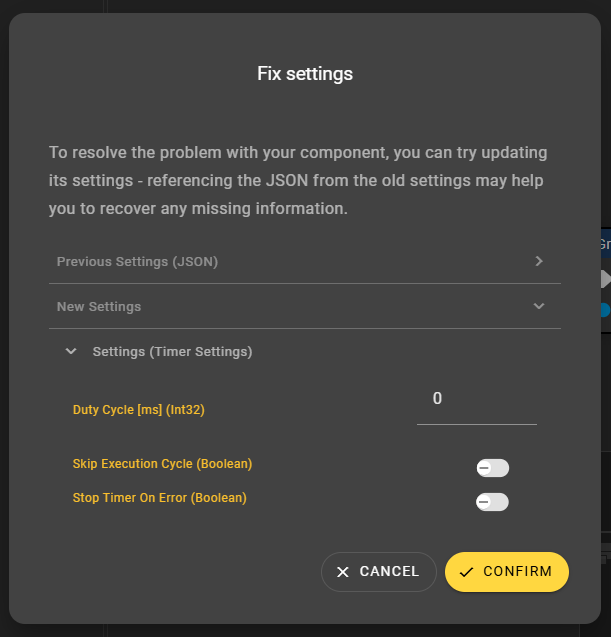
The "Fix Settings" button opens a dialog with explanations and suggested solutions so that the problem can be resolved in seconds. Confirmation of the dialog is required; canceling the dialog will retain the current state.
In this dialog, you can always compare the current settings with the new, required settings. To do so, you may need to expand the area.
Orphan constants
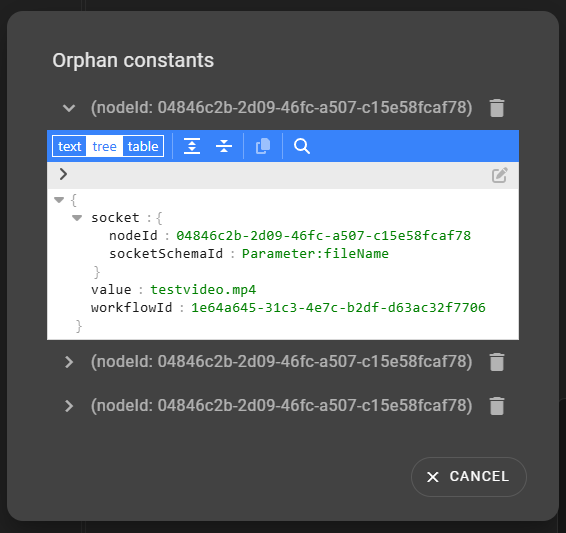
Similar to changes to component settings, constants can also be corrupted after an update. Constants can become orphaned, for example, if a link no longer exists. In this case, a bar with a notification appears in the "Event Graph" tab at the top of the screen.

The "Show" button displays further details to gain a better understanding of the error. The entries can be expanded in the dialog, for example, to provide detailed information about the schema. Furthermore, the errors can be corrected using the trash can button.