In this chapter you will find general information on using Secrets on the evoVIU camera.
Introduction
Your secret information is stored securely in the Secret Store. For example, you can store sensitive data required for verification when establishing a connection, in this case character strings.
Overview page
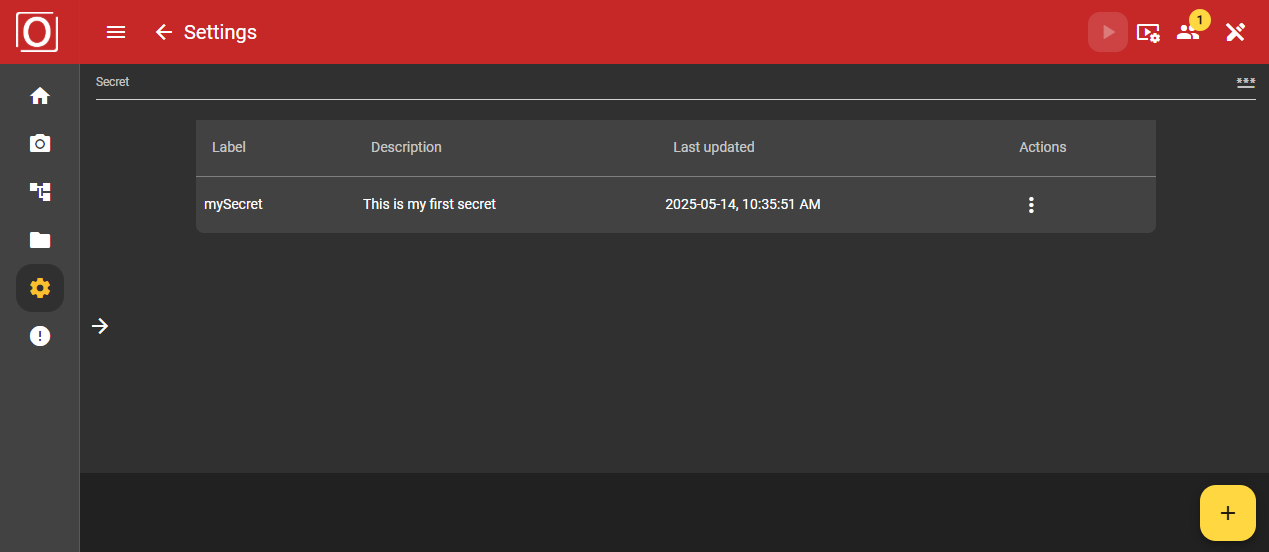
You can access the overview page with a list of all available secrets and the management options via the Settings area. In addition to other settings areas, you will also find the Secret area, which is responsible for managing your sensitive data.
When you initially open the application, no secrets will be available. You will see a blank screen with the message that no secrets have been created yet.
Adding a secret
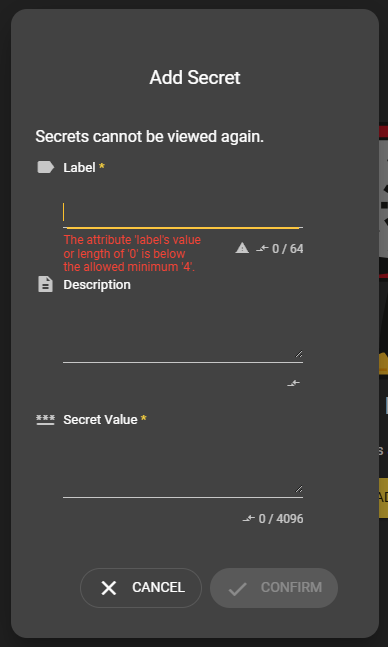
A secret can be added at any time via the bottom app bar, the lower screen bar, using the yellow + button. A dialog opens that requires an entry for certain attributes. You can determine the content of the input yourself, provided certain conditions such as a minimum character length are met.
Label
Assign a meaningful label here, as you must work with this key when using Secrets, which cannot be changed later. Labels with a minimum length of 4 characters and a maximum length of 64 characters are permitted. This field is also mandatory and must be filled with content.
Description
Entering a description is optional, but can be very helpful if you want to describe the secret or the intended use in more detail.
Secret value
The secret value represents the password. This field is mandatory and must not be empty. It is also not possible to view this value again at a later date, but changes can be made at any time.
Editing a secret
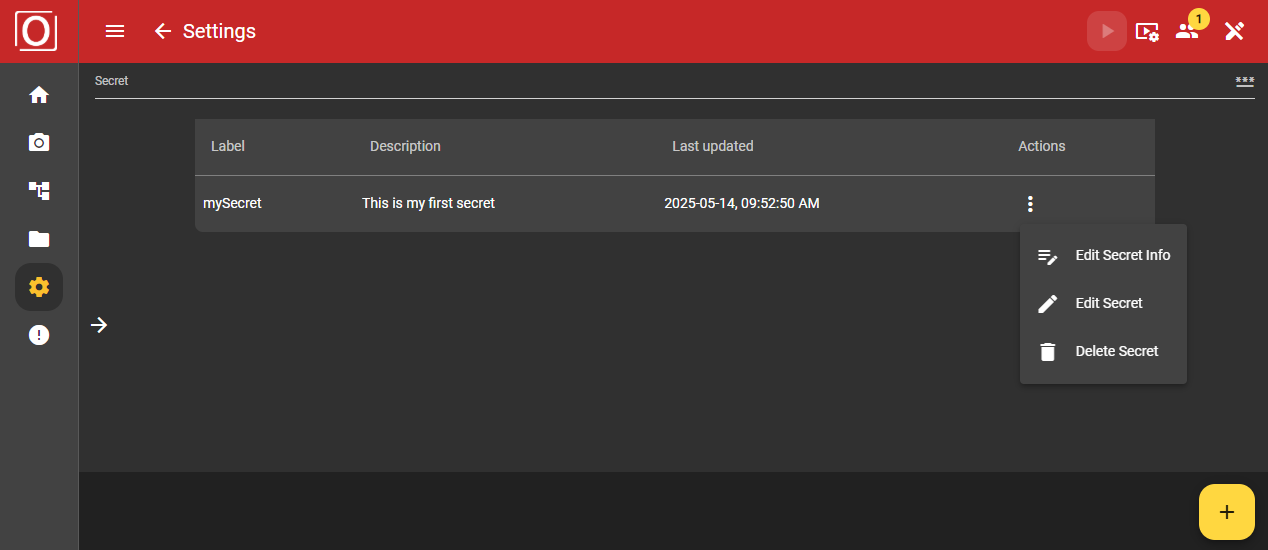
Secrets can only be edited if at least one secret is available. To be able to edit a secret, you must click on the button with the three vertically arranged dots in the table under the Actions column on the overview page of the secrets, which opens a menu. In this menu, you can manage the general information about the secret, but also change the content of your secret.
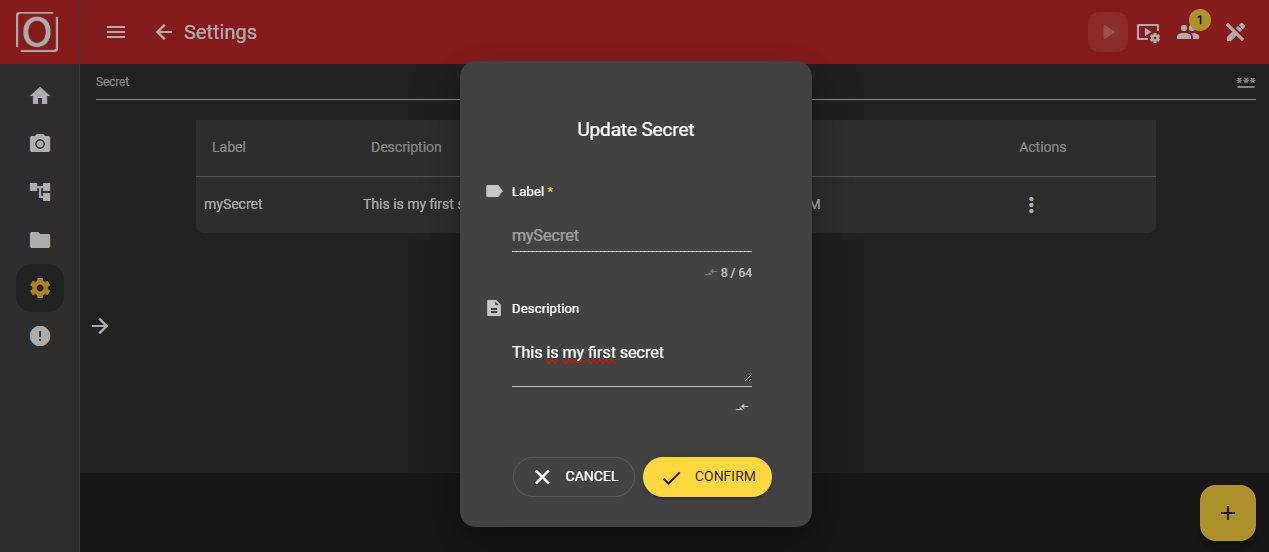
Editing the secret info
The Edit Secret Info option opens a dialog for editing the description. The label, on the other hand, can only be read but not edited.
Editing the secret value
The Edit Secret option opens a dialog for editing the secret value. As previously mentioned, you cannot view the current value, but can only reassign it.
Removing a secret
Secrets can be removed using the Remove Secret option. You will be prompted again in a dialog to confirm the removal of the secret. Once you have done this, the dialog is automatically closed and the secret is no longer displayed in the list.
Important: There are currently no usages for Secrets. Please ensure yourself that all required data is always available.
Using a secret
You will need to access secrets at various points in the application. Examples include verification data for connections in the workflow that require a password in the form of a secret. Secrets can be easily recognized by the following illustration:

Secret Picker dialog
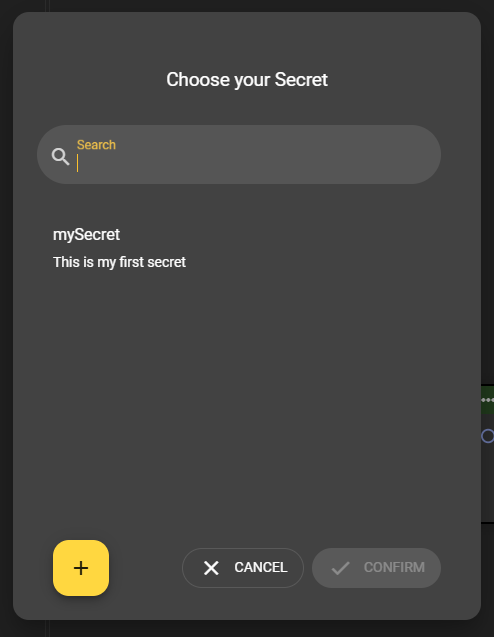
You will immediately see that the circle is now complete. If you need to store a secret, click on the password icon shown above. The Secret Picker dialog for selecting a secret then opens. All existing secrets and their descriptions are listed here. As soon as you have selected a secret in the dialog, you can confirm the dialog and the secret you have selected will be set automatically.
You can also create a new secret in the dialog and then select it.