
In this chapter, you will learn how to use bookmarks. Bookmarks are a type of placeholder to which you can assign a value and then reference again and again. Even if values change, the reference remains the same.
Introduction
If you have to repeatedly store certain values in different places in the application, bookmarks are your salvation. Thanks to the bookmarks, you only have to change the value in one place and can refer to it at any time. This means you hardly need to make any changes if you want to import a workflow from one camera to another, as the settings are saved via bookmarks.
You can access the bookmarks via the settings. As soon as you open the area, you will see a ready-made collection of bookmarks, but it is also possible to create your own individual bookmarks at any time.
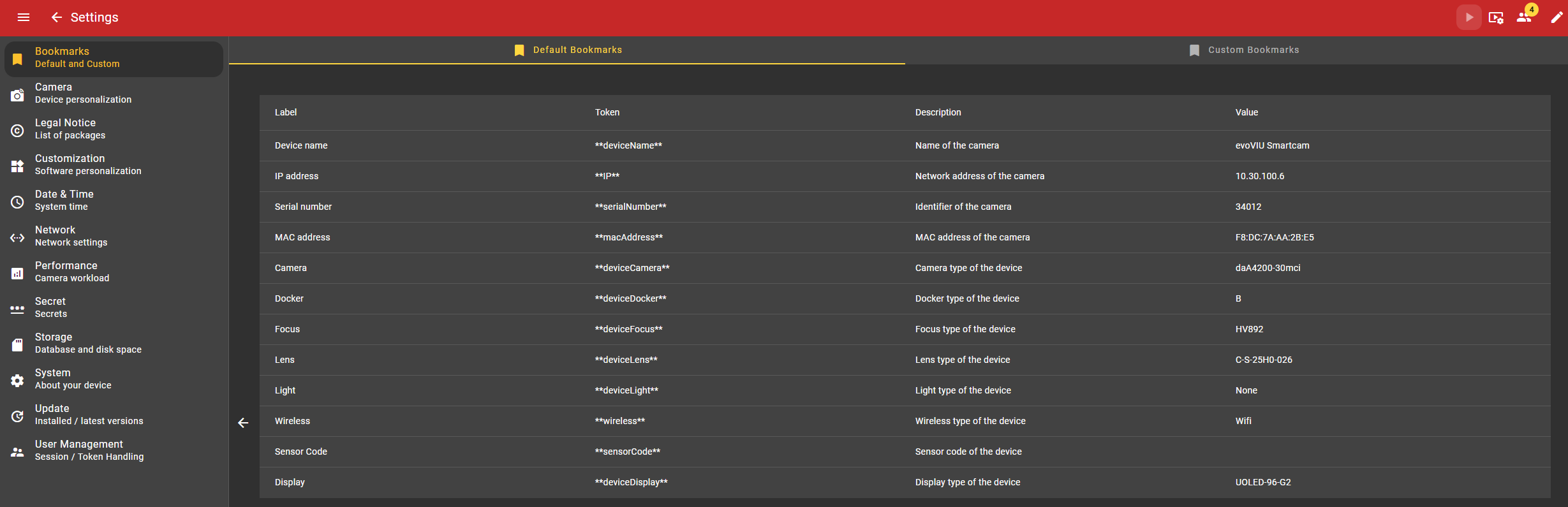
You can recognize bookmarks in the application by the fact that they have two asterisks (**) before and after the label.
Default bookmarks
The following default bookmarks are currently available:
|
Label |
Token |
Description |
|---|---|---|
|
Device name |
**deviceName** |
Name of the camera |
|
IP address |
**IP** |
Network address of the camera |
|
Serial number |
**serialNumber** |
Serial number of the camera |
|
MAC address |
**macAddress** |
MAC-Adress of the camera |
|
Camera |
**deviceCamera** |
Camera type of the device |
|
Docker |
**deviceDocker** |
Docker type of the device |
|
Focus |
**deviceFocus** |
Focus type of the device |
|
Lens |
**deviceLens** |
Lens type of the device |
|
Light |
**deviceLight** |
Light type of the device |
|
Wireless |
**wireless** |
WiFi type of the device |
|
Sensor Code |
**sensorCode** |
Sensor code of the device |
|
Display |
**deviceDisplay** |
Display type of the device |
You can use these bookmarks at any time in all places that require text input.
Custom bookmarks
Creating bookmarks
Under Custom Bookmarks you can either click on the Create Bookmark button or the Add Bookmark button to create your first individual bookmark.
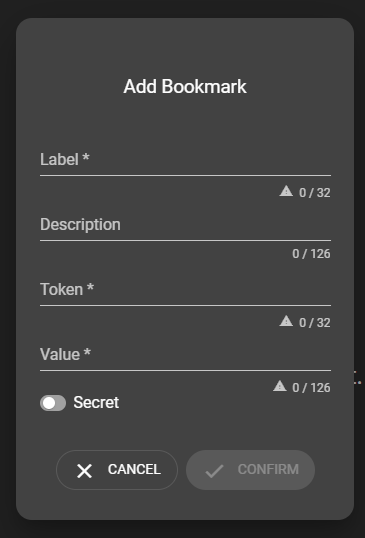
Label
Give your bookmark a meaningful label.
Description
Describe why you have created this bookmark and the value behind it. This can help other users of the camera.
Token
You can use the token to reference your bookmark. The token is always displayed within the **. For default bookmarks, the token always corresponds to the label.
Value
Here you enter the value that is resolved via the bookmark.
Manage bookmarks
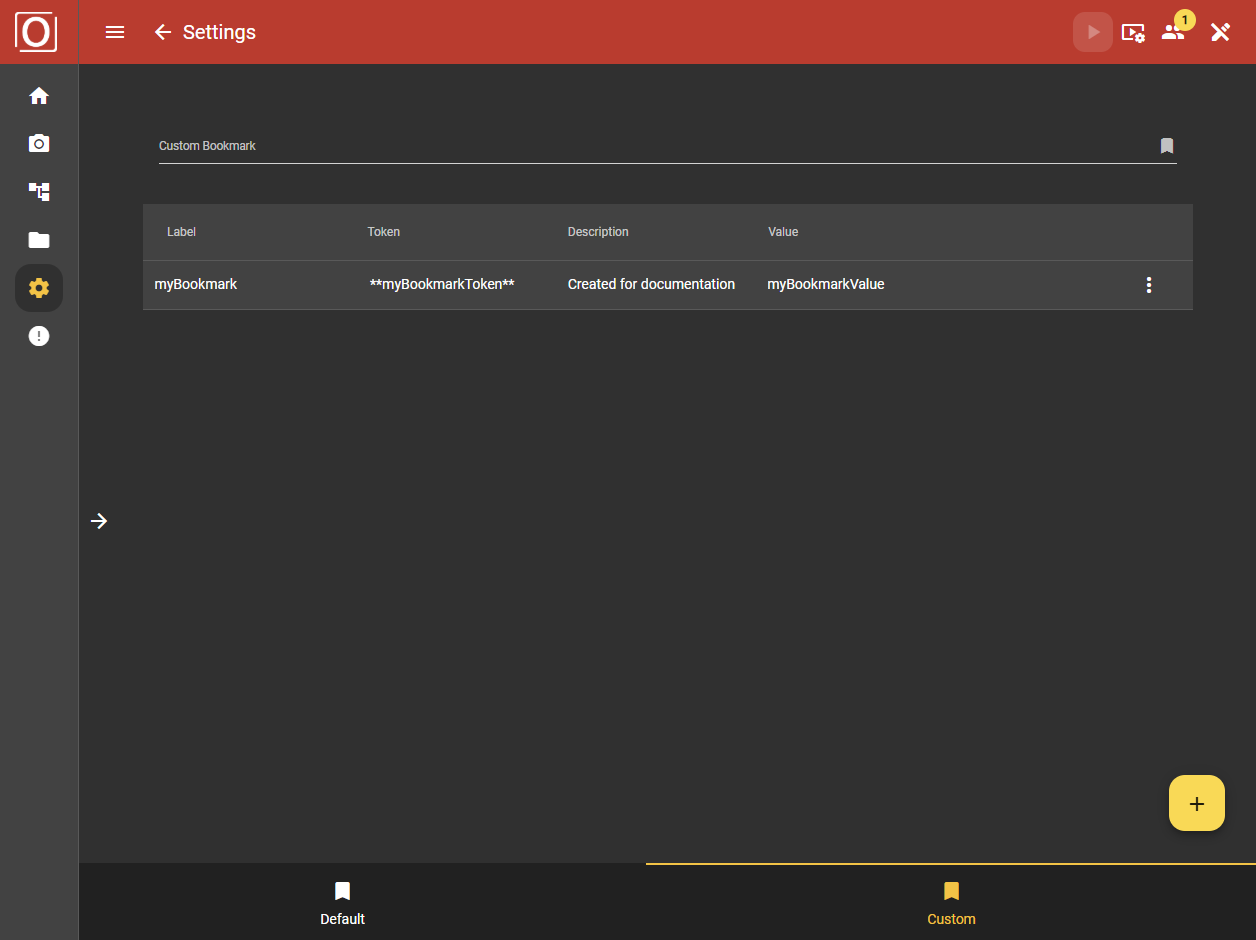
Editing bookmarks
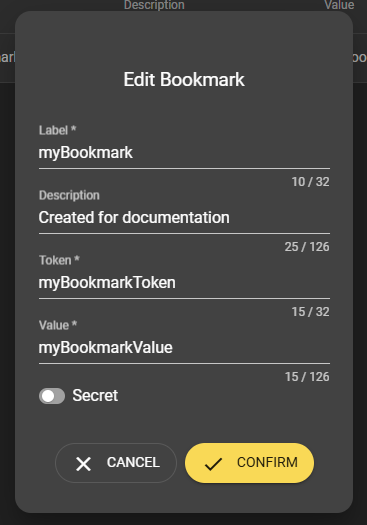
In the table overview of the Custom Bookmarks tab, you can select the Edit option via the menu with the three vertically arranged dots. This opens the dialog that you already know from creating a bookmark, with the difference that this dialog is pre-filled with the previously entered information. Here you can make the desired changes and confirm them.
Removing bookmarks
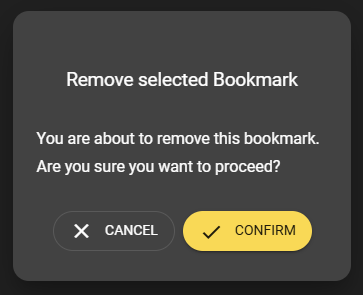
If you no longer need bookmarks that have already been created, you can open the menu shown with the three vertical dots and select the Remove option. In a dialog, you will be asked again to confirm the action you have taken so that the removal of the bookmark is finally implemented. The entry will then no longer appear in the table overview of the Custom Bookmarks tab.
Use of bookmarks
Indicator for the possibility of using bookmarks
Whenever you see this combination of icons, you can use bookmarks at this point. Click on the icon on the left to open a dialog.

Setting a bookmark
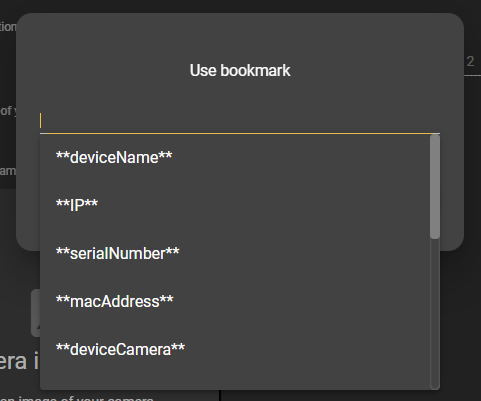
As soon as you click on the input field, a list of all default and custom bookmarks opens. Select the bookmark you require here and combine it with additional text if required. You also have the option of selecting several bookmarks.
Dissolving bookmarks
As soon as the bookmark icon is displayed in yellow, you know that a bookmark is stored here. By clicking on the arrow icon, you can switch back and forth between the token and the resolved value.
