
On the "Plugins" page in the settings, you manage optional extensions of the evoVIU software. Plugins expand functionality and provide additional nodes, components, or data types. The page displays installed plugins, their status, and allows installation, activation, deactivation, as well as removal of individual plugins.
Important information in advance:
-
Only files with the extension
.viupluginare supported. -
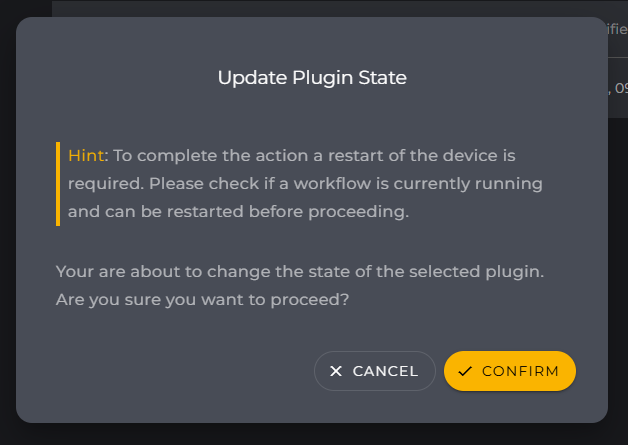
The system will automatically restart after each activation/deactivation or installation action upon confirmation of the dialog.
-
Only administrators can manage plugins; editors can use plugins, for example, in the workflow.
-
You can grant admin rights in the "User Management" area.
Requirements for Plugin Usage
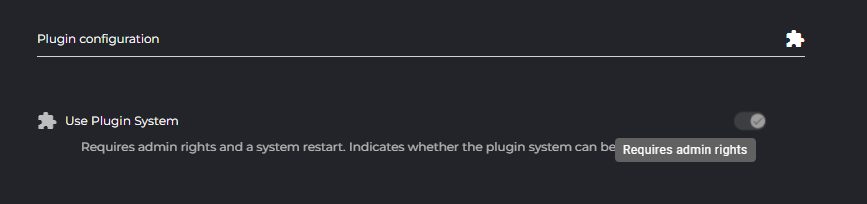
To use plugins, you need to have this feature enabled by an administrator in the Settings on the “Customization” page.
Overview of Plugins
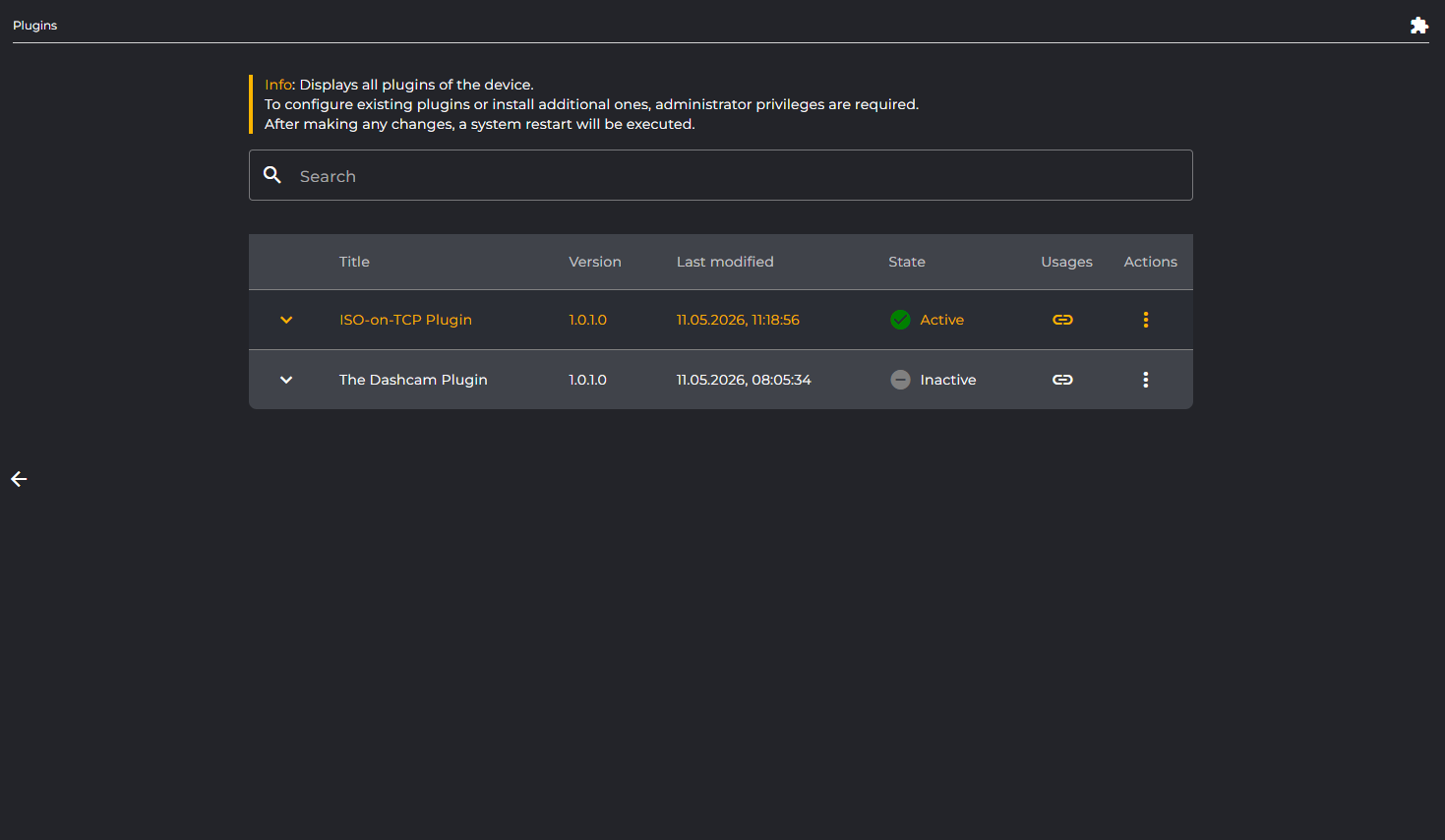
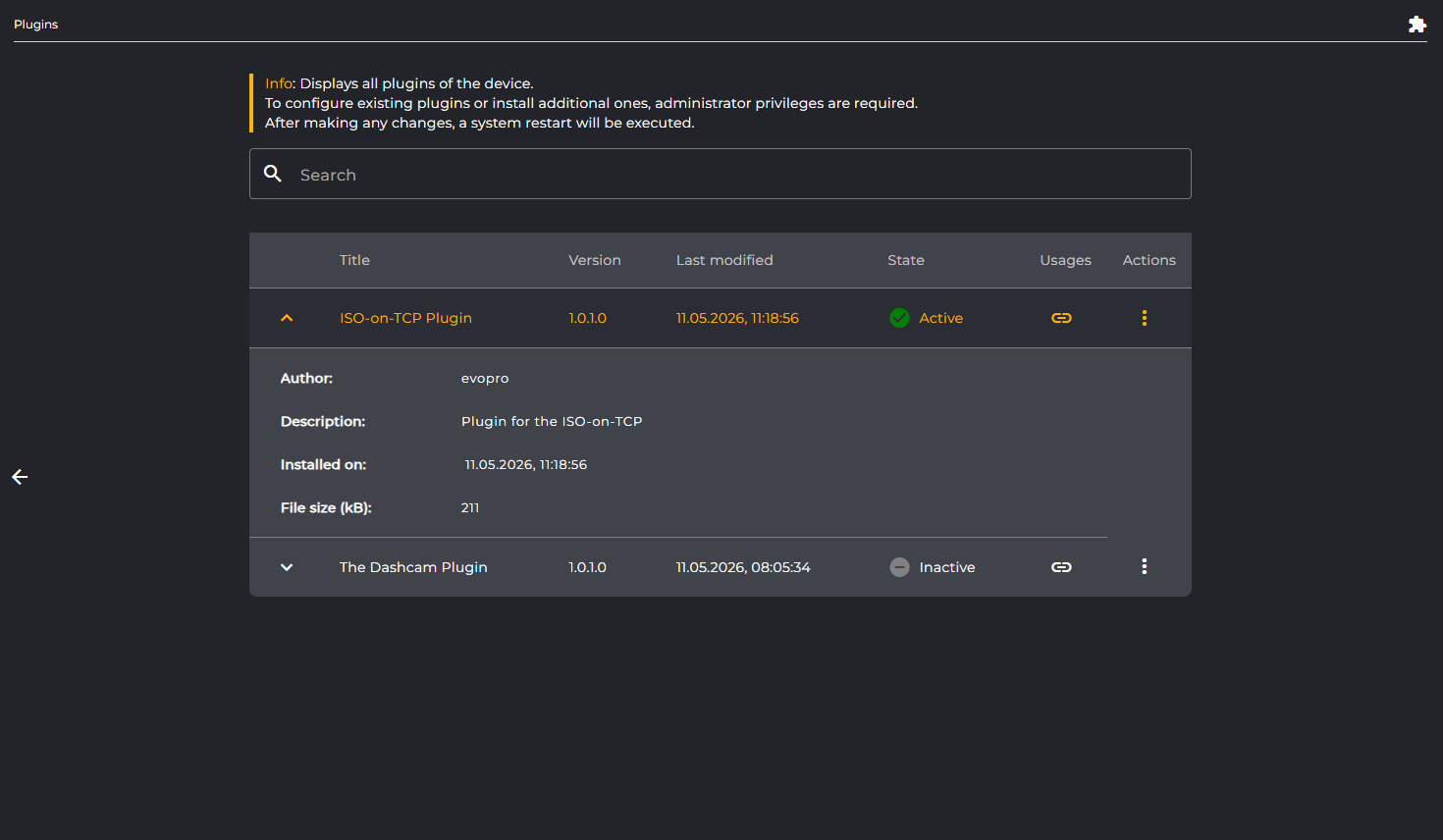
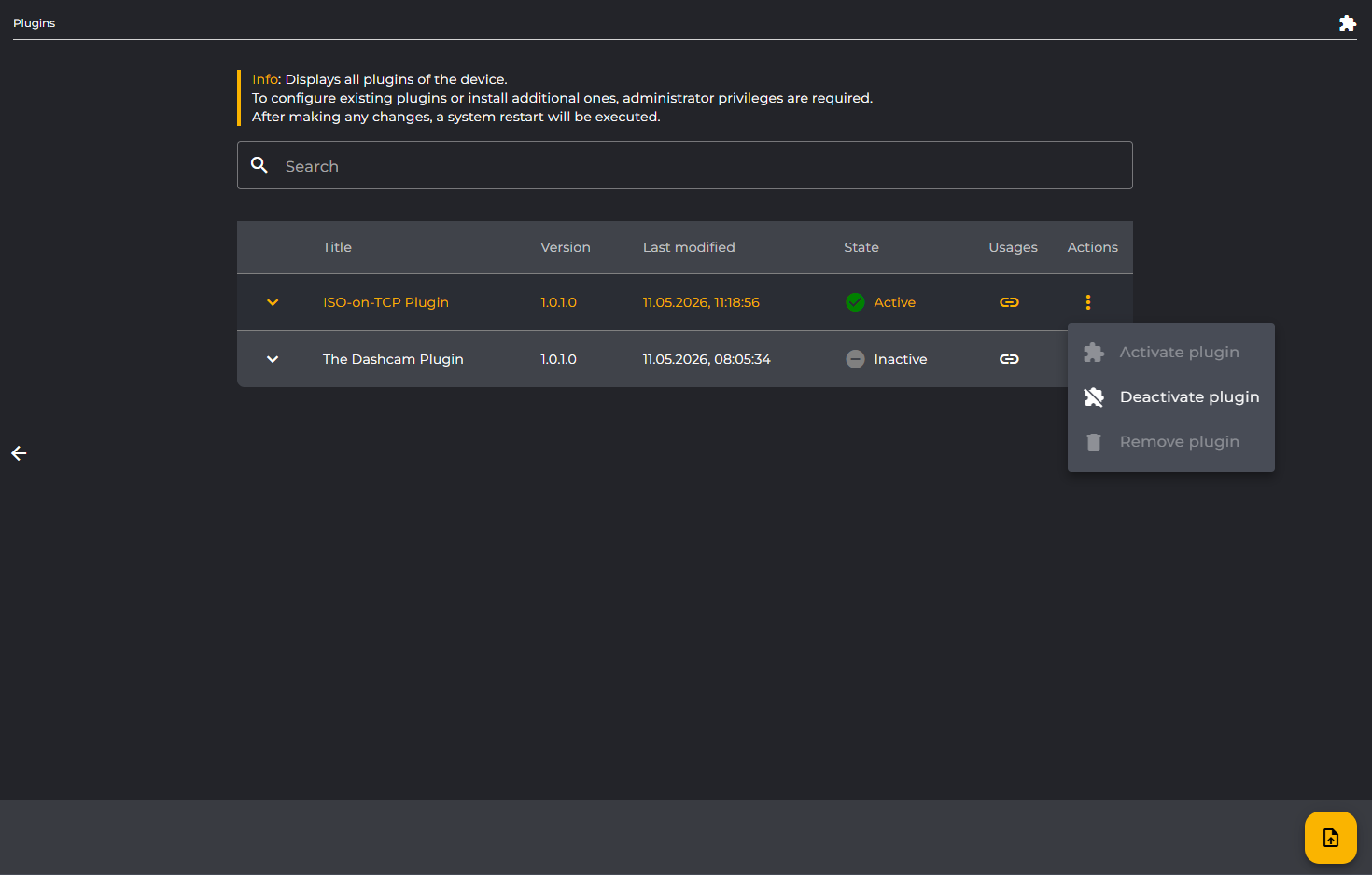
The plugin management page lists all installed plugins in a table. You can filter by the plugin title using the search bar. Each table row can be expanded to show details.
|
Columns |
Description |
Example |
|---|---|---|
|
Title |
Specifies the name of the plugin |
The Dashcam Plugin |
|
Version |
Specifies the version number of the plugin |
1.0.0 |
|
Last modified |
Indicates when a change was last made, for example in the form of installing the plugin |
11.05.2026, 11:18:56 |
|
State |
Indicates the current state of the plugin. It can be active, inactive, or faulty. |
|
|
Actions |
Lists the administrative actions to activate, deactivate, or remove the plugin. |
|
|
Detailed Information |
Description |
Example |
|---|---|---|
|
Author |
Specifies who the author of the plugin is. |
evopro |
|
Description |
Provides additional information about the plugin. |
Plugin for the ISO-on-TCP |
|
Installed on |
Indicates when the plugin was installed. |
11.05.2026, 11:18:56 |
|
File size (kB) |
Indicates how large the file is. |
211 |
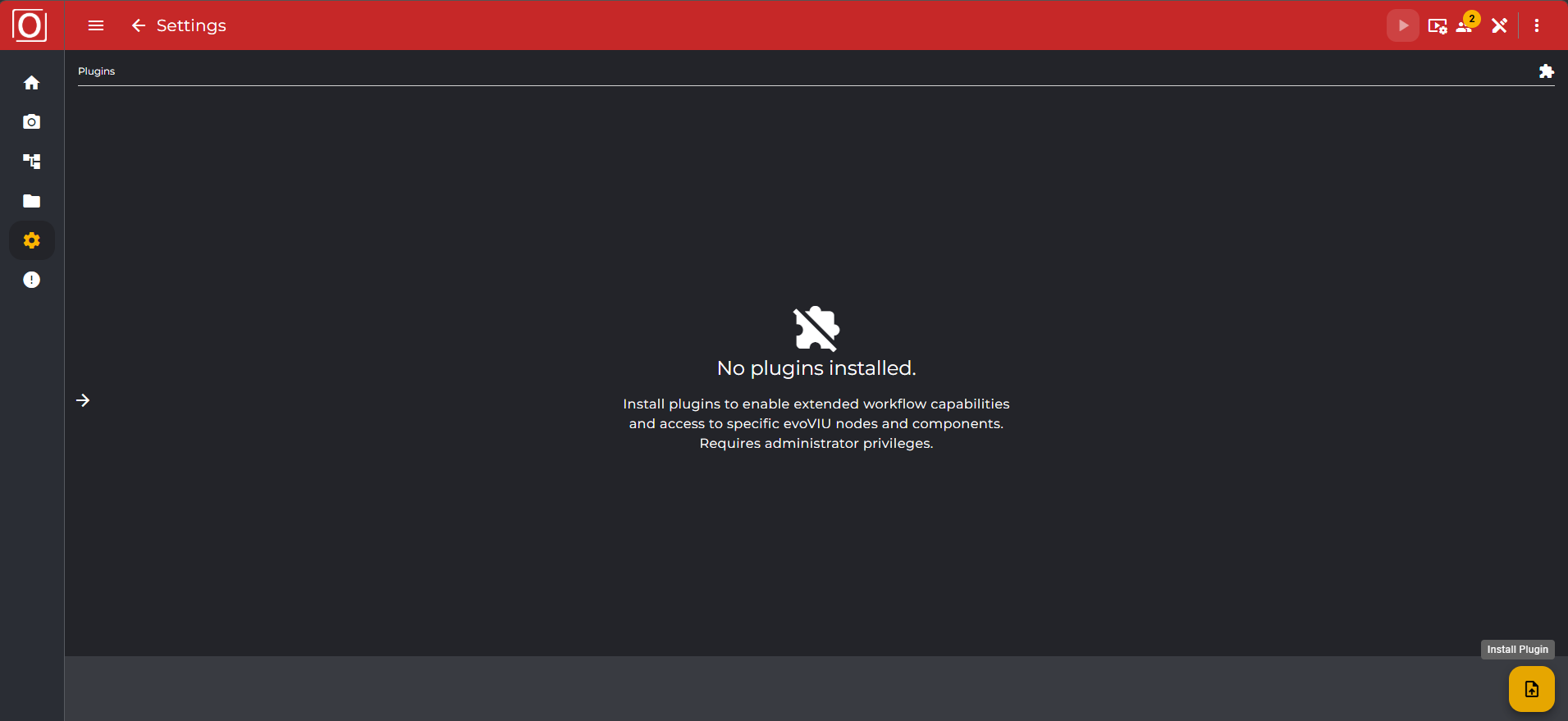
Empty State
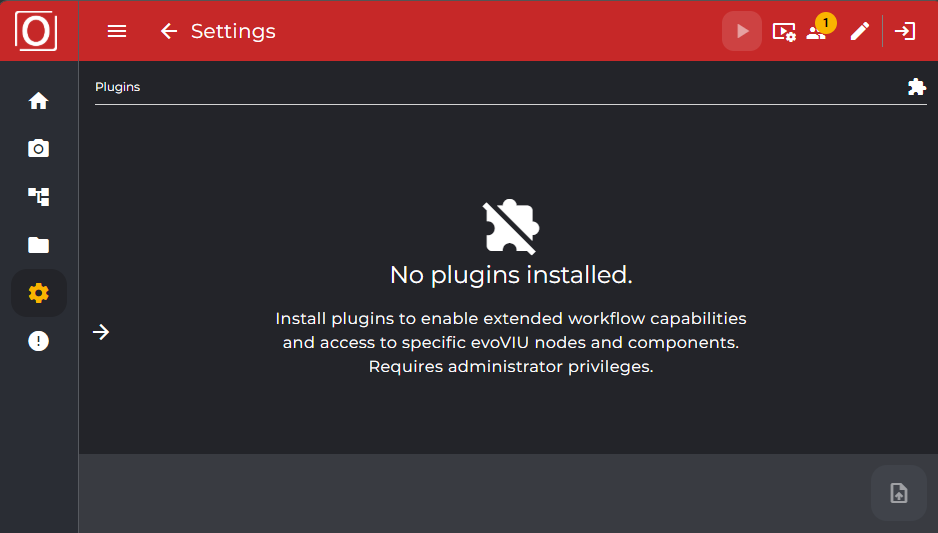
If no plugins are installed yet, an empty state with a hint text appears. The installation button is visible but only active for administrators. Once you log in as an administrator and have editor status, the yellow installation button in the bottom app bar can be used to upload and install a plugin.
Installation of Plugins
Plugins are installed as files with the extension .viuplugin. After successful installation, the system automatically performs a restart. The restart usually takes less than a minute. Afterwards, the plugin appears in the list.
-
Click the yellow "Install Plugin" button at the bottom right of the Top App Bar.
-
In the file dialog, select a
.viupluginfile. -
Confirm the security notice regarding the required restart by clicking "Confirm."
-
The device will restart, after which the plugin will be visible – with the state "Active" (successful) or "Faulty" (if there are problems, details are in the Expansion Panel).
Additional notes:
-
Only administrators can install plugins. For other users, the button is disabled, which is also explained by a tooltip.
-
If a file with the wrong format is selected, the process is aborted with an error message.
Managing Plugins
Activation and deactivation are done via the action menu of the respective table row.
Activating a Plugin
-
Open the context menu via “Actions” (⋮) and select “Activate plugin” (only enabled if the plugin is Inactive and you have admin rights).
-
Confirm the dialog with the restart notice.
-
After the restart, the plugin will be available with the state “Active”.
Deactivating a Plugin
-
Open the context menu via “Actions” (⋮) and select “Deactivate plugin” (only enabled when Active and with Admin rights).
-
Confirm the dialog with the restart notice.
-
After the restart, the state changes to “Inactive”; “Remove plugin” is now available.
Removing a Plugin
Permanently uninstalls a plugin. A restart is not required for this.
-
Open the action menu (⋮) and select "Remove plugin" (enabled for Inactive or Faulty and with Admin rights).
-
Confirm the dialog for permanent removal.
-
The plugin will be removed from the table.
"Remove plugin" is available after successful deactivation. For "Faulty" plugins, "Remove plugin" is always available (for administrators).
Usages of Plugins
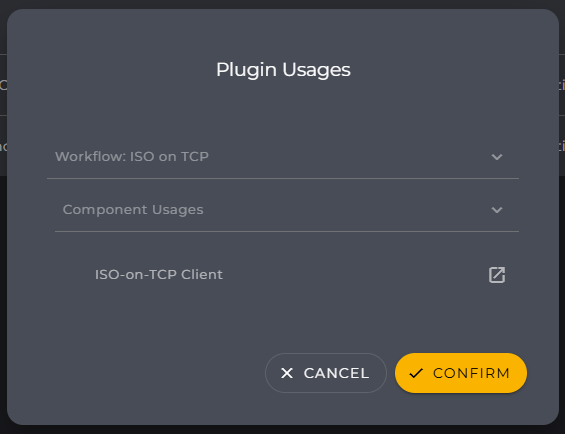
Using the “Usages” button for each plugin opens a dialog that lists all uses of the plugin, e.g., in Nodes, Components, Structs, or Enums. In the following example, you can, for instance, jump directly to the corresponding component from the dialog. If no usages are found, the message “No usages available” appears.
Error Images and Treatment
-
Faulty-Status: The plugin is displayed with a yellow/red icon. Details can be found in the expandable area of the table row (Error message). Removal is possible; activation is locked.
-
Invalid file: If a file without the extension
.viupluginis selected, the installation aborts with an error message. -
Insufficient permissions: Actions are disabled and explained via tooltip.