
This chapter describes the functions of the display on the Smart Camera.
A display is installed on the evoVIU that can control various camera settings independently of the application software. A two-button switch is used to navigate through the individual points.
Operation
Enter
The upper button is used to confirm the selection.
In the settings for the different IP addresses, the corresponding IP digits can be selected.
Mode / Select
The lower button is used to navigate and select the corresponding menu item.
In the settings for the various IP addresses, this button can be used to increment the numbers.
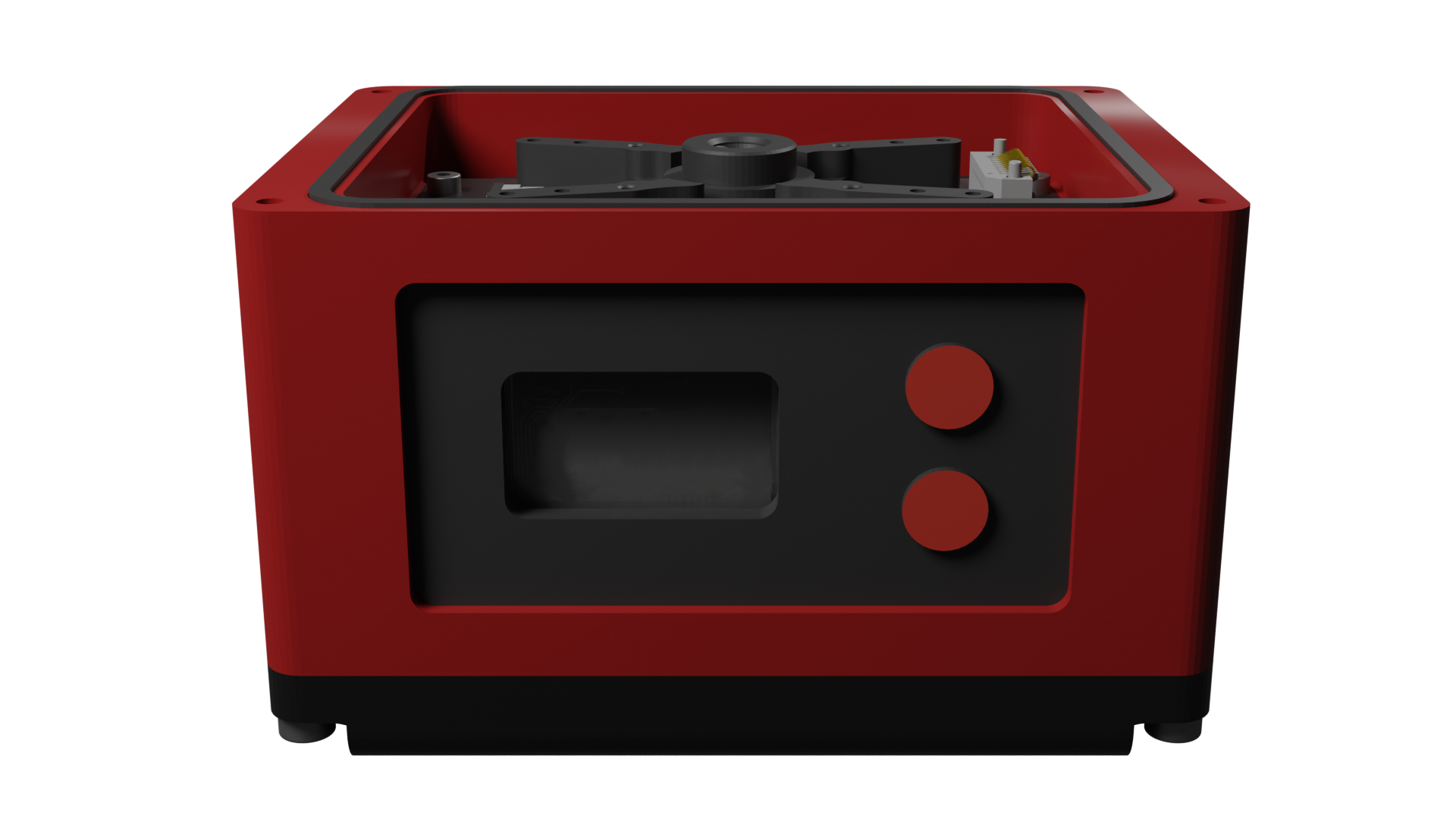
Function overview
Dashboard
The display dashboard shows the most important information about the camera. The status bar (top) and the menu (bottom) are explained below:
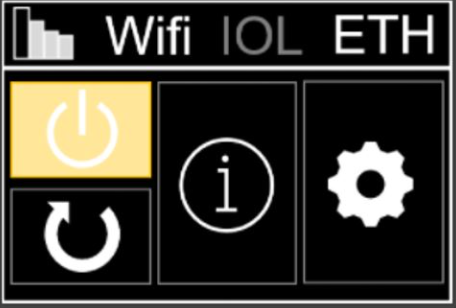
Status Bar
-
Radio signal strength: Strength Low (1) to High (4)
-
Radio variant: Wifi/3G/4G/5G
-
Docker variant: IOL/EXL/GPO
-
Network: ETH

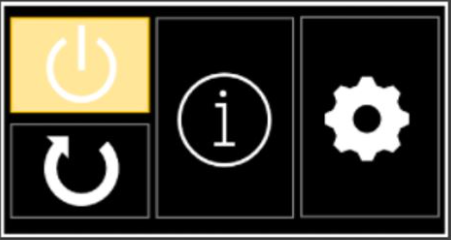
Menu
-
Shutdown
The operating system is shut down.The camera can then be unplugged.
-
Restart
The camera can be restarted. It is not necessary to remove the mains plug. -
System-Information
System information such as the name of the access point or the current IP address can be read out -
Setting
Settings for NTP server, IP addresses, gateway, DNS, access point and auto-restart, as well as a camera restore can be made
System-Information (1)
-
Wi-Fi AP:
Name of Accesspoints -
IPv4 address:
Currently set IPv4 address -
MAC address:
MAC-Adresse of the camera
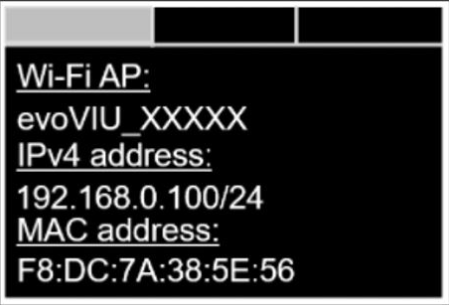
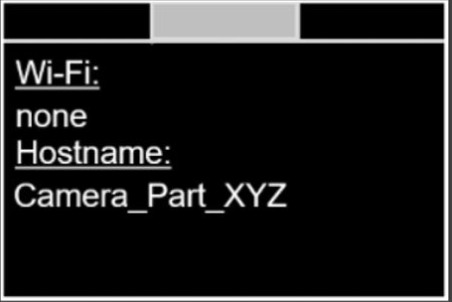
System-Information (2)
-
Wi-Fi:
Connected SSID of the Wi-Fi access point -
Hostname:
Name of the camera in the network
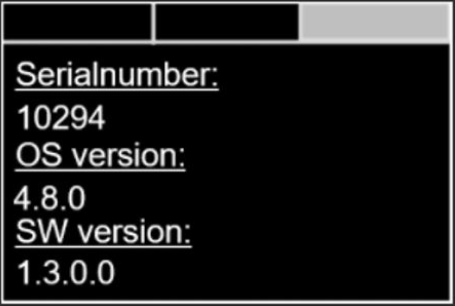
System-Information (3)
-
Serial number
Serial number of the camera -
Version of the operating systems
Current operating system version -
Softwareversion
CurrentSoftware-Version
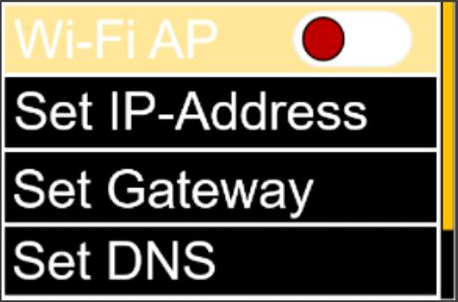
Settings (1)
-
Wi-Fi AP (Aus / An)
Activation of the access point -
Set IP-Address
Set IP address manually -
Set Gateway
Set gateway manually -
Set DNS
Set DNS-Server manually
Settings (2)
-
Set NTP
Set NTP–Server manually -
Restore
Resetting the camera contents -
System Reset
Reset Camera -
Auto. Rest.
Switching off the auto-restart, so that the last running routine is not restarted when restarting -
Return
Return to the menu