
This chapter contains general information on the memory allocation of the evoVIU camera.
Introduction
Under the menu item Storage you will find information about your storage space. You can also reset your database and the system to the factory settings using the buttons below.
Database

Database Reset
Reset all camera settings. Incorrect configurations can thus be rectified.
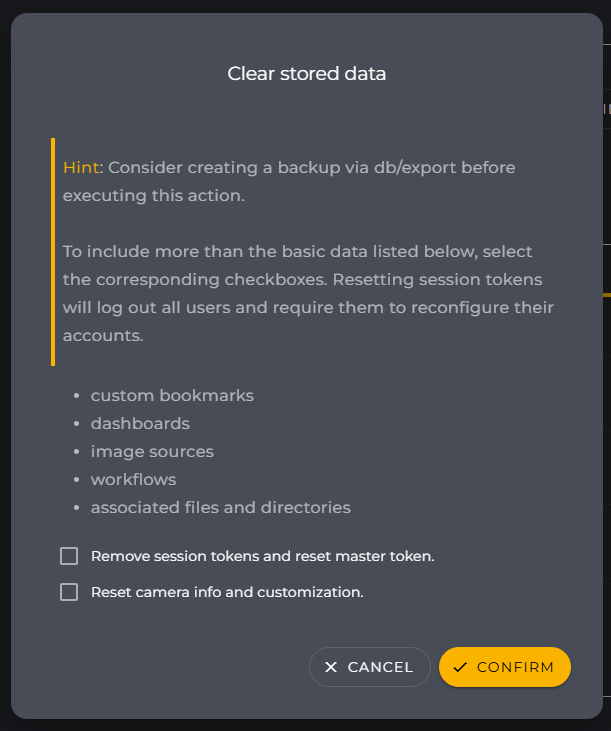
Important: All saved information will be deleted by this process! This includes:
-
Image Source
-
Workflow
-
File System
-
Bookmarks
-
Secrets
Optionally, the following saved information can also be deleted:
-
Users
-
System Settings
Not included are:
-
Network Settings
Export Database
Use this button to export all your settings. This includes all configurations including the set parameters, saved images and set networks. Files from an external storage can also be part of the export, provided that your device is a VIU2 camera with an external storage function.
Import Database
Use this button to import one of your databases directly to the camera. If you need to change or expand the hardware, for example, you can simply use this option to access all your settings. This includes all configurations including the set parameters, saved images and set networks.
Disk Space (Int. Storage)
This section provides an overview of the occupancy status of the internal storage of your evoVIU camera. All values are read-only and provided for your information.
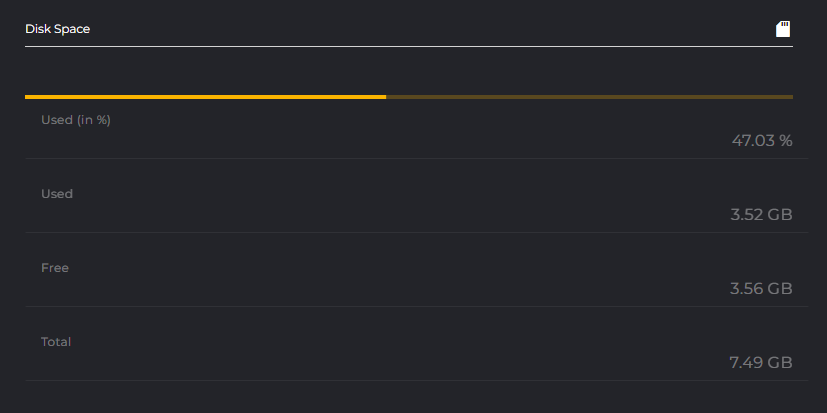
The storage metrics are automatically rounded to two decimal places and displayed in GB.
|
Parameter |
Description |
Example |
|---|---|---|
|
Used (in %) |
Visualizes the currently used memory percentage with a progress indicator. |
|
|
Used |
Indicates the absolutely occupied storage space. |
|
|
Free |
Indicates the currently still available free storage space. |
|
|
Total |
Specifies the total storage capacity of the internal medium. |
|
Disk Space (Ext. Storage)
As soon as an external storage medium (e.g., an SD card or a USB drive) is detected by the system, this additional section automatically appears below the internal storage overview.
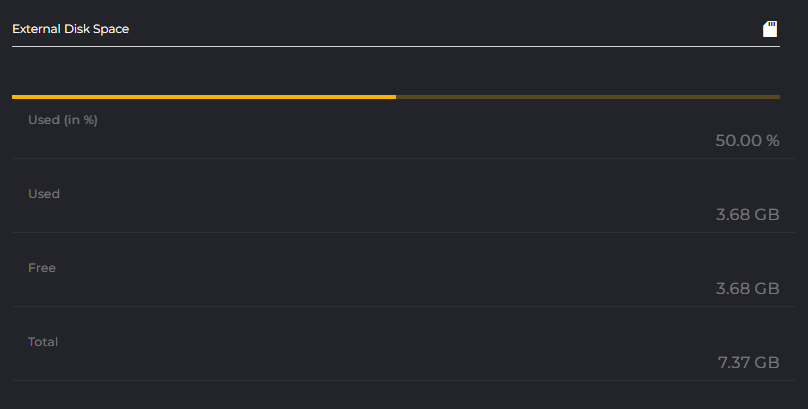
The metrics for external storage correspond in structure and formatting to the internal overview:
-
Used (in %): Percentage utilization with progress bar.
-
Used / Free / Total: Absolute capacity values in GB.
If no external media is connected or it is not detected, this section will be completely hidden.
File System Storage
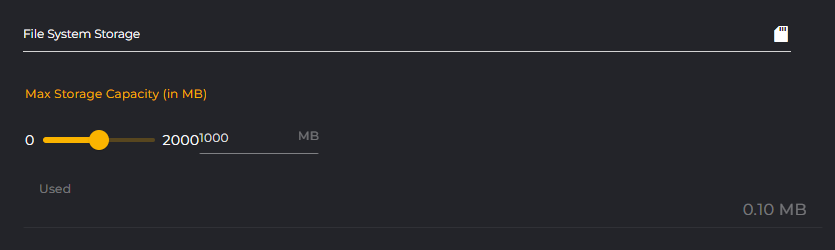
Max Storage Capacity
Set the maximum size of your file storage here. You can find the file storage under the Files menu item.
Used
Here you can see how many MB of memory are already in use.
Logs

You can download all log files to your device using the Export Logs button.