
This chapter contains general information on operating the evoVIU camera update process.
Introduction
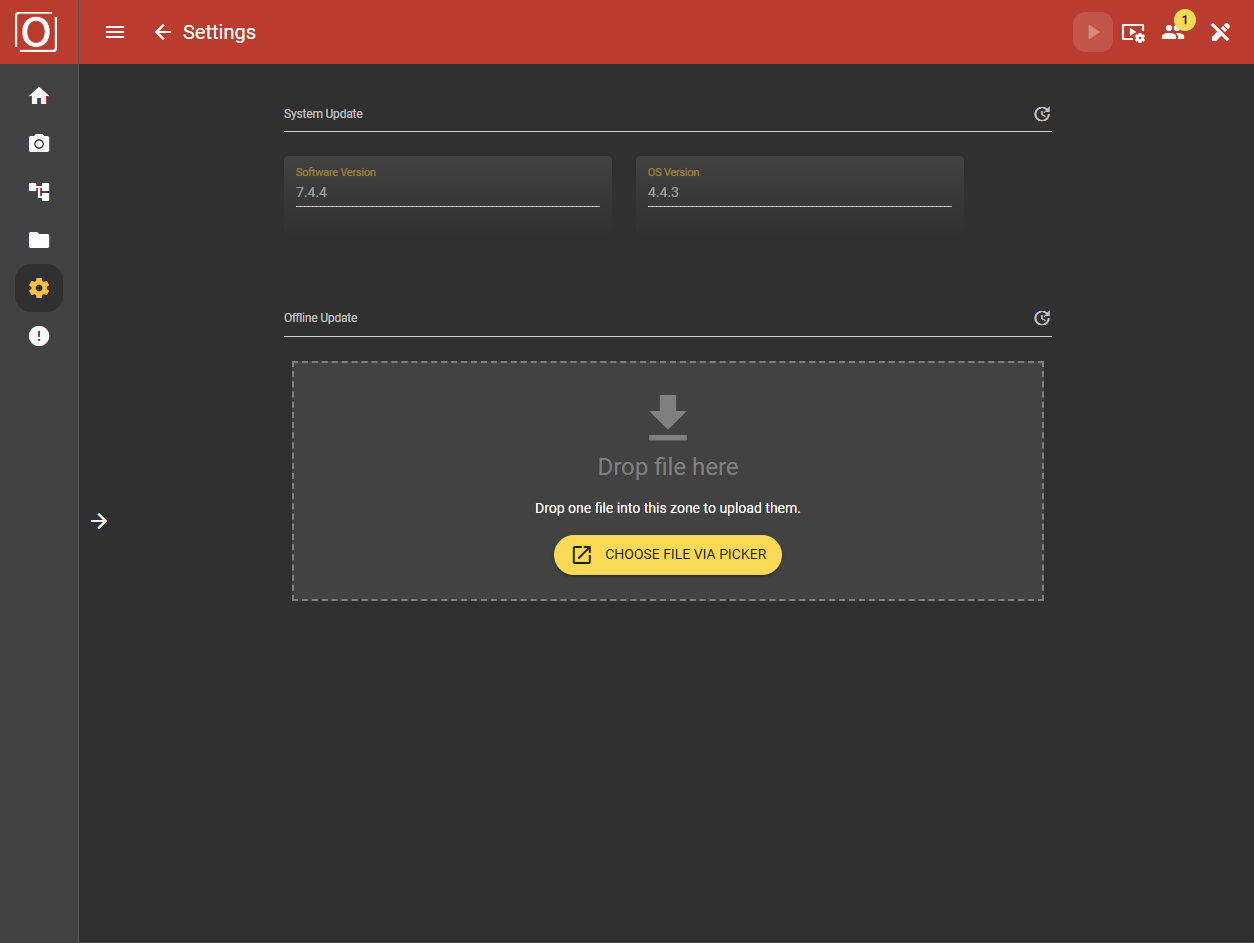
Under System Update you can see your software version and your operating system version. You can also carry out offline updates under this item.
System Update
In this area, you can read out the currently installed software version and the stored operating system version of your camera.
Offline Update
If you want to update your camera, you can request a new version from us at any time, depending on your support level. You will receive a file and a corresponding key from us.
Important note on updates
We always endeavor to design updates in such a way that they are fast, reliable and without restrictions. However, due to the large number of versions, problems may occur in individual cases during the update process. In particular, updates from master versions (e.g. 4.x.x. to 7.x.x.) can lead to incompatibilities due to so-called breaking changes. Updates within the same master version - for example from 7.5.0 to 7.6.0 - usually run smoothly. If you are planning a major version upgrade, please contact us in advance.
-
Allow time:
Allow around 4 minutes for the update itself.
In the event of errors, however, the restart may be significantly delayed.
-
End routines and workflows:
Stop all running routines using the stop button at the top right of the application.
-
Create backup and document version:
Download a backup under Settings > Storage > Export Database and make a note of the current version number of your installed software.
-
You are now ready for the update:
Start of the Offline-Update
-
Select file:
You can load the offline update package via drag and drop or via the browser's selection function.
-
Enter the key:
A dialog box then appears in which you must enter a key. Then click on Confirm.
-
The file will now be uploaded and the update carried out.
-
Please remain on the update page during the entire update process.
The file you receive for an update is usually an evoviu_X.X.X.tar.gz.gpg file, with around 200Mb. Please note the transfer speed of your network. Below you will find a list with approximate upload times.
Please remain on the update page during the entire update process.
If you leave the page and return later, the current progress of the update may no longer be displayed correctly. This is not a problem: in this case, please wait about 5 minutes and then reload the entire web application in the browser. Once the update has been successfully completed, a yellow information bar will appear above the info bar indicating that you now only need to restart the camera. It is best to restart the application via Settings>System>Reboot.
|
Step |
Description |
Duration |
|---|---|---|
|
1 |
The package is uploaded - depending on the available transfer speed. Please note that uploading via remote PCs in different computing clusters takes considerably longer. |
at 1Mbit approx. 26 minutes at 10Mbit approx. 3 minutes at 100Mbit approx. 20 seconds at 1000Mbit: approx. 3 seconds |
|
2 |
The package is automatically unpacked and installed |
Master Updates around 4 Minutes Minor Updates around 2 Minutes |
|
3 |
Restart and reload the application |
around 60 seconds |
Completion and restart
After the successful update, a reboot button appears on the update page.
-
Restart the camera using the yellow reboot button or under Settings >System> Reboot
-
Please wait until the time in the browser has completely elapsed before reloading the page.
-
Check under Settings > System > Update whether the desired version is available. This is usually already visible in the InfoBar.
-
Now check whether you can access your workflow programs
-
Now start your workflow again
-
You have successfully updated 🙂