
Start and base events are the most basic triggers within Visionweb. They are used to immediately initialize a flow or event graph without the need for external conditions to be met. Typical examples are the automatic start event when a system boots up or a simple button event triggered via the user interface. This event type is particularly suitable for standard processes that should always run as soon as a workflow is activated, or for manual user intervention. Start and base events thus provide a reliable foundation for all other, more complex event structures.
Start- and Stop-Event
The start event is the fundamental element for automatically triggering a flow or event graph upon system or workflow startup. Typical applications include sending a start signal to external systems, activating a status message, or initiating initial process steps. This ensures that a workflow immediately displays the desired external response upon startup.
The Stop event complements this behavior by being activated when a workflow is specifically terminated or the system is shut down. This allows defined completion actions to be implemented – for example, sending a stop signal, deactivating a device, or resetting a status indicator.
Both events are located in the context menu under "Events," which can be opened by right-clicking on the event graph. This makes them available at any time as simple and quickly accessible basic triggers for workflows.
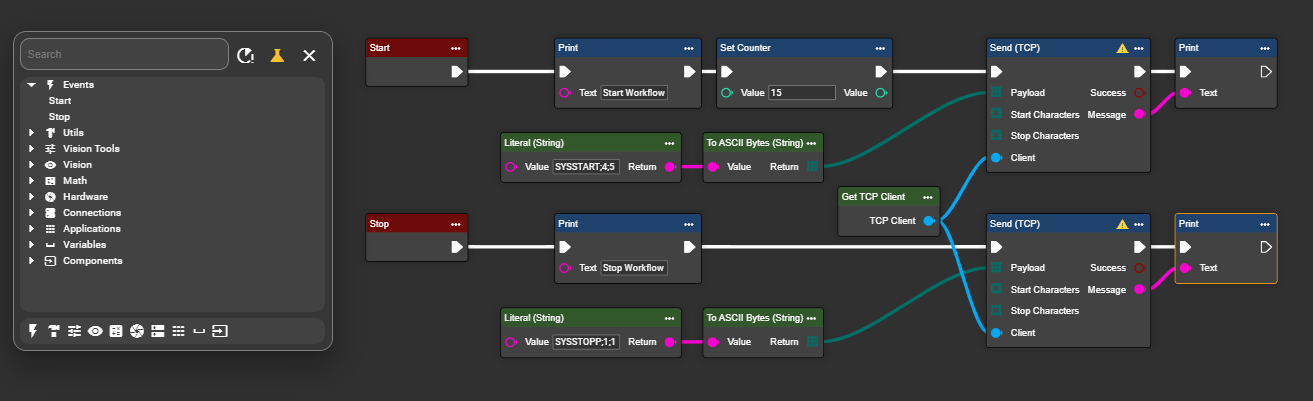
The example shows the use of Start and Stop:
Start Event:
When the workflow starts, an output print is generated with the message "Start Workflow." At the same time, the counter is set to 15. The workflow then sends a TCP signal to the machine confirming the start and indicating that the workflow is ready for operation.
Stop Event:
When the workflow ends, the system generates an output print with the message "Stop Workflow." Additionally, a signal is sent to the machine via TCP indicating that the workflow has been properly stopped.
Button-Event
Button events allow you to manually trigger a workflow directly from the Visionweb user interface. They are particularly suitable for situations where a process needs to be deliberately started or stopped by the user – for example, for test runs, manual checks, or special functions. Due to their ease of use, button events are a flexible addition to automatic triggers such as start, timer, or hardware events.
Under Components, you can create a new button event using the "+" symbol. Then name the button according to the desired functionality.
In the following example, two buttons were created:
-
"ResetButton" – triggers a flow in the workflow to reset certain values or states.
-
"TakePicture" – starts a flow that performs an image capture.



These two events can then be found via a right-click in the Event Graph's context menu and connected to the desired flows. This allows various actions to be manually controlled and flexibly integrated into existing processes.
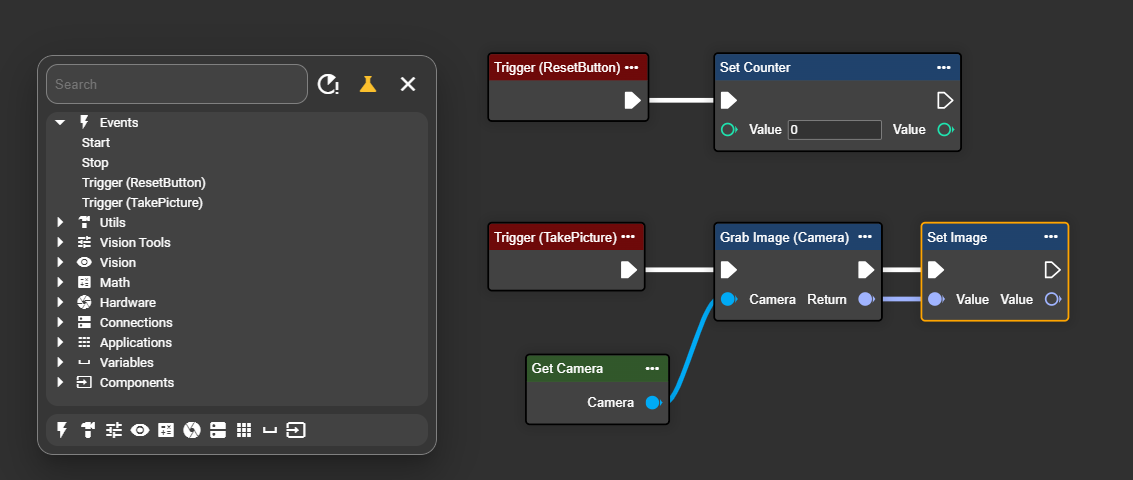
As soon as the workflow is started, the buttons appear for the corresponding components ⏯️ . Pressing a button triggers the respective event and starts the associated flow.

In later versions >=7.9.0, each button can also be stored as a widget in the dashboard. This allows workflows to be triggered even more conveniently and centrally via the user interface.