
Timer and scheduler events allow flows to be executed at specific times. While timer events are triggered repeatedly at fixed intervals, the scheduler allows you to define precise times or recurring daily or weekly schedules. This makes this event type ideal for regularly recurring tasks, such as monitoring statuses, triggering test processes, or automatically sending data. These events allow processes to be reliably planned and reproducibly controlled independently of external signals. After you have created an event component, the associated event nodes are listed in the context menu under "Events."
Timer-Event
The timer event is used to automatically execute workflows at fixed intervals. It is particularly suitable for recurring processes that should be started at a consistent rhythm, independent of external signals – such as regular checks, queries, or status messages. These can also be used to simulate cycle times.
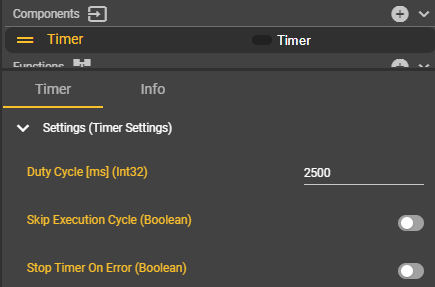
A timer event is created as usual under Components using the "+" symbol. Various parameters can be defined in the settings to customize the timer's behavior:
-
Duty Cycle: Specifies the interval at which the event is triggered.
-
Skip Execution Cycle: Skips the next pending event as long as the current timer flow has not yet been fully processed. The event is only triggered again in the following cycle.
-
Stop Timer On Error: Automatically stops the timer if an error occurs in the associated flow.
As soon as the workflow is started, the timer triggers the event according to the selected settings and executes the connected flow at the desired rate.
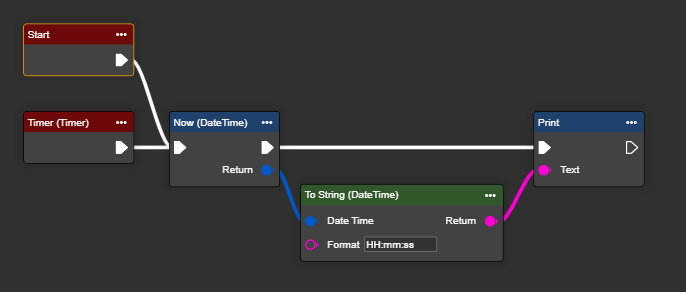
The timer event is triggered for the first time after the specified duty cycle has expired. If the workflow is to be triggered once at startup, it is recommended to also create a parallel start event.
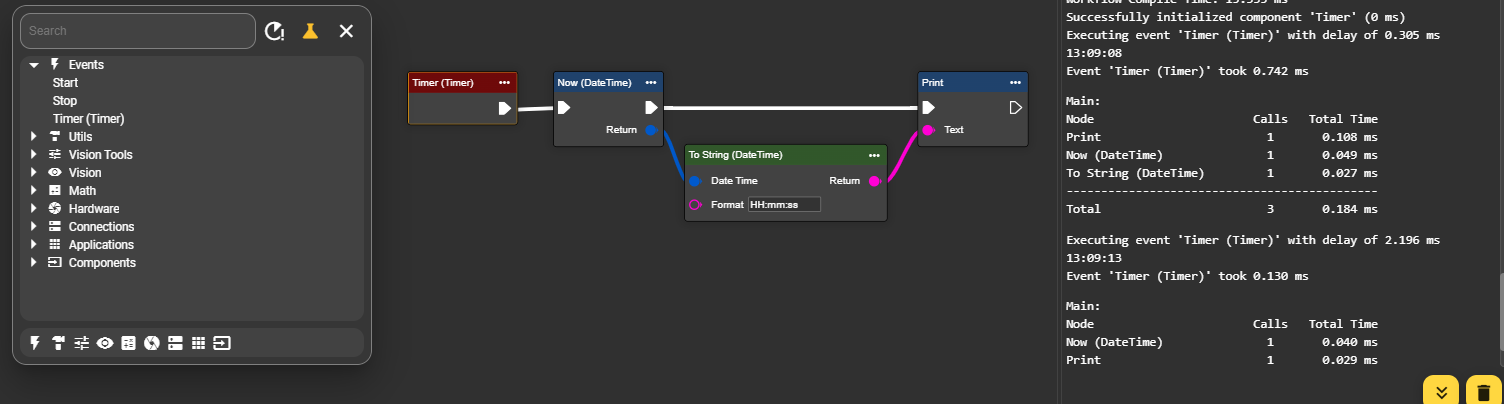
In the following example, a timer is set to 5000 ms. This outputs the current time every five seconds.
If the timer is also connected in parallel with a start event, the first output of the time occurs immediately upon the start of the workflow. The time is then passed on as usual at the set intervals of 5000 ms.
Scheduler-Event
The Scheduler Event allows workflows to be executed at specific times according to a precise calendar schedule. Unlike a timer, which operates at fixed intervals, the Scheduler allows you to precisely specify the days, days of the week, months, and times at which an event should be triggered. This makes it particularly suitable for regularly recurring processes with fixed dates, such as daily status updates, weekly checks, or monthly reports.
A Scheduler Event is created as usual under Components using the "+" symbol. It can then be selected from the context menu of the Event Graph and connected to the desired flow.

In the settings, you can define:
-
which days or days of the week the event is active,
-
which months it runs,
-
as well as the exact time or an hourly rhythm at which the event should start.
The scheduler supports a special syntax that allows for the efficient definition of multiple trigger times. This allows events to be launched flexibly at different times without having to create an unnecessary number of individual triggers.
|
Syntax |
Beschreibung |
Beispiel |
|
|---|---|---|---|
|
* |
At any time |
e.g. every minute, every hour |
*1 |
|
, |
List of values |
e.g. certain calendar days in the month |
1,15 |
|
- |
Range |
e.g. specific hourly range |
8-12 |
|
/ |
Step |
e.g. every 10 minutes |
*/10 |
All time information in the scheduler is based on the camera's system time and is in 24-hour format. To ensure the defined schedules are executed reliably and correctly, we recommend synchronizing the camera with a time server (NTP). This ensures that the time and date are always up-to-date and consistent. See the corresponding time synchronization instructions: (7.11.0-en) Date & Time
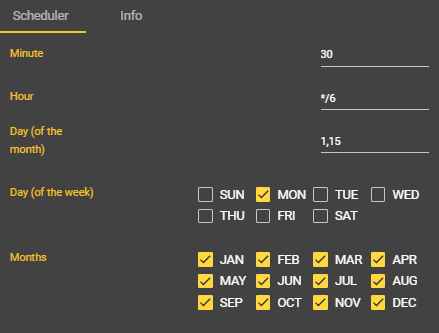
The following example shows how different times can be defined in a single event using the scheduler syntax. The scheduler triggers on the following dates throughout the year:
-
Monthly: every Monday and also on the 1st and 15th of each month
-
Daily rhythm: every 6 hours starting at midnight (00:00, 06:00, 12:00, 18:00, etc.)
-
Hourly: every half hour (00:30, 06:30, 12:30, etc.)
This combined definition allows complex schedules to be mapped without having to create multiple individual scheduler events. This allows workflows to be precisely adapted to the desired production or testing intervals.
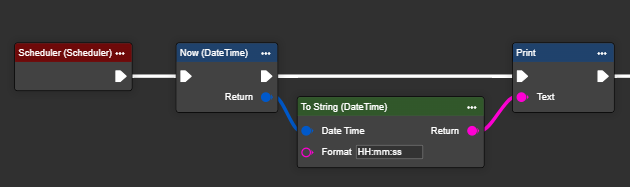
The scheduler also has a "Next Occurrence" node in the context menu. This allows you to determine when the scheduler will next trigger. To do this, simply connect the node to a "Get Scheduler" node in the context menu.

In the example, the current time is output each time the flow is triggered. The flow is also initiated via a parallel start node, so the first time appears when the workflow starts. The "Next Occurrence" node also indicates when the scheduler will next trigger.