This chapter provides general information on how to use persistent variables in the evoVIU camera.
Introduction
There are often scenarios in which counters or certain values must be available again after a restart. In these cases, resetting or restarting must be prevented. This is exactly where persistent variables come into play. You can use them in the workflow to access values even after a restart, regardless of whether it is a camera or a process.
Overview
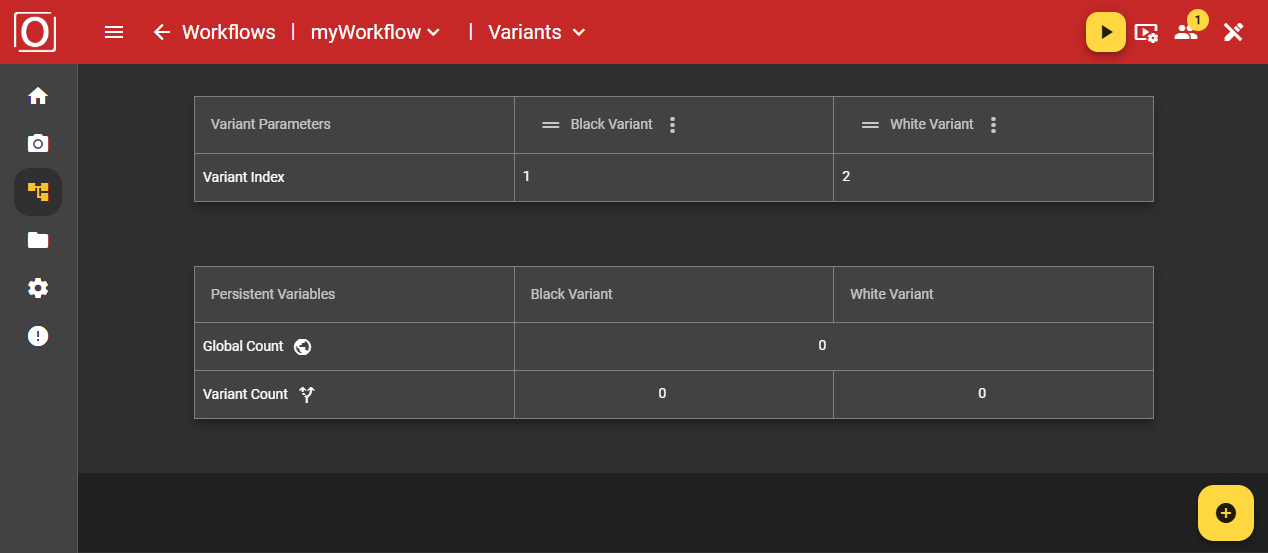
You can view the contents of persistent variables on the overview page. In the top app bar, the red bar at the top of the screen, you can configure your workflow under Logic, display information about your current process using widgets under Dashboard, and set paths with different values, in this case the initial values of your persistent variables, using Variants. However, you can also read the current values of your persistent variable on this overview page while the process is running.
Important: Before you can start a workflow with persistent variables, you must enter the initial values on the overview page.
Configuration in the workflow
Persistent attributes
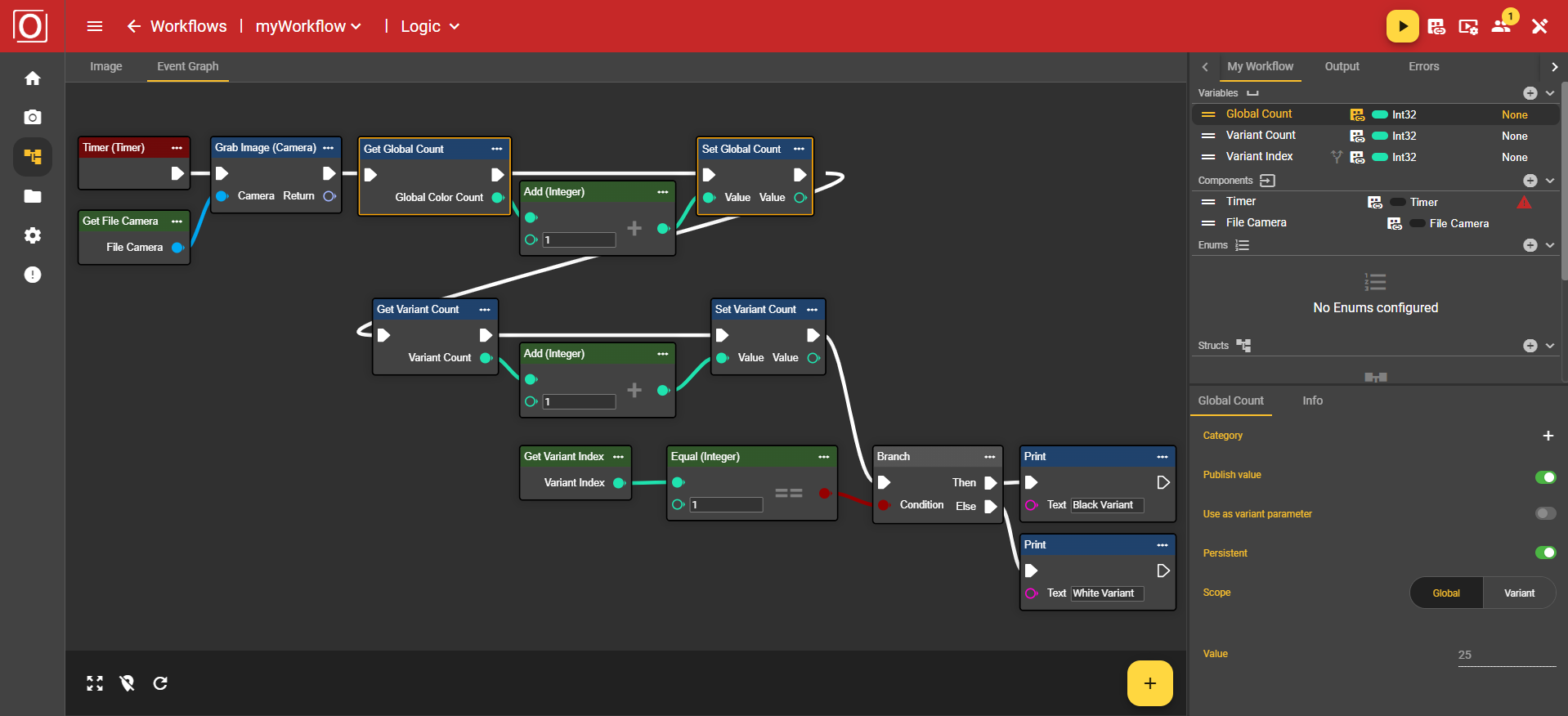
As you may already know, you can create and use any number of variables of different types in the workflow. The Int32 data type is ideal for using persistent variables. When you select a variable, you can ensure that the variable is available as a persistent variable in the corresponding Details tab under the Persistent attribute.

Scope
Once a variable has been declared as persistent, a statement must be made about its scope, i.e., the area in which the variable is valid. This can be valid for the entire workflow, i.e., globally, or only for individual variants.

Application example
Setting up a workflow
This is based on a fictitious example. On the one hand, a global counter is to log the runs, and on the other hand, a persistent variable is to record the runs of the respective variants. Ultimately, only arithmetic operations are performed in the workflow. The decisive variables were configured as in the Persistent Attributes and Scope areas in the two possible constellations.
Evaluation of a workflow
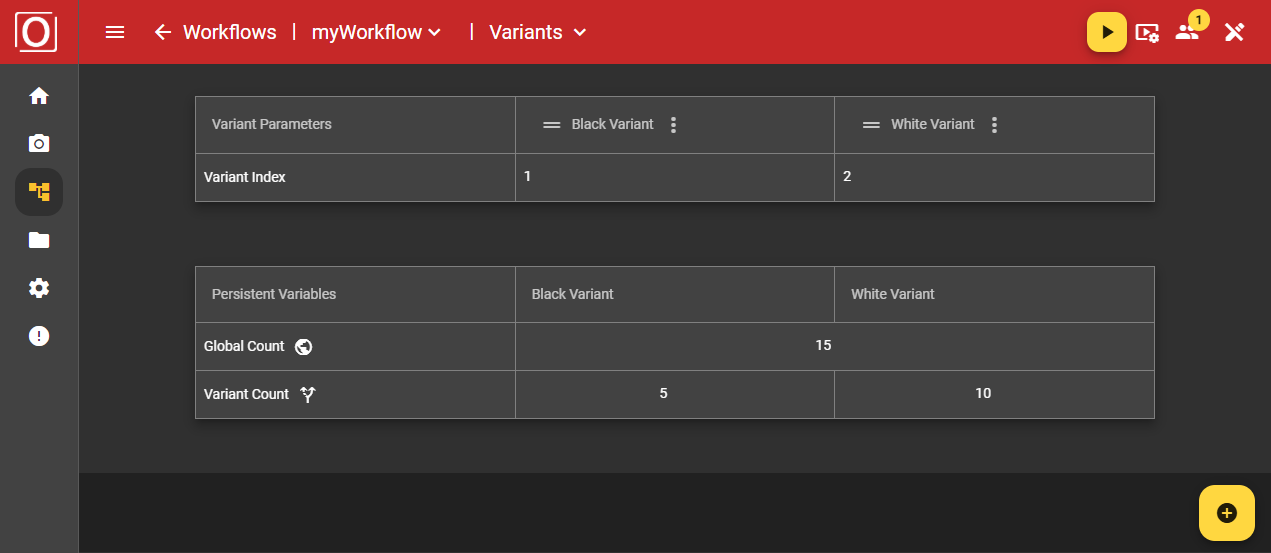
While all variables initially contained the value 0 at the start of the workflow, after stopping and changing the variant, it was possible to determine that a total of 15 runs took place, with the black variant being called only 5 times and the white variant being called a total of 10 times.
Another application example
Introduction to more complex data types
Many image processing systems previously only allowed for the persistent storage of simple (primitive) data types such as string, integer, or boolean. The ability to now persist more complex data types offers a significant practical advantage for users.
Complex settings are often time-consuming to configure—for example, a manually created ROI or a polyline for edge tracking. If this data is lost after a restart, it must be reconstructed every time. With persistence, this is no longer necessary.
The camera starts exactly where the user left off.
This saves time, prevents errors, and increases process stability. Many inspection tasks also depend on graphical or geometric settings, such as where the measurement is taken (ROI), which edge is tracked (polyline), or what color the target value should be (color). Storing these values in a complex manner ensures that the inspection process remains identical and reproducible—regardless of restarts, updates, or power outages.
Without persistent complex data types, operators have to redraw ROIs, reset polylines, reselect color thresholds, or manually reload images. This is error-prone. Persistence allows for setup and saving – and everything is immediately available again on the next startup. This significantly increases process reliability, especially in production environments.
With the new ability to persistently save complex data types such as images, polylines, or colors, the entire test state is fully retained even after a restart. This eliminates the need for users to reconfigure geometric settings, colors, or image data. This saves time, prevents errors, and significantly increases process reliability in industrial production. Primitive data types are insufficient for this purpose, as they cannot represent structured data such as images, contours, or color spaces.
Example
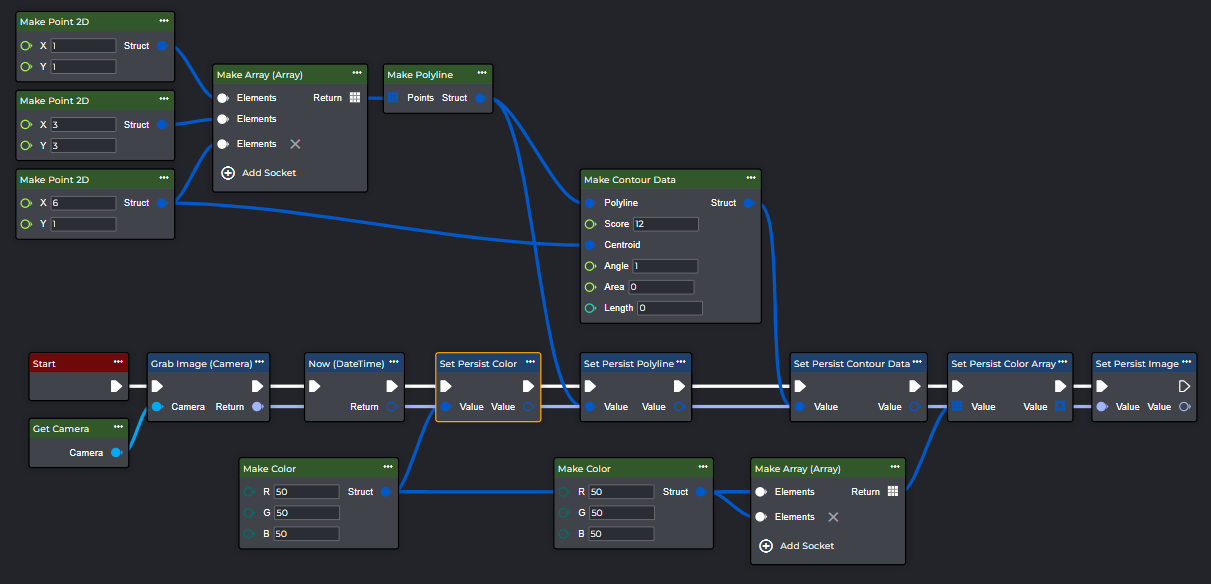
Using a small, simple example, we would like to show you in more detail how complex data types can be set in the workflow and persisted as variables. We will take a look at the contents of different data types, from polylines and colors to arrays.
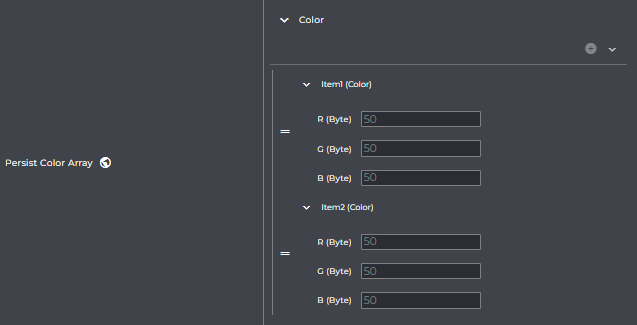
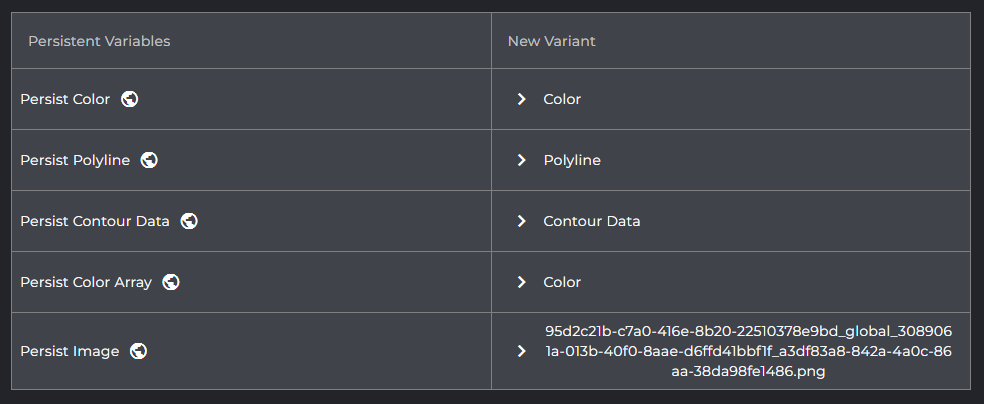
Once you have started the workflow at least once and then switch to the Variants page, you will find a list of all your persistent variables. The interesting thing is that, unlike primitive data types, you can read the values of your variables via a drop-down menu within the table. Type-specific information awaits you there.
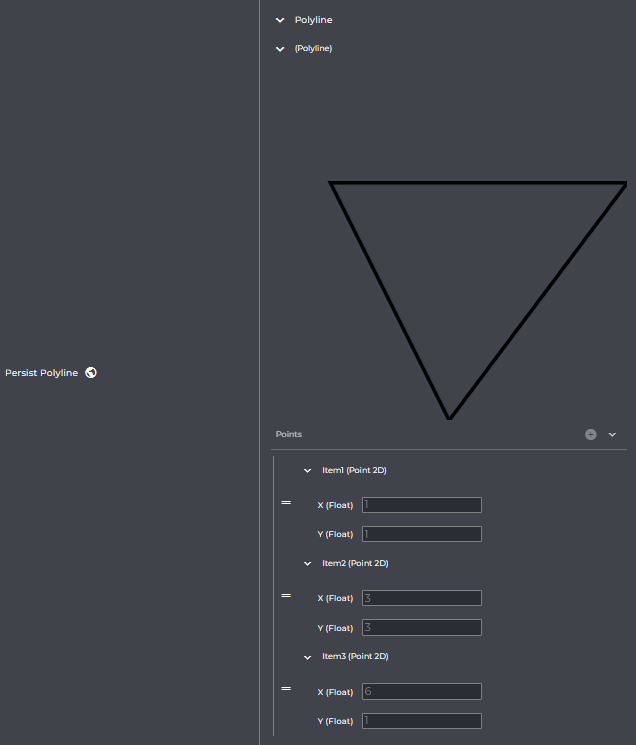
Let's take a closer look at the polyline. If you expand the detailed view, you'll find the polyline displayed as an image. The values listed below are thus graphically represented, making it easier for you to understand them.
Let's look at another data type. In the detailed view of the Color data type, for example, the respective values for R, G, and B are listed. The special thing about this example is that it's an array. The values of the Color data type are therefore listed not just once, but multiple times, depending on how many entries the array contains.