
Area
This node calculates the area of each individual region (white areas) in a binary image. It provides quantitative information about the sizes of the objects or areas within the image.
Flow
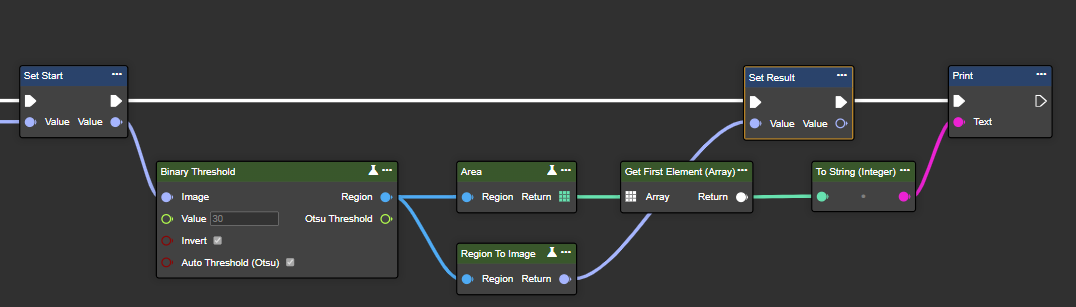
Parameter set
|
Attribute |
Type |
Description |
Example |
|---|---|---|---|
|
Region |
Region |
Binary image processed in black and white after segmentation. |

|
|
Return |
Int32 |
An array containing the area of each detected region. The largest area appears first in the array. |

|
Center
Center provides the coordinates of the center of gravity of each region, which can be used for further analysis or object detection and localization tasks.
In this example, Get First Element (Array) accesses the center point of the first region. Get Element At (Array) can be used to return the centers of any region.
Flow
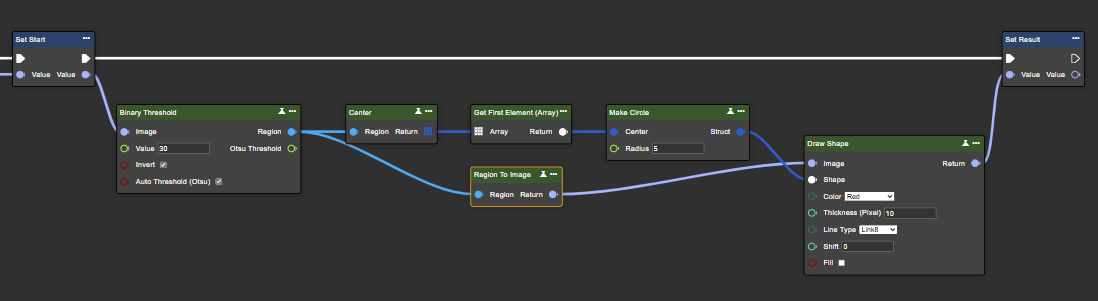
Parameter set
|
Attribute |
Type |
Description |
Example |
|---|---|---|---|
|
Region |
Region |
Binary image processed in black and white after segmentation. |
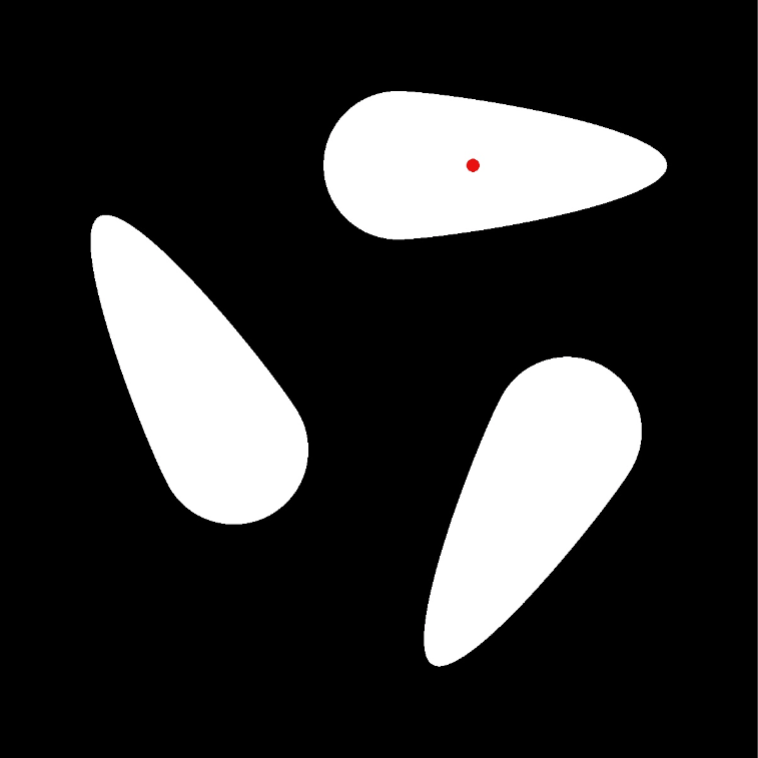
|
|
Return |
Point 2D |
Represents the center of gravity or geometric center of each individual region. The X and Y coordinates can be retrieved using a "Break Point2D" node. |
|
Count Black Pixels
This node counts the black pixels in an image. This metric is useful for quantifying the size or extent of areas represented as black in the image.
Flow
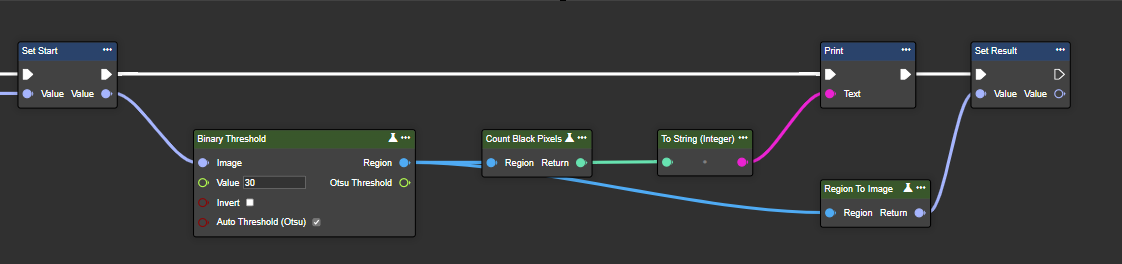
Parameter set
|
Attribute |
Type |
Description |
Example |
|---|---|---|---|
|
Region |
Region |
Binary image processed in black and white after segmentation. |

|
|
Return |
Int32 |
Total number of black pixels in the image. |

|
Count Regions
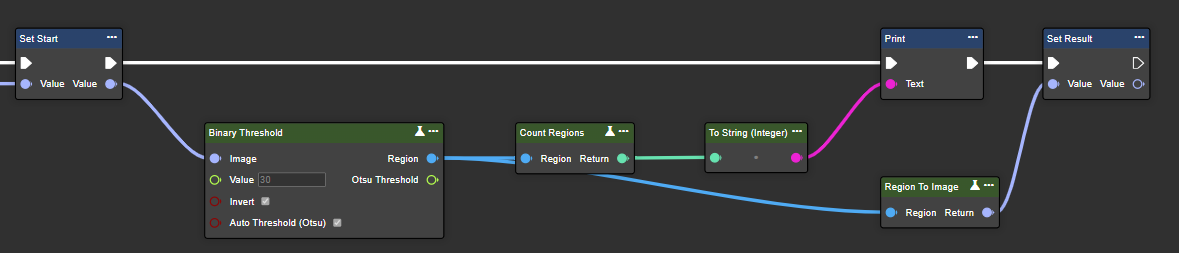
This node allows individual regions to be identified and quantified, with each region representing a group of connected pixels that share the same pixel value.
Flow
Parameter set
|
Attribute |
Type |
Description |
Example |
|---|---|---|---|
|
Region |
Region |
Binary image processed in black and white after segmentation. |

|
|
Return |
Int32 |
Total number of each region. |

|
Count White Pixels
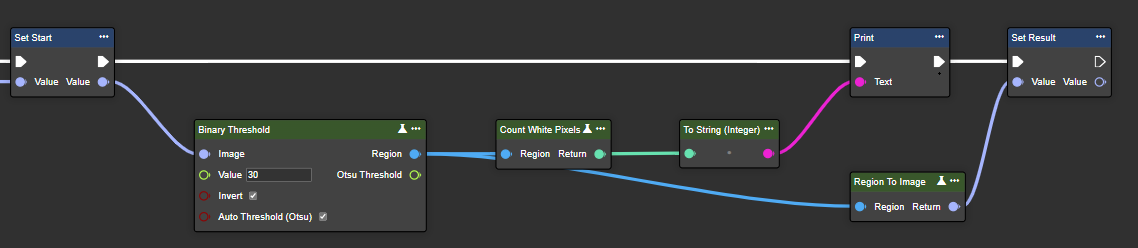
This node counts the white pixels in an image. This metric is useful for quantifying the size or extent of areas represented as white in the image.
Flow
Parameter set
|
Attribute |
Type |
Description |
Example |
|---|---|---|---|
|
Region |
Region |
Binary image processed in black and white after segmentation. |
|
|
Return |
Int32 |
Total number of white pixels in the image. |

|
Compare Regions
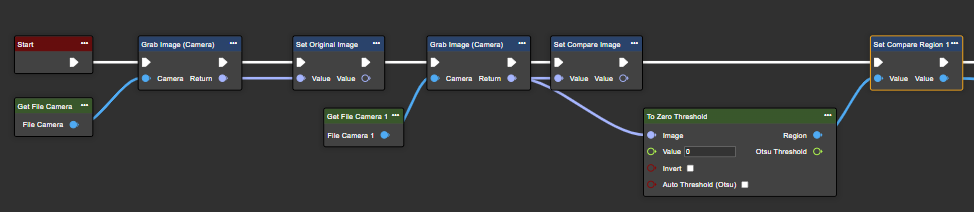
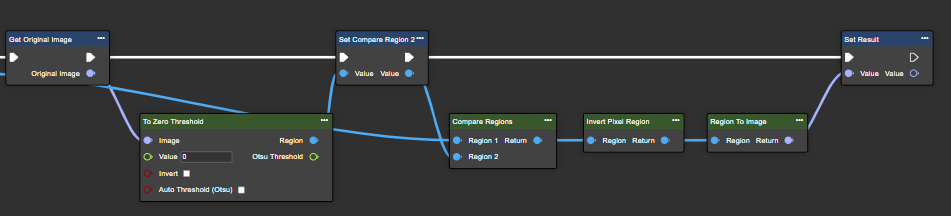
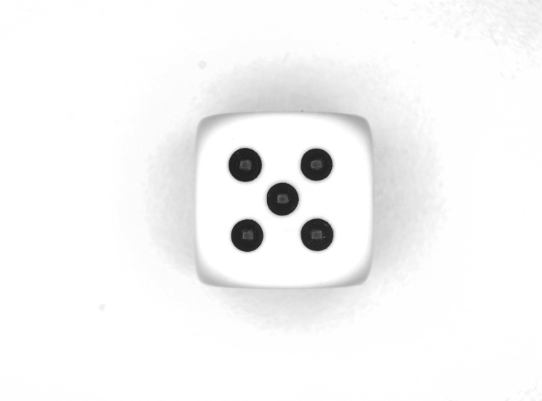
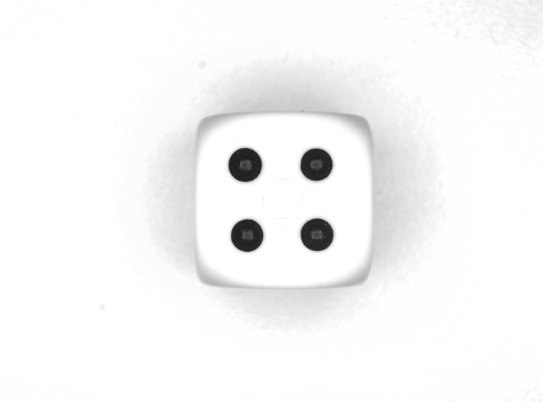
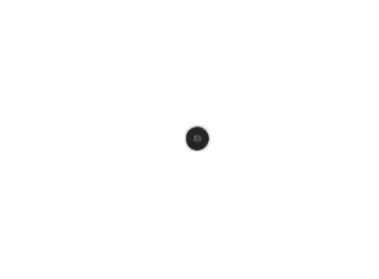
Analyzes two regions by merging them into a coherent, unified result. This operation is useful for tasks such as matching objects, merging adjacent regions, and evaluating segmentation accuracy.
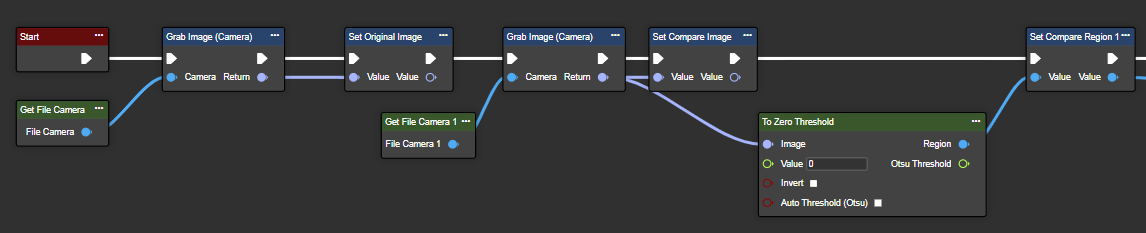
The "To Zero Threshold" function allows you to first convert an image into a region for comparison. The result can then be inverted using "Invert Pixel Region" and finally converted back into an image using "Region to Image".
Flow
Parameter set
|
Attribute |
Type |
Description |
Example |
|---|---|---|---|
|
Region 1 |
Region |
Binary image processed in black and white after segmentation. |
|
|
Region 2 |
Region |
Binary image processed in black and white after segmentation. |
|
|
Return |
Region |
Unified representation of two segmented areas. Differences are represented by black pixels, while similarities appear in white. |
|
Concat Regions
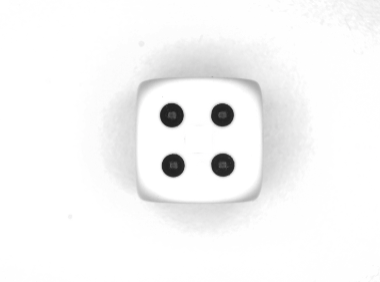
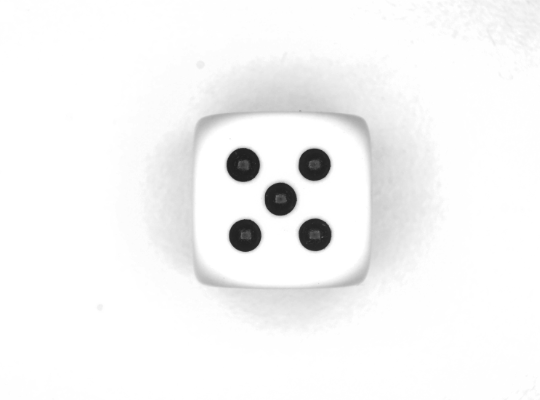
Concatenates two binary regions. The Concat Regions method combines two binary images using a bitwise OR operation, creating a new image in which all white areas (foreground) present in one of the input images are preserved – effectively merging their contents. To achieve this, the pixels in the example shown below are first inverted.
Flow

Parameter set
|
Attribute |
Type |
Description |
Example |
|---|---|---|---|
|
Region 1 |
Region |
Binary image processed in black and white after segmentation. |
|
|
Region 2 |
Region |
Binary image processed in black and white after segmentation. |
|
|
Return |
Region |
A new region representing the result of the bitwise OR operation between the two input regions. |
|
Subtract
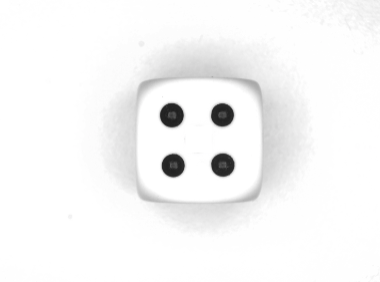
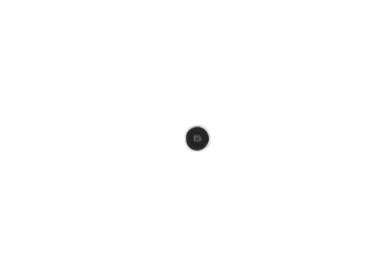
This node allows you to subtract one segmented region from another, which is useful for isolating differences or overlaps between the two regions (result = Region1 − Region2).
Flow

Parameter set
|
Attribute |
Type |
Description |
Example |
|---|---|---|---|
|
Region 1 |
Region |
Binary image processed in black and white after segmentation. |
|
|
Region 2 |
Region |
Binary image processed in black and white after segmentation. |
|
|
Return |
Region |
Binary image highlighting the differences between the two subtracted regions. |
|
Intersection
Compares the intersection of two regions. This operation is useful for identifying common areas or features shared by two segmented objects in an image.
Flow

Parameter set
|
Attribute |
Type |
Description |
Example |
|---|---|---|---|
|
Region 1 |
Region |
Binary image processed in black and white after segmentation. |
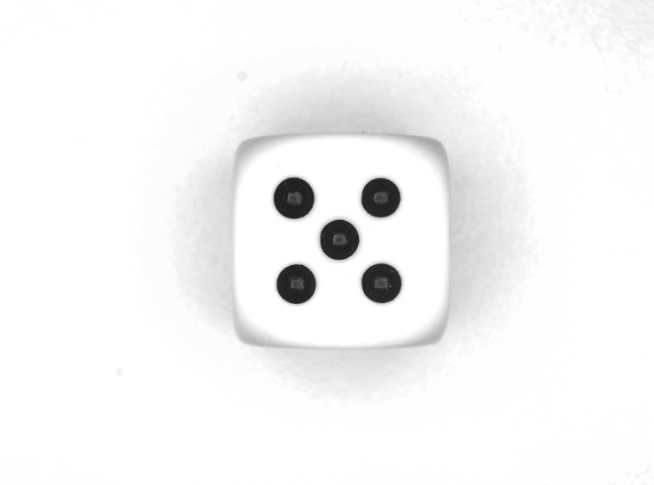
|
|
Region 2 |
Region |
Binary image processed in black and white after segmentation. |
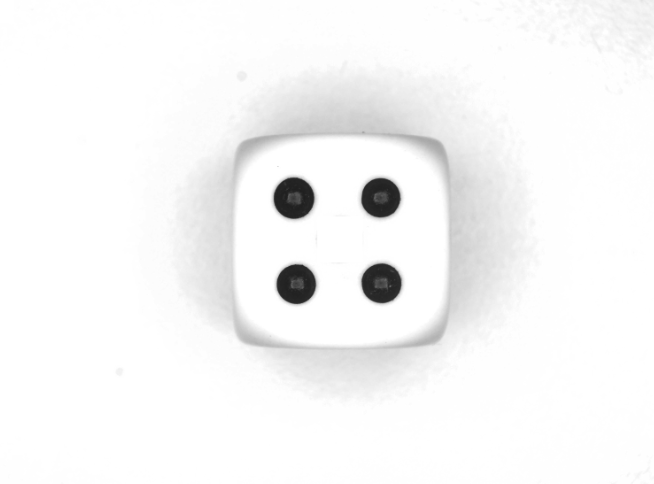
|
|
Return |
Region |
Binary image representing the overlapping areas between two regions. |
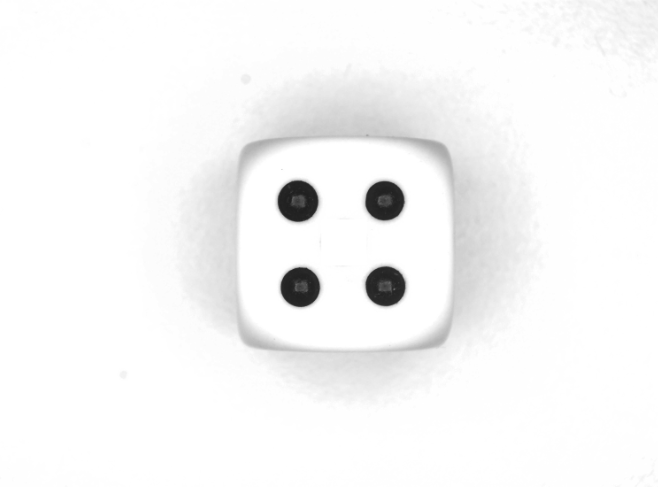
|
Invert Pixel Region
This node reverses or inverts the pixels of a specified region, typically from white to black and vice versa. This is useful for highlighting specific areas of interest or creating negative versions of images for particular applications.
Flow
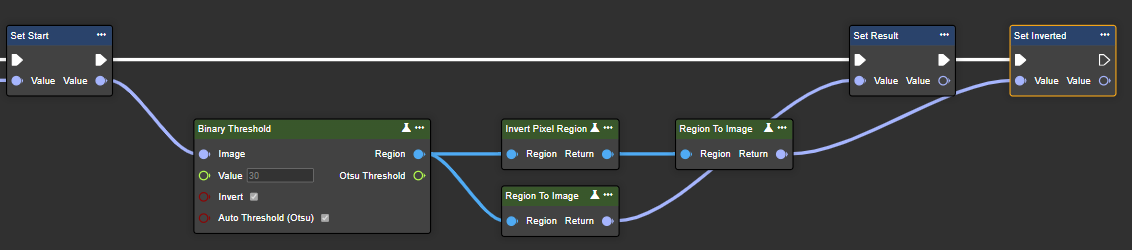
Parameter set
|
Attribute |
Type |
Description |
Example |
|---|---|---|---|
|
Region |
Region |
Binary image processed in black and white after segmentation. |

|
|
Return |
Region |
Inverted binary image. |

|
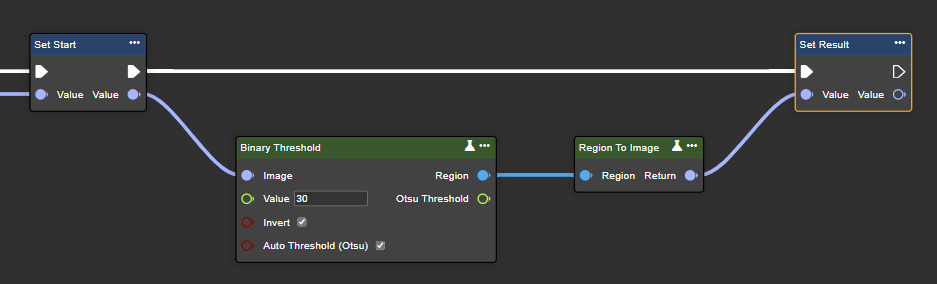
Region To Image
Converts a region (binary image) into a grayscale image. Required to display result images or regions as images.
Flow
Parameter set
|
Attribute |
Type |
Description |
Example |
|---|---|---|---|
|
Region |
Region |
Binary image processed in black and white after segmentation. |
|
|
Return |
Image |
The image is now saved in a more general image format that can be easily viewed, saved, or further processed. |
|
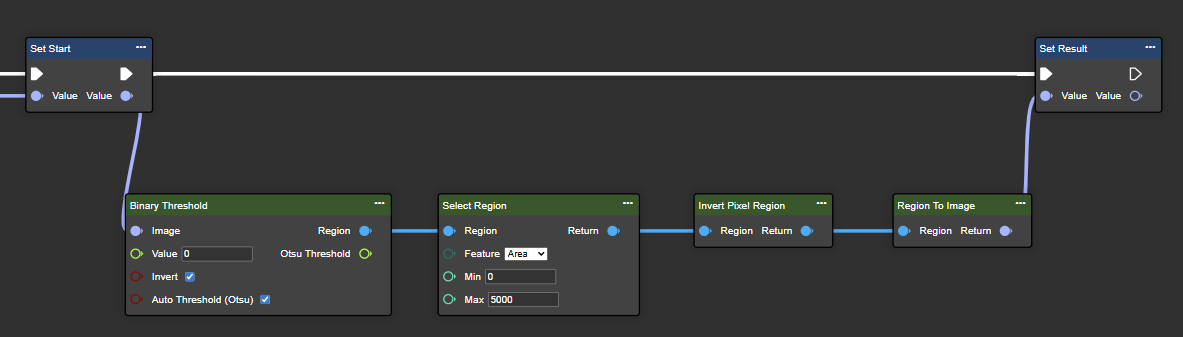
Select Region
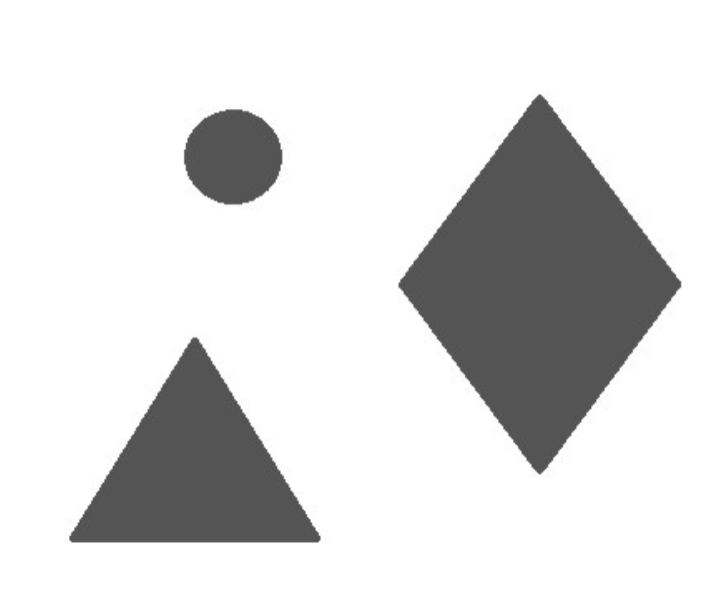
Select a range of regions specified by one of the following characteristics: area, index, height, or width.
Flow
Parameter set
|
Attribute |
Type |
Description |
Example |
|---|---|---|---|
|
Region |
Region |
Binary image processed in black and white after segmentation. |
|
|
Feature |
Feature |
Specifies which feature of the region should be filtered by: Area (total number of pixels), Index (index of each region based on the distance to the image origin in the upper left corner), Height (vertical extent) or Width (horizontal extent). |
In the example: area |
|
Min |
Int32 |
The minimum permissible value for the selected characteristic. The value must be at least 0. |
In the example: 0 |
|
Max |
Int32 |
The maximum permissible value for the selected characteristic. |
In the example: 5000 |
|
Return |
Image |
Filtered binary image containing only the parts of the original region that meet the specified criteria. |

|
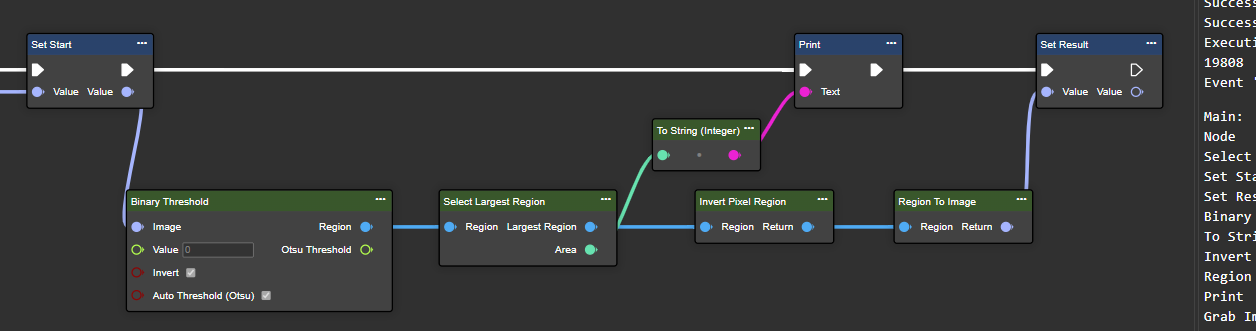
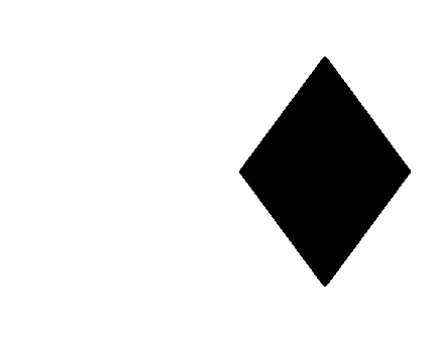
Select Largest Region
This node identifies the largest contiguous region in a binary image. This operation is useful for extracting dominant objects or areas of interest based on their size in the image.
Flow
Parameter set
|
Attribute |
Type |
Description |
Example |
|---|---|---|---|
|
Region |
Region |
Binary image processed in black and white after segmentation. |
|
|
Largest Region |
Region |
Largest region. |

|
|
Area |
Int32 |
Area of the largest region. |
|
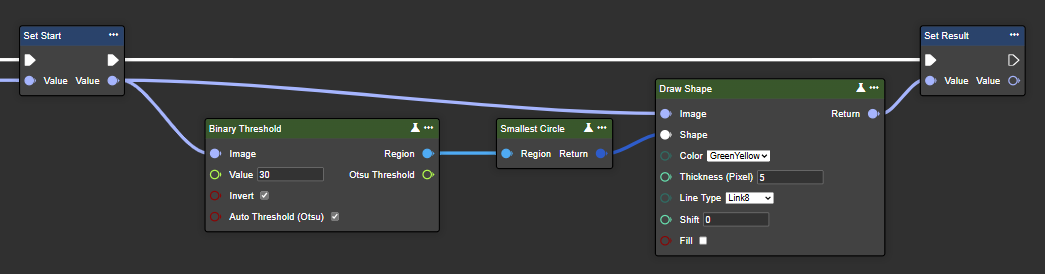
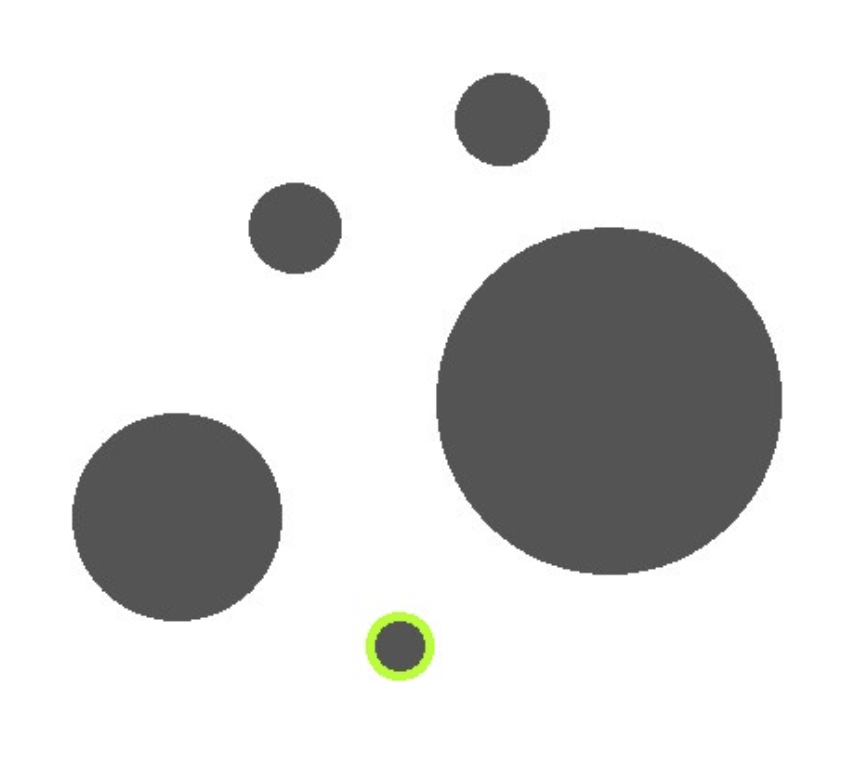
Smallest Circle
Calculates the smallest circle that can enclose the entire region in a binary image. This operation is useful for obtaining a compact geometric representation of the region, gaining insights into its spatial extent, and facilitating further analysis or measurement.
Flow
Parameter set
|
Attribute |
Type |
Description |
Example |
|---|---|---|---|
|
Region |
Region |
Binary image processed in black and white after segmentation. |

|
|
Return |
Circle |
Smallest district within the region. |
|
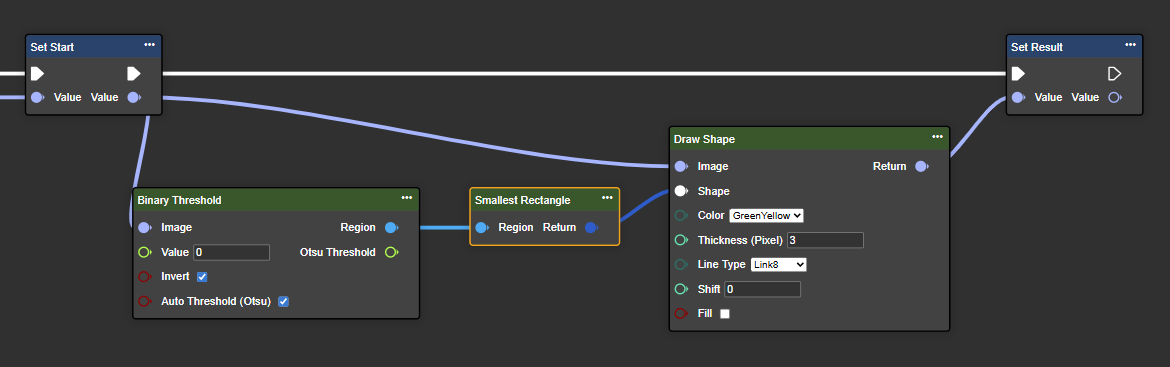
Smallest Rectangle
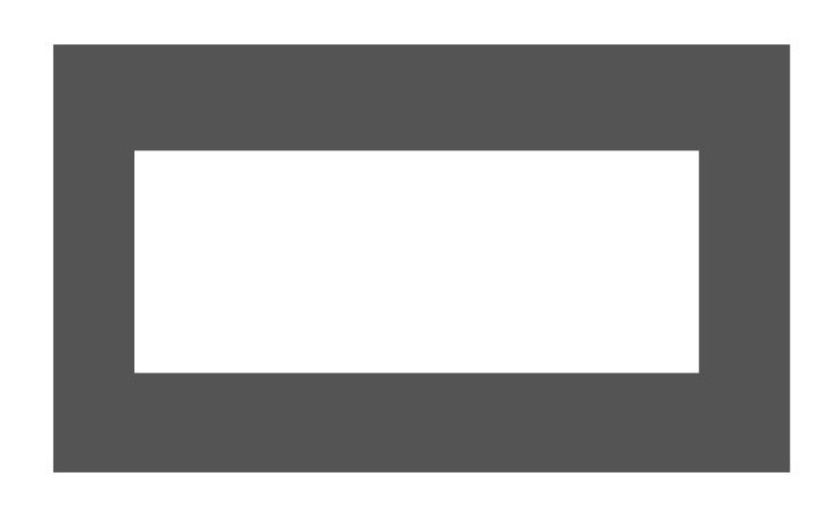
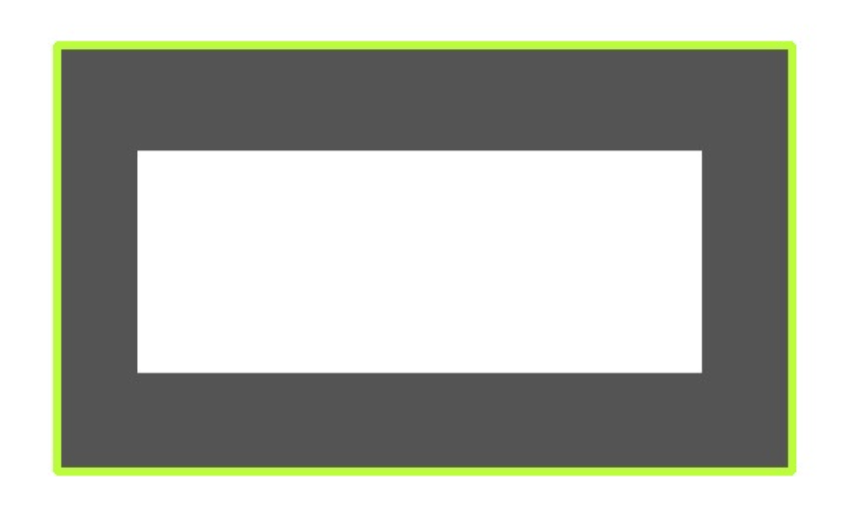
Calculates the smallest rectangle that can enclose the entire region in a binary image. This operation is useful for obtaining a compact geometric representation of the region, gaining insights into its spatial extent, and facilitating further analysis or measurement.
Flow
Parameter set
|
Attribute |
Type |
Description |
Example |
|---|---|---|---|
|
Region |
Region |
Binary image processed in black and white after segmentation. |
|
|
Return |
Rectangle |
Smallest rectangle within the region. |
|
Region Size
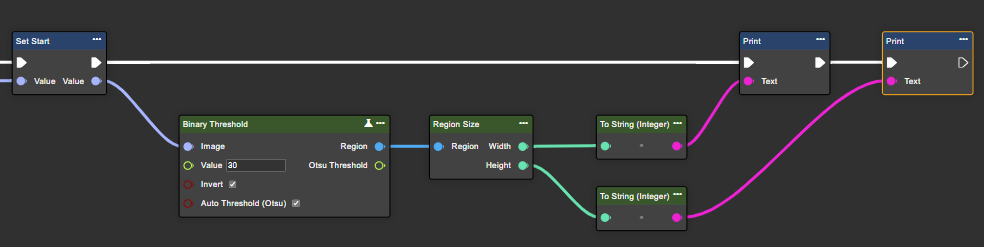
This node returns the width and height of a region based on your input.
Flow
Parameter set
|
Attribute |
Type |
Description |
|---|---|---|
|
Region |
Region |
Binary image processed in black and white after segmentation. |
|
Width |
Int32 |
Width of the region. |
|
Height |
Int32 |
Height of the region. |
Sort Regions
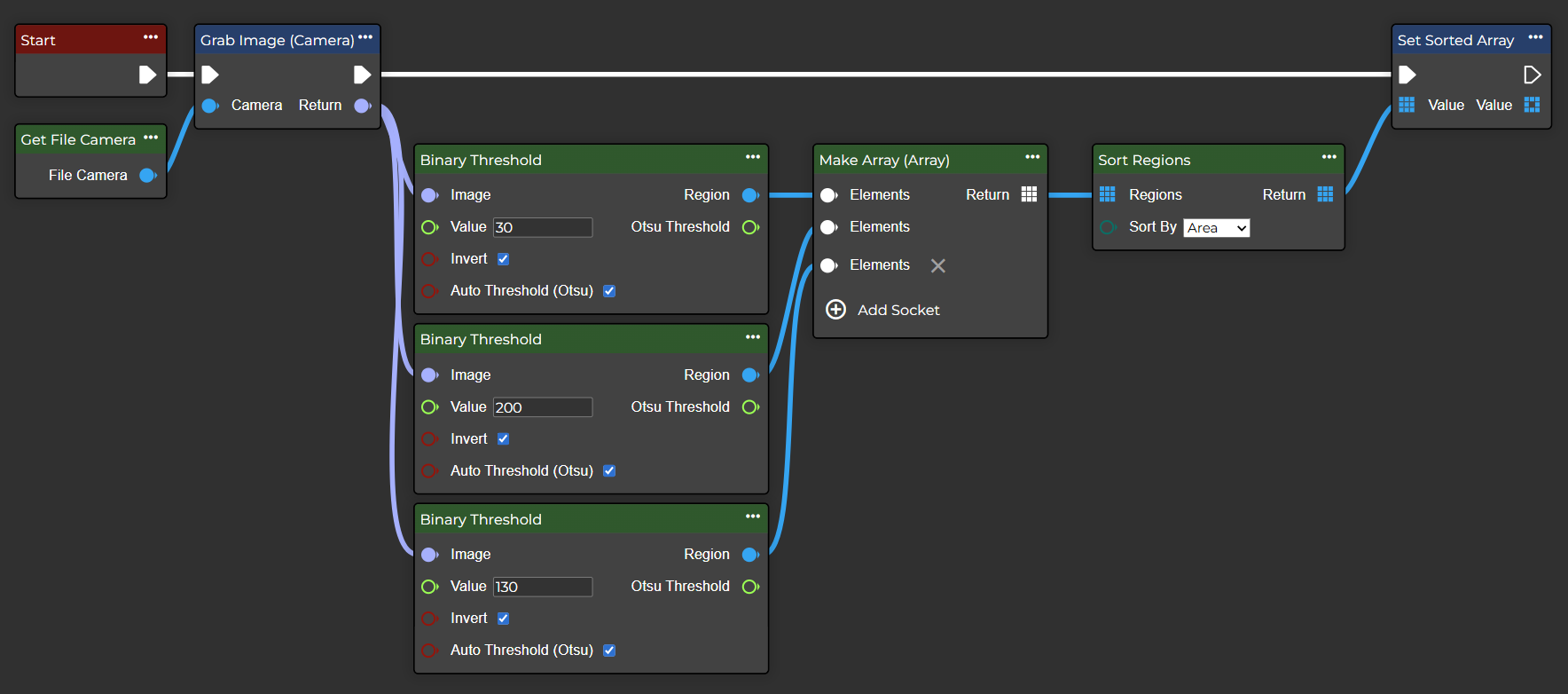
This node allows you to sort an array of regions based on a specific characteristic. The available options are X, Y, area, width, and height.
-
X and Y are sorted from smallest to largest.
-
Area, width, and height are sorted from largest to smallest.
Flow
Parameter set
|
Attribute |
Type |
Description |
|---|---|---|
|
Region |
Region |
Binary image processed in black and white after segmentation. |
|
Sort By |
SortFeature |
Sorting algorithm. |
|
Return |
Region |
Sorted region array based on the selected criteria. |
Sort Contours
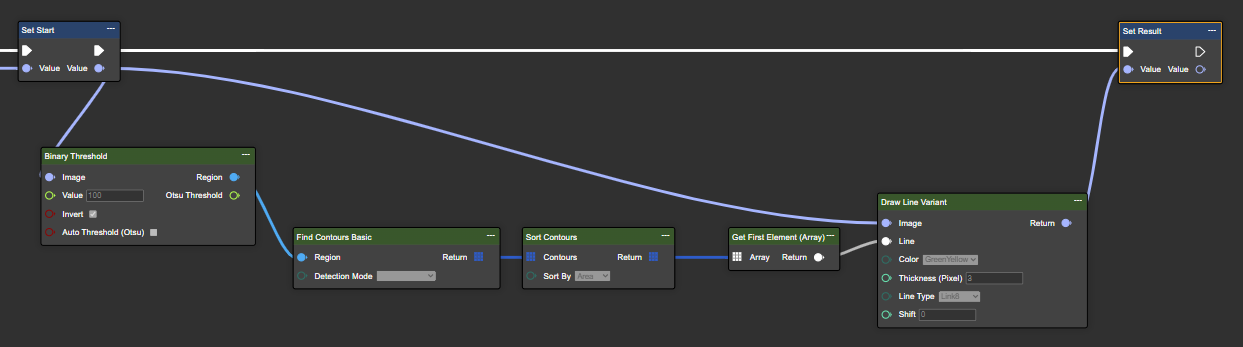
Sorts an array of contours by a specific attribute (X, Y, length, or area). It is also possible to limit the number of returned contours.
After sorting the array, the desired polygon can be returned using GetArray functions (GetFirstElement, GetLastElement, or GetElementAt, etc.). The order is sorted in descending order from largest to smallest area.
Flow
Parameter set
|
Attribute |
Type |
Description |
Example |
|---|---|---|---|
|
Contours |
Polyline |
Input array of polylines representing the contours. |
|
|
Sort By |
SortCriterion |
The criterion by which to sort: X, Y, length or area. |
In the example: area |
|
Return |
Polyline |
Sorted array of contours (polylines). |
|
Sort Edges
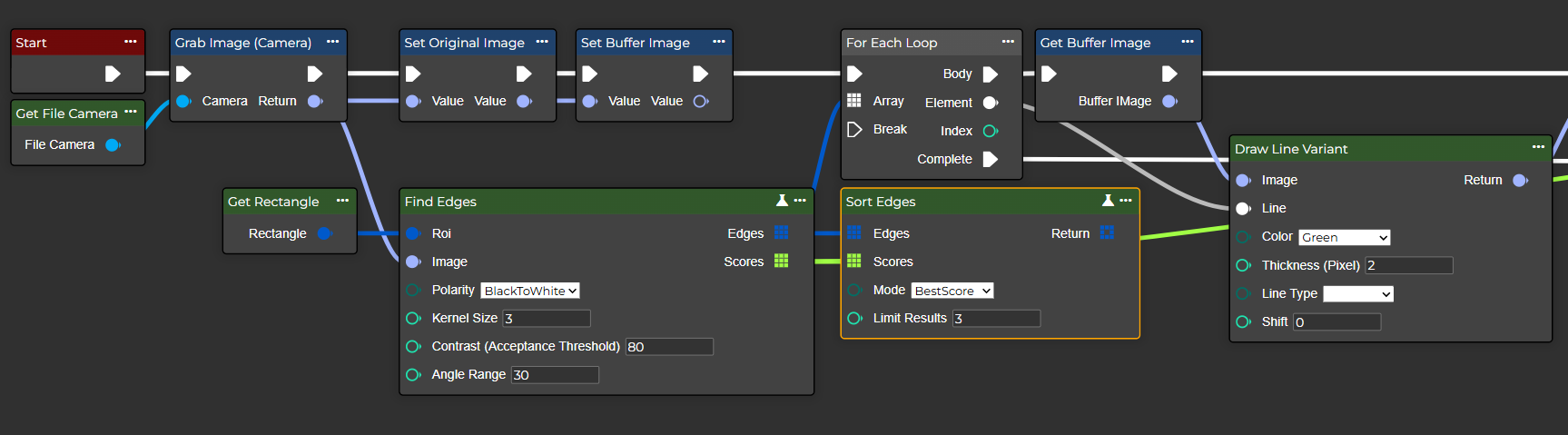
This node allows you to sort an array of edges based on a specific feature.
Flow
Parameter set
|
Attribute |
Type |
Description |
|---|---|---|
|
Edges |
Segment 2D |
The array of detected edge segments. |
|
Scores |
Single |
The corresponding score for each edge. |
|
Mode |
SortEdgesMode |
Determines the sorting method applied to the edges. You can choose from the following options:
|
|
Limit Results |
Int32 |
Optional limit on the number of results. Specifying 0 or a negative value returns all results. |
|
Return |
Segment 2D |
Returns the edges sorted. |