
OPC-UA (Open Platform Communications Unified Architecture) is a standardized communication protocol for the secure and reliable exchange of data between industrial devices and systems. It enables access to both real-time process data and structured information in the form of a hierarchical information model.
In the VISIONWEB platform, OPC-UA is integrated using two separate components:
-
a client that establishes a connection to an OPC-UA server and allows you to read and write data to specific nodes;
-
and a subscription that, via the connected client, periodically accesses defined data points (nodes) and triggers an event whenever that data changes.
A subscription can only be used if a corresponding client has been created beforehand. Both are linked together via the "Connection Name" parameter.
Connection parameters
|
Parameter |
Type |
Unit |
Description |
Example |
Subscription |
Client |
|---|---|---|---|---|---|---|
|
Connection Name |
String |
|
This refers to the configured client component through which the connection is established. A subscription cannot be created without a client. |
evoviu-cam1 |
|
|
|
OPC-UA Endpoint |
String |
|
Specifies the connection address (URL) of the OPC-UA server to which the client should connect. |
opc.tcp://opc.myfactory:4840
|
|
|
|
Timeout |
Int32 |
[ms] |
This setting defines the maximum amount of time to wait for a server response or for the completion of a specific action. |
5000 |
|
|
|
Security Enabled |
Boolean |
|
This attribute can be used to verify the trustworthiness of the endpoint. |
|
|
|
|
Auto Create Certificate |
Boolean |
|
This setting determines whether a certificate should be created automatically or not. |
|
|
|
|
Variable Name |
String |
|
Specifies the NodeId of the desired OPC-UA variable that needs to be accessed. |
ns=2;i=1234
|
|
|
|
Cycle Time |
Int32 |
[ms] |
This specifies the polling interval in milliseconds, which determines how often the subscription updates the values of the specified nodes from the OPC-UA server. The event will only be triggered again if the data changes. |
250 |
|
|
Workflow Setup
Differences between OPC-UA Client and OPC-UA Subscription
The OPC-UA client establishes a connection to an OPC-UA server and allows access to its data points (nodes). An OPC-UA subscription, on the other hand, enables automatic reception of values from these nodes when they change, without the need for active polling. However, the frequency of this automatic polling is set using a predefined cycle time.
The VISIONWEB platform allows you to configure any number of clients and subscriptions. Multiple subscriptions can be managed through a single client connection, by linking them to the respective client using a unique connection name.
A subscription can only be created after a client has been established. The client component is responsible for establishing the connection to the OPC UA server.
For example, a change in a measured value (such as a production parameter) can be detected via a subscription and used to trigger a workflow, while the same client can use additional subscriptions to monitor other values from the same server. At the same time, it is possible to use a separate client to retrieve data from another OPC UA server, such as status or diagnostic data.
Creating the OPC-UA Client - step by step
-
In Workflows, under Components, click the ➕.

-
Search for "OPC-UA Client" and select the entry to add the component.
-
A new component named "OPC-UA Client" will appear. You can change this name at any time.
-
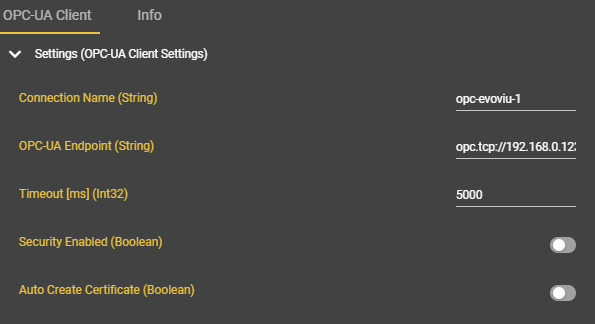
Please enter the connection parameters.
The minimum requirements are the client name (for later linking with a subscription) and the URL. All other fields are optional and can be used depending on the authentication method.
-
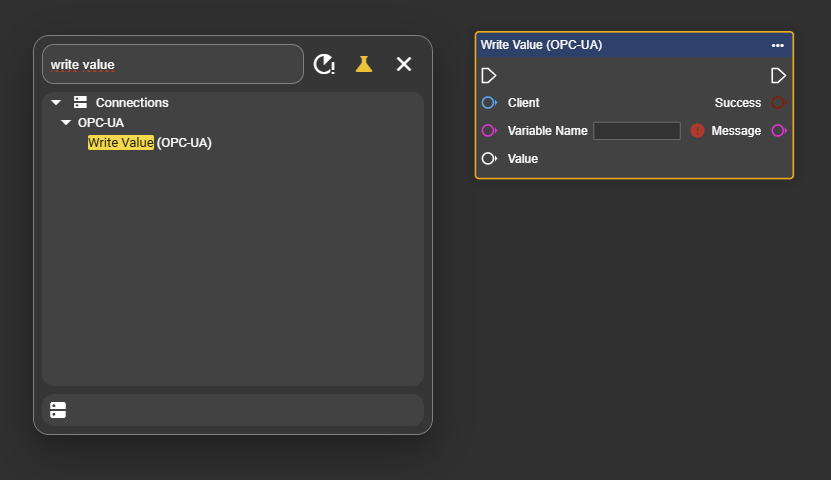
Select the Event Graph tab and open the context menu by right-clicking.
-
Search for the "Write Value" node under OPC-UA and add it to your workflow to send data.
-
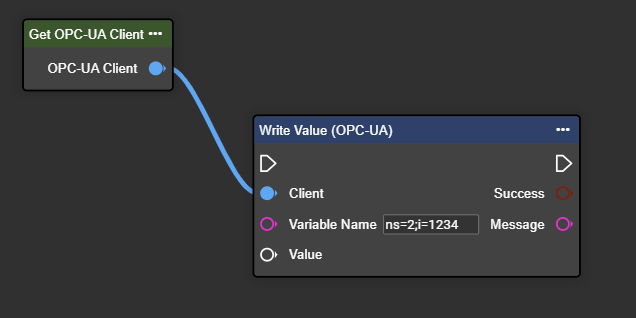
Next, select the "Get OPC-UA Client" component and connect it to the "Write Value" node. Enter the desired "Variable Name" – which is the node identifier of the OPC-UA connection, e.g.,
ns=2;i=1234.
-
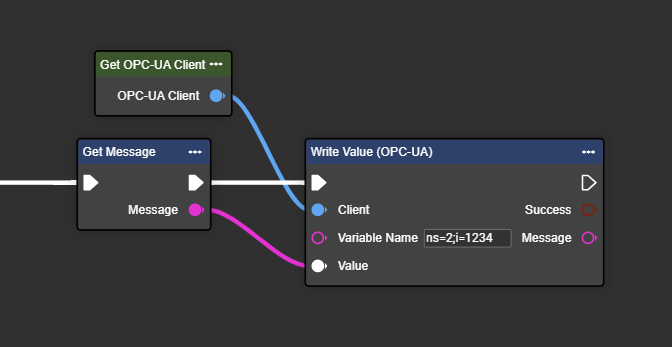
Select the variable or data structure you want to send, and then paste it into the Value wildcard field.
-
If desired, you can display the result of the transfer as a Boolean value to check whether the transfer was successful. The message containing any relevant information can also be stored in a variable, or, as shown in this example, displayed in the Output tab using the "Print" node.
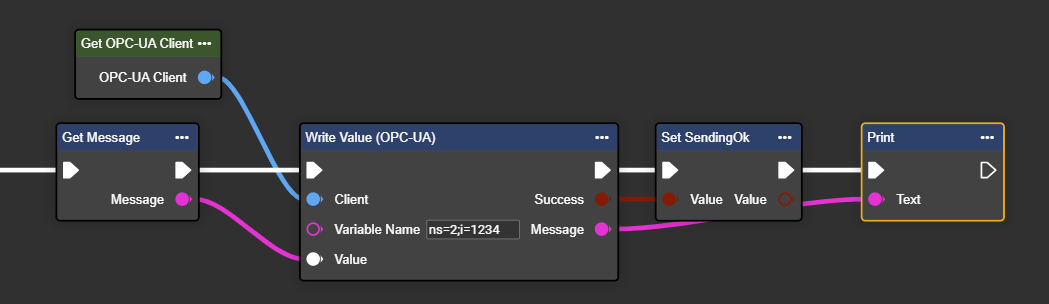
Congratulations! You can now send your data to the desired OPC-UA server.
-
Conversely, if you want to read data during a flow, you can use the "Read Value" node of the OPC-UA connection.
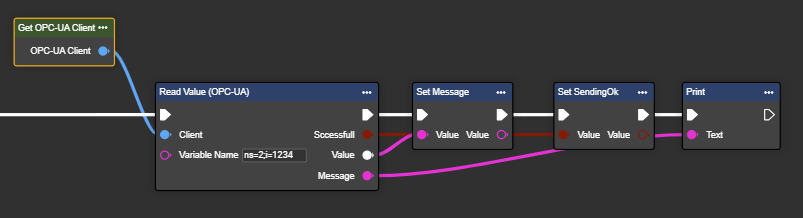
Congratulations! You can now read data from your desired OPC-UA server node.
Creating the OPC-UA Subscription - step by step
Before performing this step, an OPC UA client (see above) must be created, and a connection name (in our example, "opc-evoviu-1") must be defined for linking to the client component. This name can be chosen freely.
-
In Workflows, under Components, click the ➕.

-
Search for "OPC-UA Subscription" and select the entry to add the component.
-
A new component will appear with the name "OPC-UA Subscription". You can change this name at any time.
-
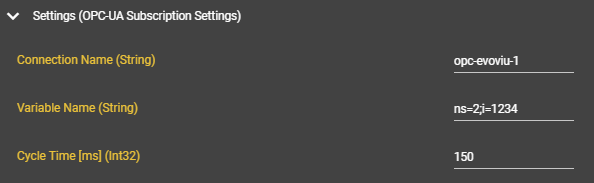
Please enter the connection parameters.
In this example, the system checks every 150 ms whether the value of the node ns=2;i=1234 has changed. As soon as a change is detected, the flow is triggered. Please note that the execution of this flow only begins after the previous flow has completed. This may result in a slight delay.
-
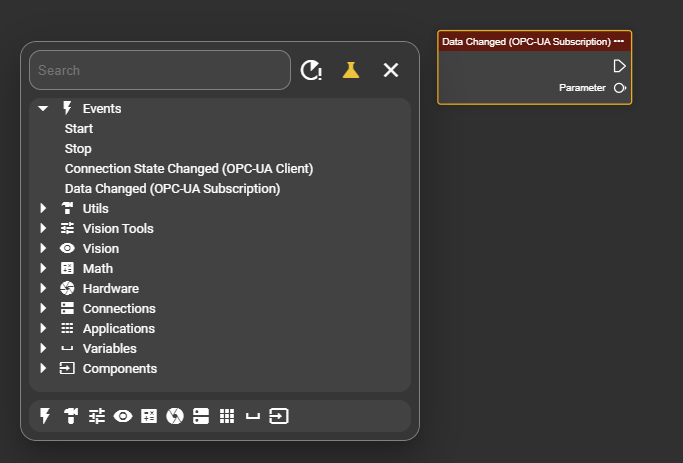
Select the Event Graph tab and open the context menu by right-clicking.
-
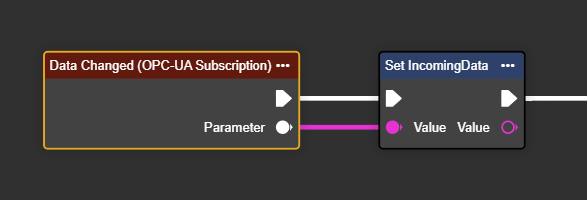
Under Events, search for the "Data Changed (OPC-UA Subscription)" node and select it to trigger a flow when the node is updated on the server.
-
Retrieve the dataset directly into the desired variable using the wildcard parameter.
Please note: The server determines the data type that comes from each node.
-
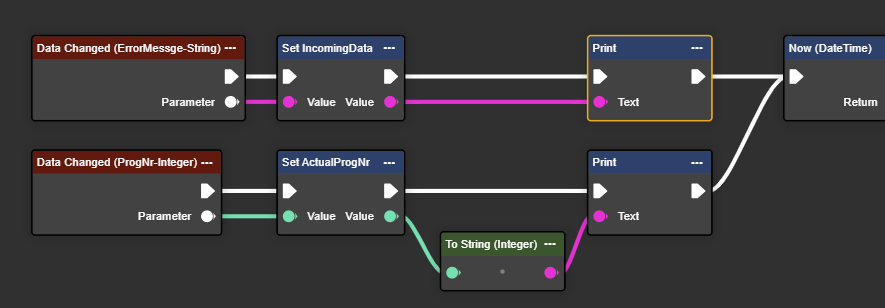
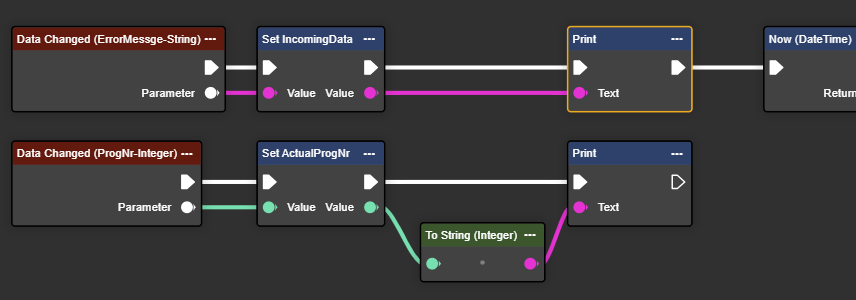
If you have multiple data types or nodes on the OPC UA server that need to be monitored for updates, you can create multiple subscriptions. These subscriptions can each trigger a separate flow independently (see example 1) or work sequentially in parallel (see example 2), depending on the desired behavior.

Congratulations! You can now retrieve data from your desired OPC-UA server using a subscription.